Your team
Your shop and your data
Updated on Wednesday 30 September 2026
The settings sections, the CSV export, sample data and how to close the shop.
Your store is where you decide how Atiéndalo works for you: the name, the rhythm of your closings, the fees, the labels, your team and your data. Only admins get in there; your name, your language and your password are a different thing and live in Your profile.
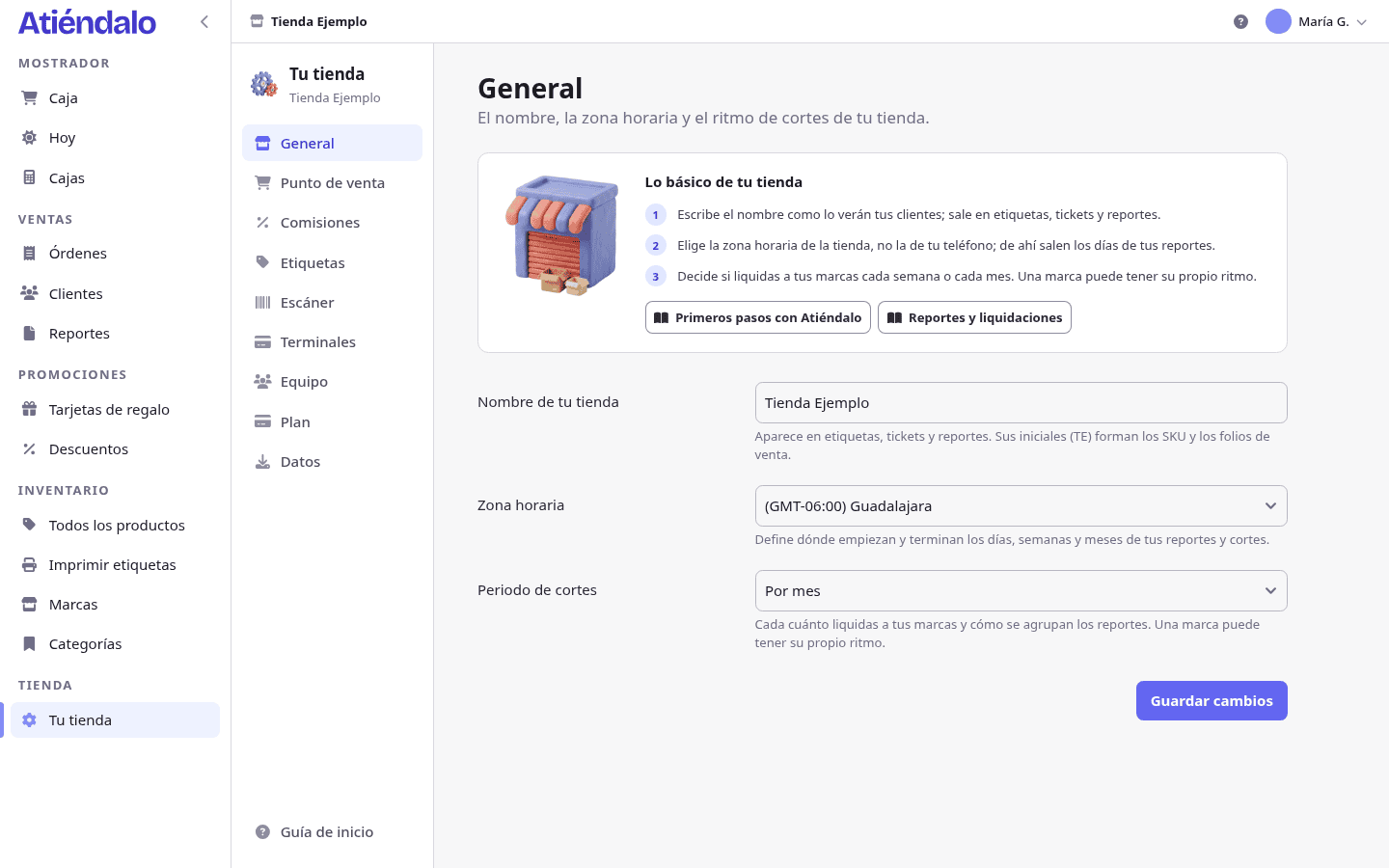
The sections
- General — the shop’s name (its initials form your SKUs and sale numbers), the time zone that rules every report, and the Settlement period, weekly or monthly.
- Point of sale — the Stock mode (flexible or strict), whether an open Cash register is required to sell, and how long gift cards last.
- Fees — what your terminal charges you and the VAT on top of it. It’s deducted from what the brand is paid, never charged to the customer.
- Labels — your printer’s label size, the title it carries, the preview, and the Test label. The whole recipe is in Labels & printers.
- Scanner — the reader test and whether to show the Camera button for scanning with a phone. The details are in Scanners & barcodes.
- Team — the summary of who enters your shop: active users, pending invitations and who the owner is. It’s managed in Your team, roles & invitations.
- Import data — bring products, brands, stock and customers from Excel, another system or a PDF, and see your latest imports. The details are in Importing your inventory.
- Data — export everything, or close the shop.
- Plan — your subscription: the trial, the plan, the invoices and how they are paid. The details are in Subscription and payments.
Each section saves on its own with Save changes.
Taking your data with you
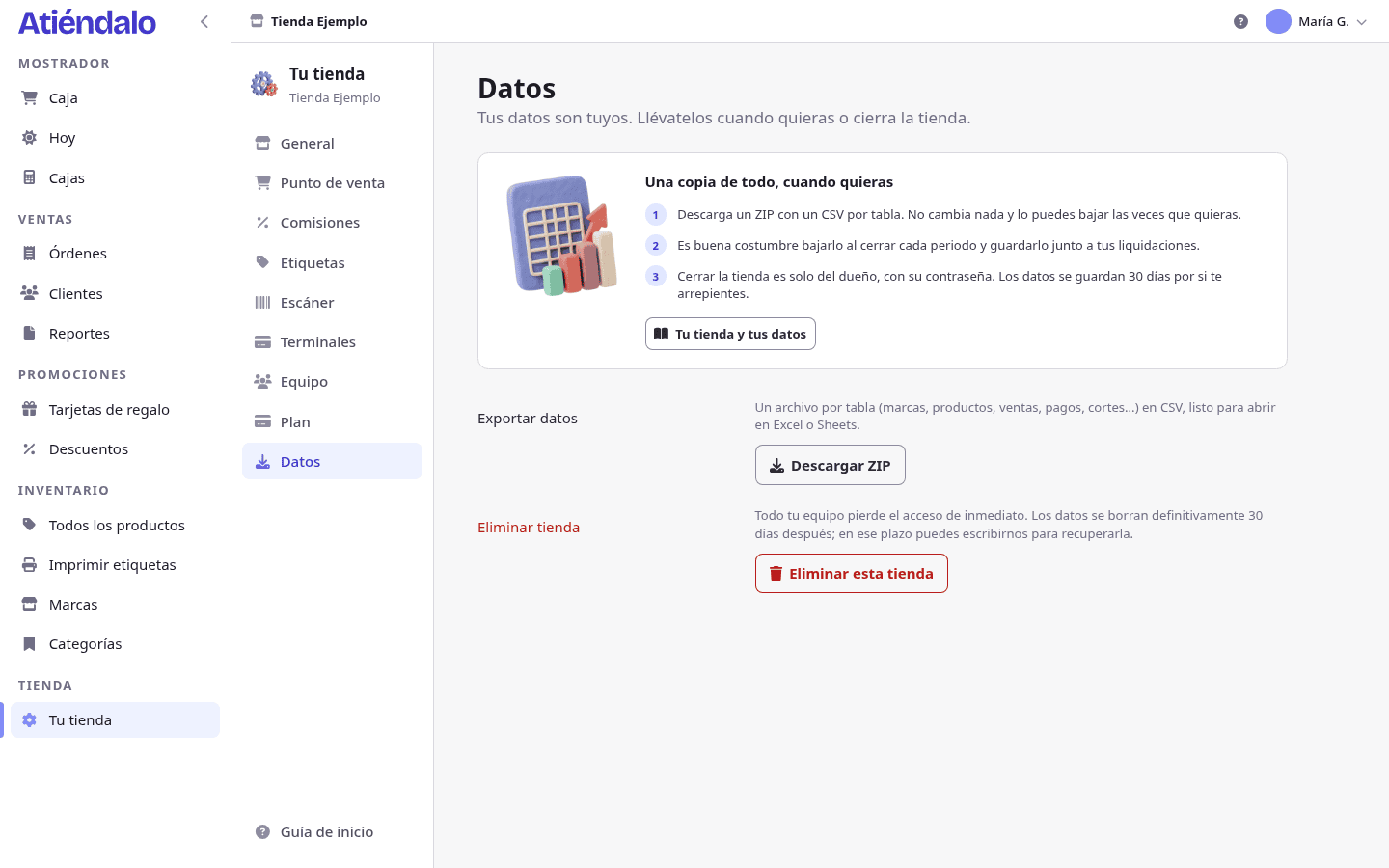
Under Your store → Data, Download ZIP hands you a file with one CSV per table: brands, categories, products, customers, coupons, gift cards, stock receipts and their lines, stock movements, orders with their lines, payments, events and returns, settlements, registers and their cash movements, and physical counts. Plus a users.csv with your team (name, email and role) and a text file explaining what’s inside.
Worth knowing before you open it:
- Ids are kept, so the files cross-reference each other:
order_items.order_idpoints atorders.id. - Money lives in columns ending in
_cents: pesos in integer cents. Divide by 100. - Timestamps are UTC, not your shop’s zone.
- It doesn’t include passwords or tokens, nor your brands’ private portal links, nor label or receipt PDFs: those are generated again whenever you need them.
Downloading changes nothing. Do it as often as you like — once at the end of every period is a good habit.
Sample data
While the shop is empty, the home screen offers Load sample data: made-up brands, products and sales so you can walk through the reports without entering anything. It takes a minute; reload the page.
When you want to start for real, Delete sample data leaves the shop clean: brands, products, customers and sales go, and your users and their access stay. The load button only shows up in an empty shop, so once you’ve entered your own data there’s no risk of mixing the two.
Closing the shop
Only the owner can close it, confirming with their password. If the owner is gone, the shop has to be transferred to another admin first: Your team, roles & invitations explains how.
- Before anything else, download your ZIP from the Data section.
- Under Your store → Data press Delete this shop.
- Type Your password and confirm with Yes, delete the shop.
What happens right then:
- Your whole team loses access immediately, on every device. Anyone who belongs to another shop lands in it; anyone who doesn’t is left outside.
- The data is still kept for 30 days. Within that window the shop can be brought back exactly as it was.
- The owner gets an email with the exact erase date and the address to write to in order to get it back: hola@atiendalo.com. Write before that date.
After the 30 days everything belonging to the shop is erased for good: brands, products, receipts, sales, payments, register closings, counts and settlements. What is not erased are the users: each person keeps their login and their access to any other shop they’re in.
What can go wrong
- You can’t see the shop settings. They’re admin-only. With the staff role you get checkout and the counter, not the settings.
- You changed the name and the old SKUs didn’t change. The initials are frozen on each product when it’s created. New products use the new initials; older ones keep their SKU and barcode.
- “Load sample data” is gone. It’s only offered in an empty shop. Once you have a brand, a customer or a sale, it disappears.
- The ZIP shows absurd numbers in the prices. They’re cents: a
_centscolumn with 12500 is 125.00 pesos. Divide by 100. - You pressed “Delete this shop” and it says the password is wrong. The shop is still active, nothing happened. If you sign in with a link and have no password, create one from your profile first.
- You closed the shop by mistake. You have 30 days. Write to hola@atiendalo.com from the owner’s email and we bring it back as it was.
- An admin wants to close the shop and can’t. Only the owner can. If it’s needed, have the owner transfer the shop first.