Inventory
Products & SKUs
Updated on Thursday 8 October 2026
Create products, understand SKUs and barcodes, and keep your catalog current.
A product is each physical item you sell. It belongs to a brand, carries its own barcode and its own stock, and it is what the scanner finds at the register.
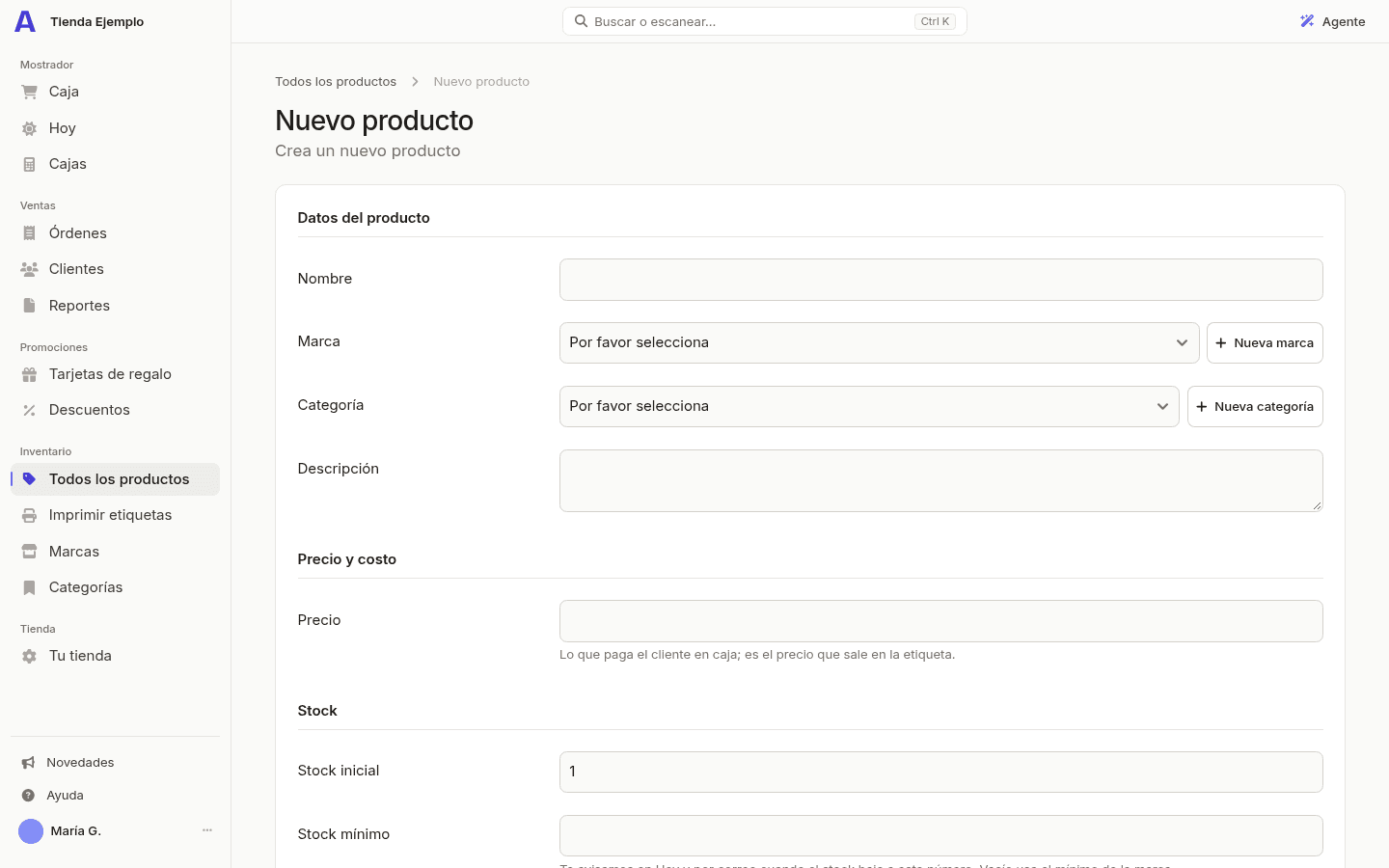
Creating a product
- Open All products and press Create a product, or go into the brand and use Add a product on its Products tab.
- Type the Name and pick the Brand. If you have none yet, New brand lets you create one without leaving the form.
- Optional: pick a Category (or create it right there with New category) and write a Description.
- Enter the Price and, if you know it, the Cost.
- Under Codes, leave Code blank so Atiéndalo generates one, or type the manufacturer’s code and pick its Barcode type.
- Enter the Initial Stock (the pieces you already have) and, if you want the low-stock alert, the Low-stock threshold.
- Press Create Product.
On creation, Atiéndalo generates automatically:
- SID — a running number inside the brand. It is the big number on the label and the fastest way to find a product by hand.
- SKU — in the format
INITIALS-BRAND-SID, e.g.TN-3-41: shop “TN”, brand 3, product 41. It cannot be edited. - Barcode — if you left it blank, a unique 8-digit EAN-8. If you typed the manufacturer’s code, Atiéndalo validates the check digit and that no other product in your shop already has it.
Initial Stock is not a field you edit later: it is recorded as the product’s first stock receipt. From then on, stock moves through stock receipts and sales.
The product page
The page shows price, cost, margin, sales, orders and the full stock movement history, with the reason behind each one.
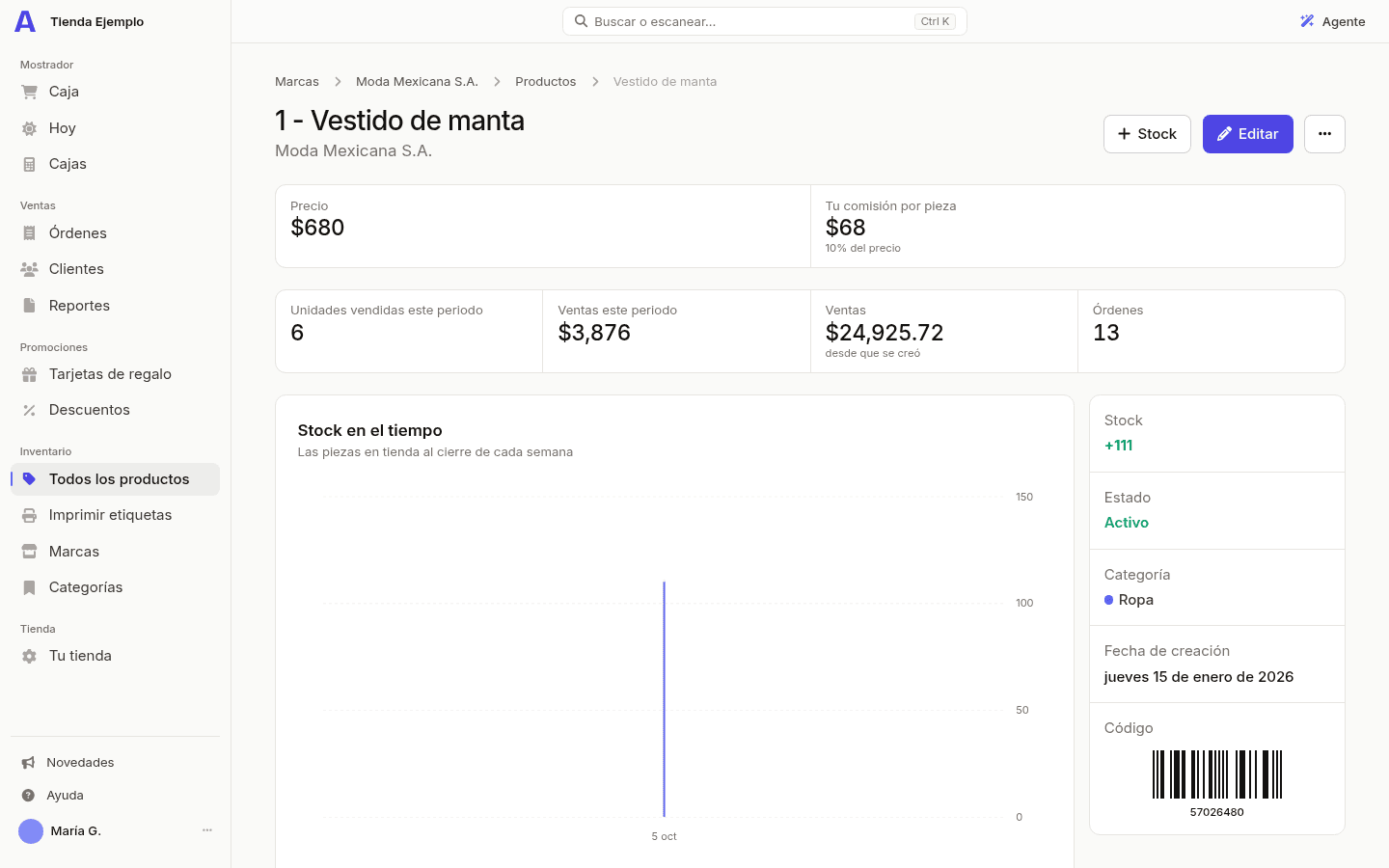
From there you can:
- Stock — opens a small window to add units without leaving the screen. They go into that brand’s receipt for the day; if there isn’t one, it is created.
- Edit — change name, price, cost, category, code and threshold. The brand cannot be changed after the product is created.
- ··· → Duplicate — creates a copy with the same name, price, cost and category, and brand-new SID, SKU and barcode.
- ··· → Print label — opens the print dialog for this product.
- ··· → Deactivate — it stops showing at the register and keeps its history.
- ··· → Delete — only appears if the product never had receipts or sales.
Cost and margin
Cost is what the unit costs you, and it is optional. It only exists on your own stock: on a product of a consigned brand the field does not appear, because what it costs you is what you pay the brand.
If you fill it in, the product page shows the Margin per piece (price minus cost) with its percentage and the Markup over the cost, plus what sold in the period and the Profit it left. The product list adds up the Value at cost of your stock and the margin it would leave, and reports gain cost of goods sold, margin and profit. Cost is frozen on every sale: changing it today does not rewrite yesterday’s reports.
If the product had already sold without a cost, filling it in makes the product page say how many sales were left without one and offer Apply the cost to those sales (on Enter costs, the row offers the same once saved). It only fills the sales of your own stock that had no cost: a sale that already had one keeps it, and what was charged, the card fee and anything paid to anyone stay as they were. Only the margin and profit in your reports move.
To fill in many at once, press No cost on All products: it opens Enter costs, the list of your products with no cost, where you type each one and it saves when you leave the field. You can also narrow it to one supplier.
On a consigned product the page shows Your fee per piece instead: what each sale leaves you at the brand’s consignment percentage.
Whoever is neither an admin nor has the Reports and figures permission sees no costs or margins, neither on the list nor on the product page, and can’t type them either.
Low-stock threshold
Set a Low-stock threshold per product, or a general one per brand (the Low-stock threshold per product field on the brand) that applies to products without one of their own. When stock reaches that number:
- the product is flagged Low stock in the lists,
- it shows up on Today with the shortage list,
- and the shop owner gets a daily email while any product is under its threshold.
A product with no threshold of its own and none on its brand never raises an alert.
Categories
Categories group products with a color. They are optional, but reports break sales down by category, so they pay off from day one. Deleting a category leaves its products with no category; nothing else is removed.
Editing several products at once
- Go into the brand, Products tab.
- Tick the checkboxes of the products.
- Press Edit in the selection bar.
- Change the category, Set price or Change % (for example
-10to cut 10%), and/or the cost. - Press Apply.
Anything left on “No change” is untouched. The same bar offers Deactivate and, with the Inactive filter, Purge products.
Importing products
To bring in many products at once (your Excel, your old system’s export, a brand’s PDF), use the import: on the brand page, ··· menu → Import products, or Import a file. You review every row before saving and the labels are ready when it finishes. All the details are in Importing your inventory.
Labels and barcodes
You can print a product’s label from its own page, from the brand’s Products tab (selecting several), from the receipt that just arrived, or from Print labels. The same dialog always opens: it shows the label exactly as it will print, how many will come out, the size and the copies.
To pick a printer, set it up once and print at the right scale, read Labels & printers. For the reader and what a scan does on each screen, read Scanners & barcodes.
About stock
Available stock is computed: stock receipts minus units in completed sales and layaways. Void a sale and the stock comes back on its own. To fix quantities, record a positive or negative stock receipt, or apply a physical count; do not edit the product.
Downloading the inventory
On All products, the Print button in the header opens your inventory as a PDF, and the [···] menu, under Inventory, downloads it as Excel or CSV too (the PDF to print: grouped by brand, with a subtotal per brand and the totals on top): one row per active product, those at 0 too, with its stock, price and value at price and, on your own stock, the cost, the value at cost and the margin per piece. It follows the list’s search and filters at that moment. The XLSX totals are the cards above the list. Only admins and the Reports and figures permission see it; it also downloads from the Reports menu, by brand.
What about sizes and colors (variants)?
Atiéndalo has no variants: each size or color is a product with its own barcode and its own stock. That is on purpose: the scanner needs one code per physical item, counts and settlements are done per product, and a black M t-shirt and a black L sell and restock separately.
So you don’t type the same thing ten times, create the first one and use Duplicate on its page: it keeps name, price, cost and category, and generates a new SID, SKU and barcode. A naming convention like “Basic tee - M - Black” keeps variants together in lists and in the register’s search. Thresholds are per product too, so a size that flies off the shelf can have its own alert.
What can go wrong
- “This product already has receipts or sales” when deleting. A product with history is not deleted, it is deactivated: it stops showing at the register and its past sales keep counting for the brand.
- The manufacturer’s code is rejected. Either the check digit does not match the type you picked, or another product in your shop already has that code. One code belongs to one product; if two brands carry the same one, leave the second without a code so it gets its generated EAN-8.
- You changed the price and the report didn’t change. That is correct: every sale stores the price, the cost and the consignment rate as they were at the time.
- Stock doesn’t match the shelf. Don’t edit it by hand — there is no stock field. Record a positive or negative receipt, or run a physical count and apply it.
- You picked the wrong brand on creation. The brand cannot be changed. Delete the product if it has no movements yet, or deactivate it and create it under the right brand.
- The import created fewer products than you uploaded. Rows with errors are skipped: check the import’s Errors tab, it is usually an empty price.