Sales & checkout
Orders & receipts
Updated on Friday 18 September 2026
Find a sale, go through its payments and history, cancel it, and share the digital receipt with the customer.
Every sale you ring up is saved as an order: its lines, its payments, who made it and everything that happened to it afterwards. That’s where you record deposits, cancel, return and send the receipt.
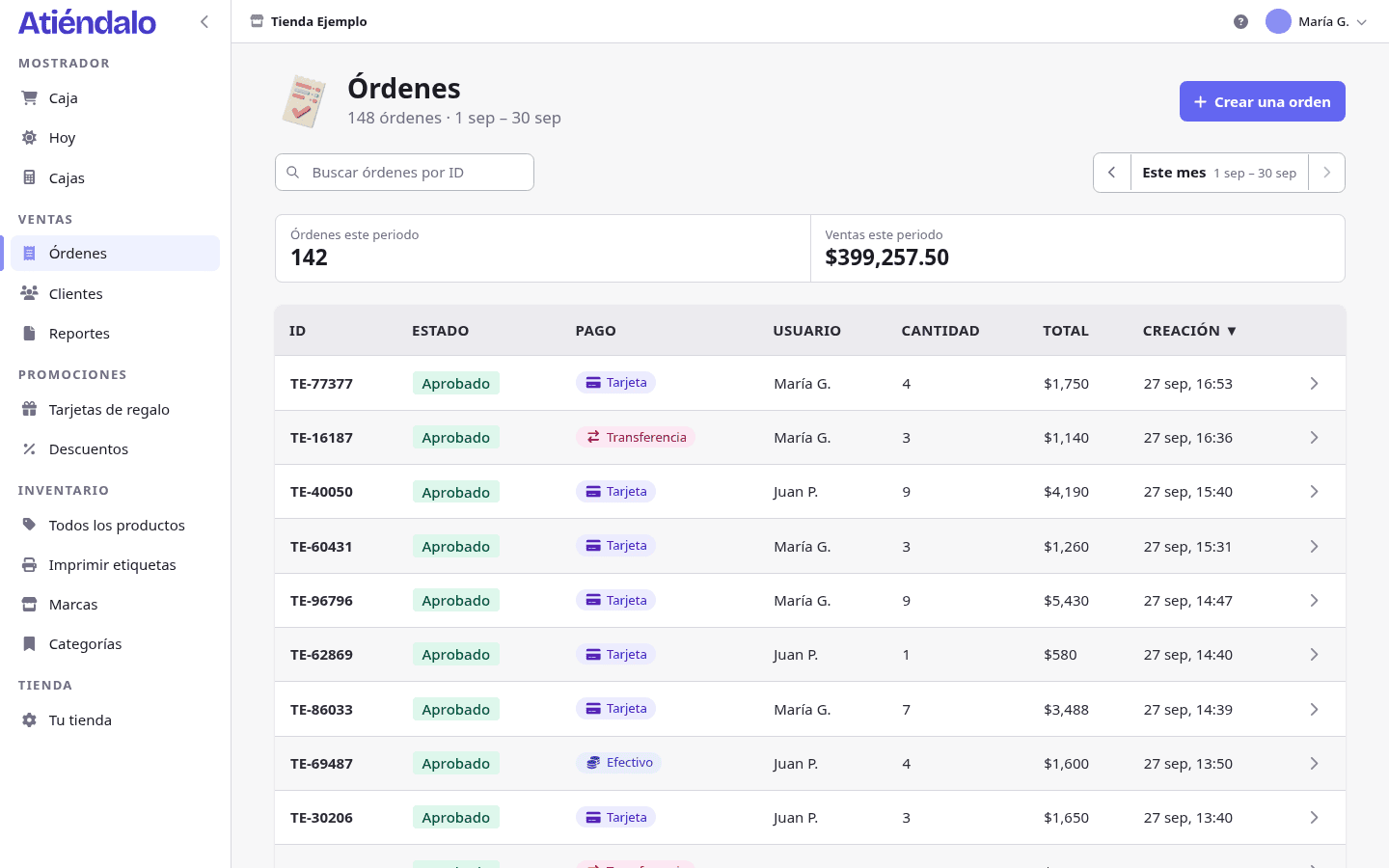
The orders list
Sales → Orders shows the current period’s sales, newest first.
- Period. Previous and Next move the period; above them you see which one you’re on, with Orders this period and Sales this period.
- Search. The Search orders by ID box finds by order ID or by the name of whoever rang it up, and it searches every order, not just the period on screen.
- Sort. The Status, Payment, User, Quantity, Total and Creation headers sort the table. On a phone the table becomes cards.
- Who sees what. Counter staff only see their own sales; admins see them all.
The states are Pending, Approved, Layaway and Canceled. Only Approved counts as a sale in reports and settlements. See Reports & settlements.
The order
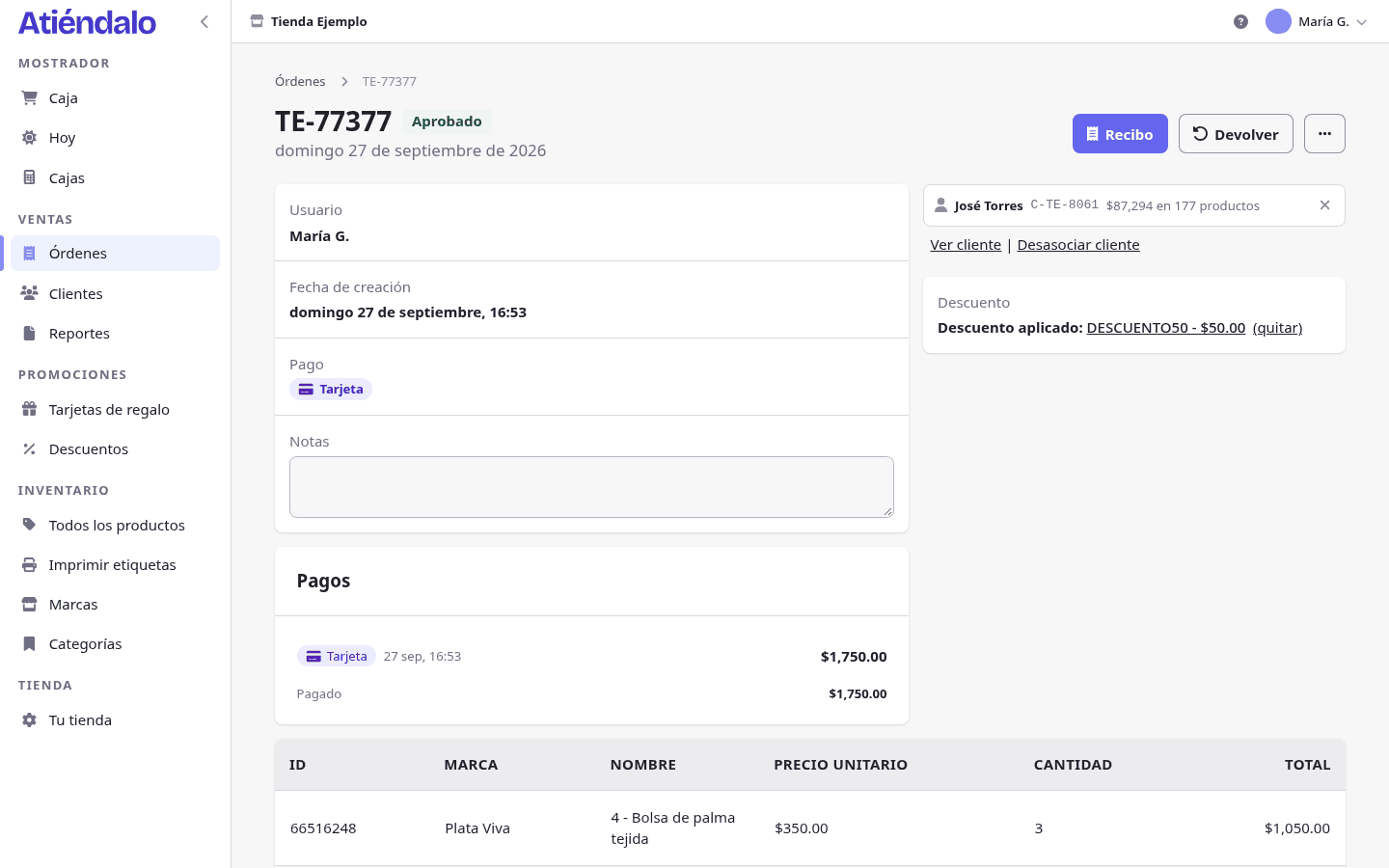
Opening a sale you get:
- Its details — who made it, when, the payment method, and a Notes field that saves itself when you leave it.
- Payments — every payment with its method, reference, who took it and the time; refunds are flagged as refund. Below, Paid and, on a layaway, Balance due.
- Customer and Discount — you can attach or remove them here, even after the sale.
- The lines — code, brand, product, price per unit, quantity and total, with the subtotal, the discount and the card commission at the foot.
- Returns — what came back from this sale. See Returns.
- History — the order’s timeline: Sale recorded, Layaway recorded, Payment received, Sale completed, Return, Sale voided, each with its time, its user and its reason.
On top you have Receipt, Return (admins) and the [···] menu with Approve, Cancel and, on an already cancelled sale, deleting it.
On a sale already settled with the brand only the notes and the customer can change; anything else answers this sale has been paid out to the brand and cannot be changed.
Layaway deposits
On a layaway, the Payments panel carries a form:
- Pick the Method (Cash, Card, Transfer or Gift card).
- Type the Amount; the full balance comes preselected.
- If it applies, the Reference or card code.
- Press Record payment.
Each deposit answers Payment recorded. Balance due: $…, and when the balance hits zero the sale completes itself: Balance paid; the sale is now complete. Until then it doesn’t count as a sale, even though the items already left stock. See Point of sale.
Cancelling a sale
In the [···] menu, Cancel opens a window with a mandatory reason: The sale is voided, stock comes back and it drops out of every report. On a layaway the wording changes: the deposits stay on record and it’s on you to note what happened to them.
If the sale issued a gift card the customer has already spent, the cancellation is refused. And if it’s been settled with the brand, it isn’t cancelled: it’s returned.
The digital receipt
Atiéndalo prints no tickets. The Receipt button opens, in a new tab, a narrow page with the receipt; if you need paper, print that page from the browser.
That page carries, on top:
- Copy link — copies the customer’s receipt link.
- Email — opens your mail app with the subject and the message already written, addressed to the sale’s customer.
- WhatsApp — shows up when the customer has a phone on file, with the message ready to send.
The link you copy is the customer’s copy: it opens with no account and no password, from any phone, and shows exactly the same receipt. See Customers.
The receipt shows your shop’s name, the order ID, the date, every line with its quantity, its SID and its unit price, the subtotal and the discount when there are any, the total, each payment (with Cash received and Change when it was paid in cash), a layaway’s balance due, the QR and the code of every gift card sold on it, the number of items, the customer and who served them. It carries no brand names: those stay on the order, inside the shop.
Changing the price at the counter
At the checkout, only admins see the pencil next to Price on a cart line — Change the price. Counter staff always charge the catalogue price.
When it’s changed, the catalogue price isn’t lost: it’s kept on the line and shown struck through next to the price charged, both on the order and on the receipt. The sale’s history sums it up as 1 price overridden at the counter.
What can go wrong
- You can’t find a sale in the list. The list opens on the current period: use Previous, or search by ID, which does search every order.
- A cashier can’t see a sale that does exist. Counter staff only see their own. Ask for the order ID and open it with an admin account.
- “The amount must be above zero and no more than the balance.” A deposit can’t go over the balance due: use the proposed amount or a smaller one.
- It won’t let you cancel or edit. The sale has been settled with the brand, or it issued a gift card that’s already been spent. Record a return instead of cancelling.
- The WhatsApp button isn’t on the receipt. The sale has no customer, or the customer has no phone. Attach the customer from the order, or use Copy link.
- The customer gets “This receipt does not exist or the link is no longer valid”. The link arrived incomplete or altered. A receipt link never expires: open Receipt again, use Copy link and send it once more.