Hardware & supplies
Charging on a card terminal
Updated on Saturday 26 September 2026
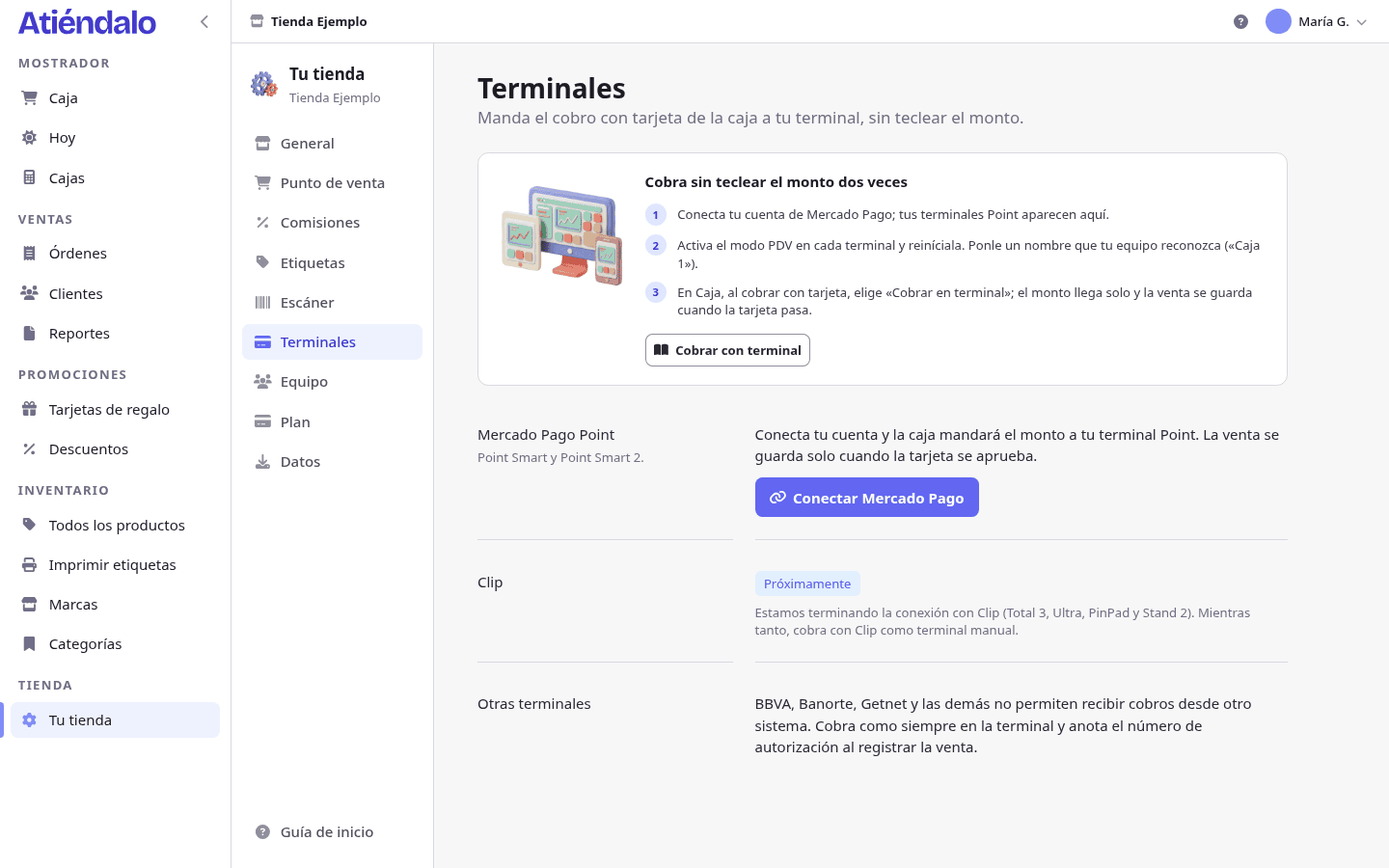
Connect your Mercado Pago Point so the counter sends it the amount, and what to do with every other terminal.
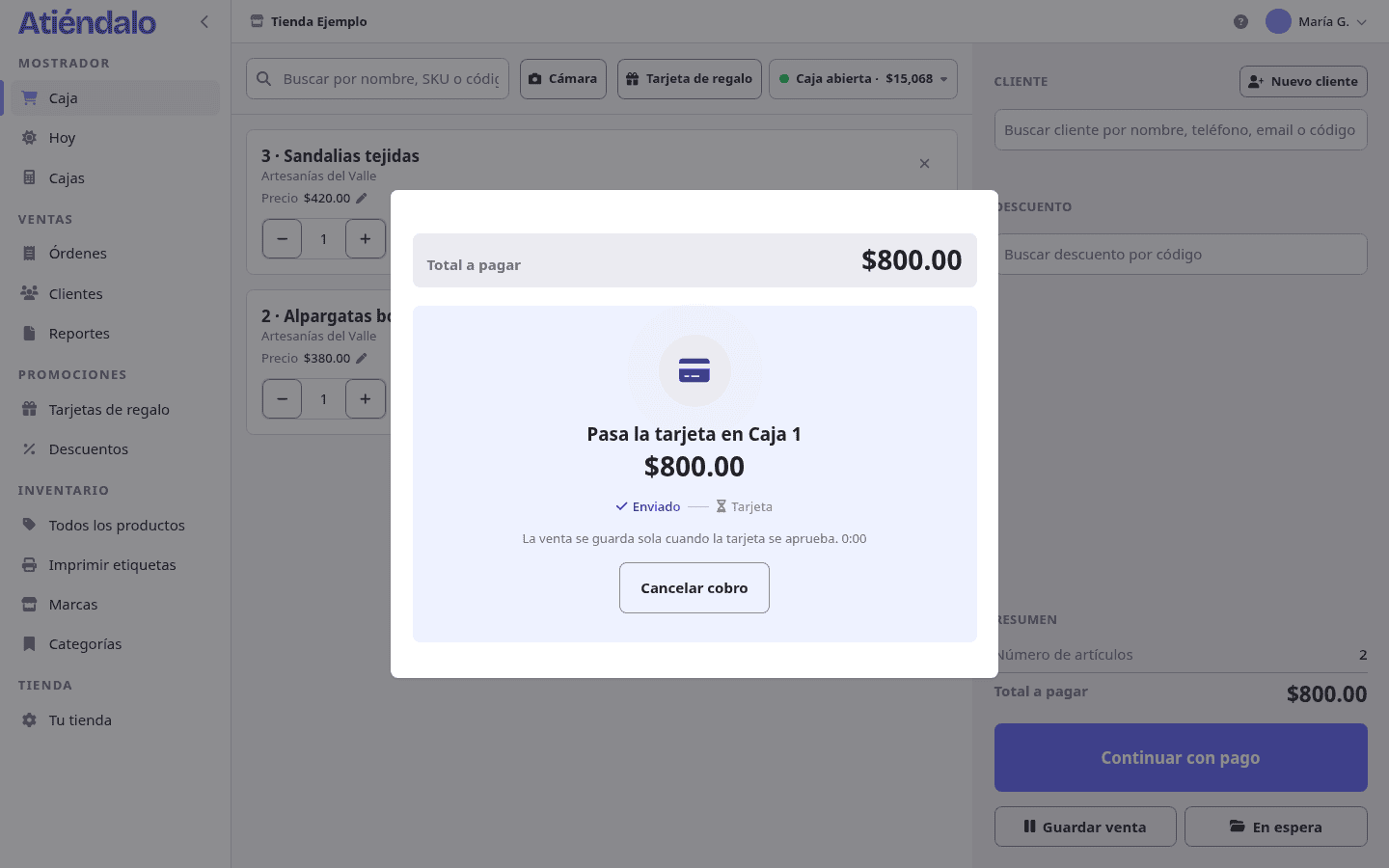
When a customer pays by card, the amount usually gets typed twice: once at the counter and once on the terminal. With a connected terminal, the counter sends the amount to the terminal and the sale saves itself once the card is approved. If the card is declined, nothing is saved and the cart is still there.
Which terminals work
- Mercado Pago Point Smart and Point Smart 2: connect them from Terminals.
- Clip (Total 3, Ultra, PinPad and Stand 2): on the way. Meanwhile, use it as a manual terminal.
- BBVA, Banorte, Getnet and the rest: they do not take charges from another system. They keep working as always (see “Manual terminals”).
Connect Mercado Pago
- Open Terminals and press Connect Mercado Pago.
- Sign in with the Mercado Pago account that receives your sales and authorize Atiéndalo.
- Back here, your Point terminals show up in the list. If none does, link the terminal with the Mercado Pago app and press Find terminals.
- On each terminal press Turn on PDV mode and restart it. Only in that mode does it take charges from the counter; you can also turn it on at the terminal, under More options › Settings › Pairing mode.
- Give it a name your team knows, such as “Register 1”.
Atiéndalo stores the connection encrypted and never sees card data. If you disconnect Mercado Pago, recorded sales do not change.
Charging
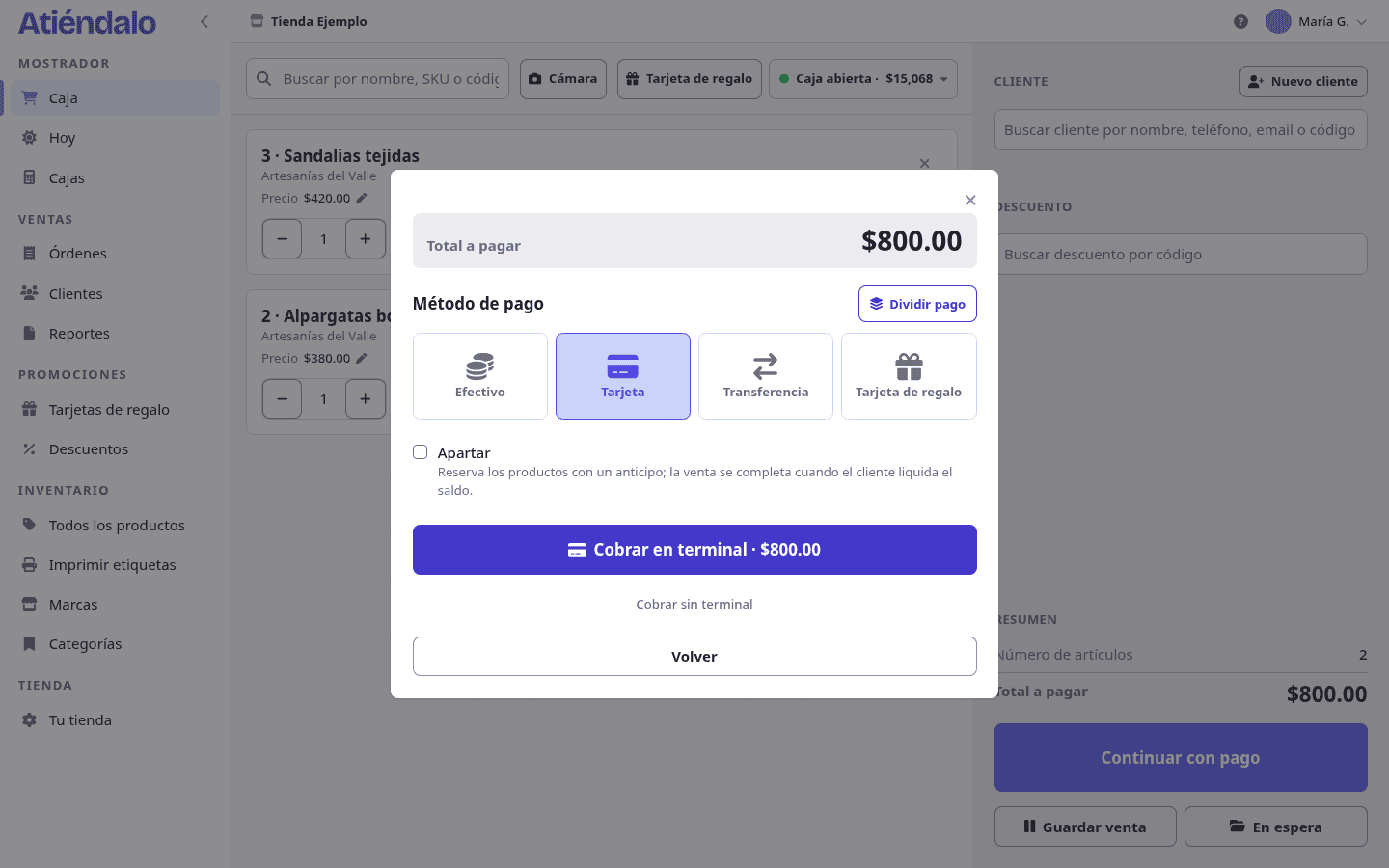
- At Checkout, build the sale and open the payment.
- Pick Card and press Charge on terminal. If you have more than one, pick which.
- The screen says “Tap or insert the card on Register 1”. The customer pays on the terminal; meanwhile the sale cannot be changed.
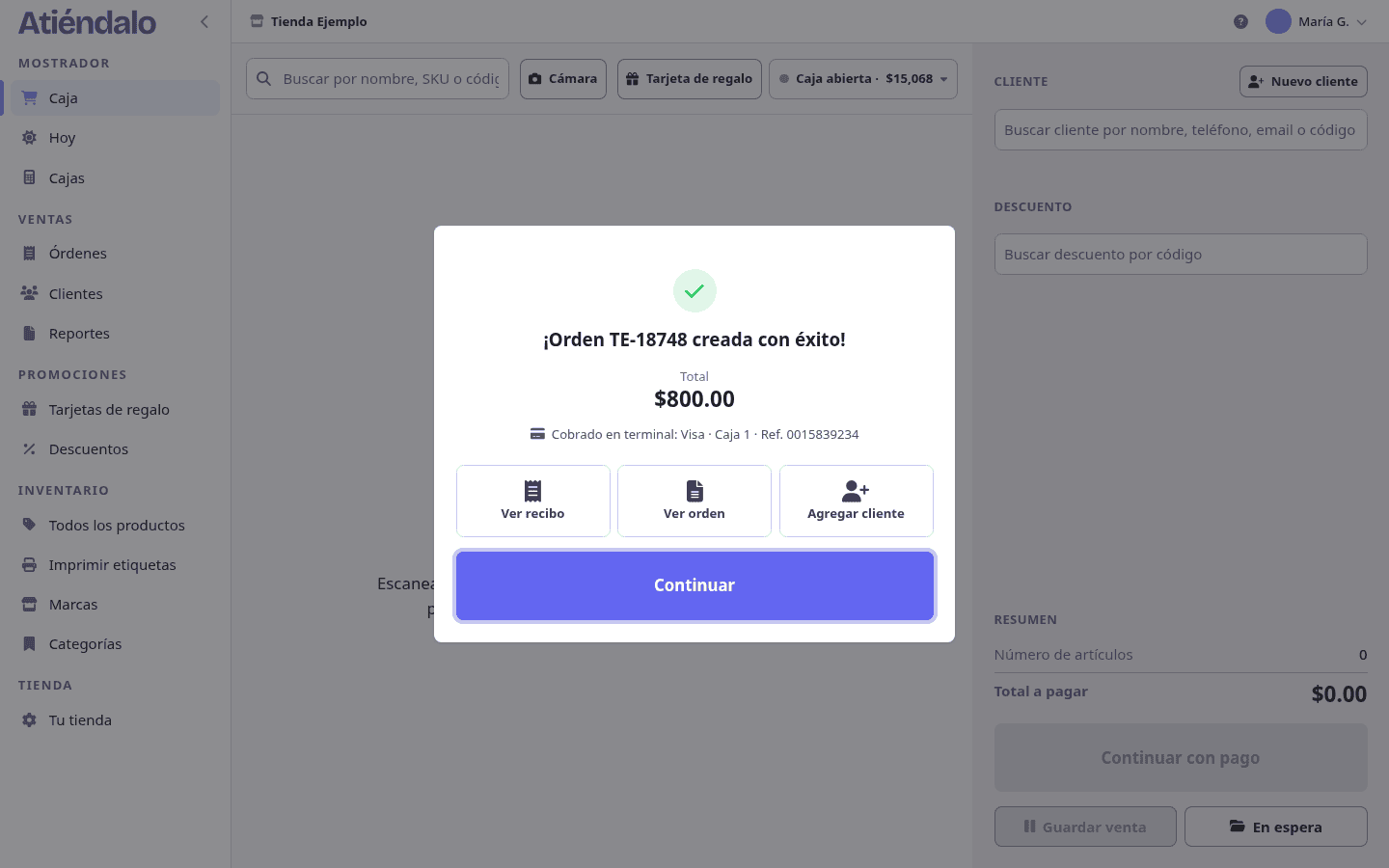
- Once the card is approved, the counter shows “Card approved” and saves the sale with the card brand, the terminal and the bank’s reference number. You see them on the success window and the order; the receipt carries the reference. If it is declined or the time runs out (3 minutes), the counter tells you why and you can try again or take another payment method.
Cancel works while the terminal has not started reading the card. Once it has, the terminal is in charge: finish there and the counter finds out on its own.
A terminal handles one charge at a time. If the counter says the terminal has a pending charge, finish or cancel it on the terminal.
Manual terminals
With any other terminal, charge as usual: type the amount on the terminal, and at the counter pick Card → Charge without terminal. You can type the voucher’s authorization number; it stays on the sale and the receipt, so you can find it if the bank asks.
Commission
The card commission is still the one in Fees and taxes, whether the terminal is connected or manual. It is deducted from what the brand is paid, never charged to the customer.