Your team
Connecting the counter tablet and other devices
Updated on Thursday 1 October 2026
Leave the till's tablet signed in as a cashier, or sign yourself in on another device, with a one-time code and no password.
An eight-letter code moves a session from one device to another with no email and no password. It does two things: leaves the till’s tablet or phone signed in as a cashier, and signs you in on another phone or computer without waiting for an email.
Connecting a cashier’s tablet
- On your computer open Users, go to the cashier’s page and, in the ··· menu, choose Connect a device.
- A code and a QR appear, with the time it has left.
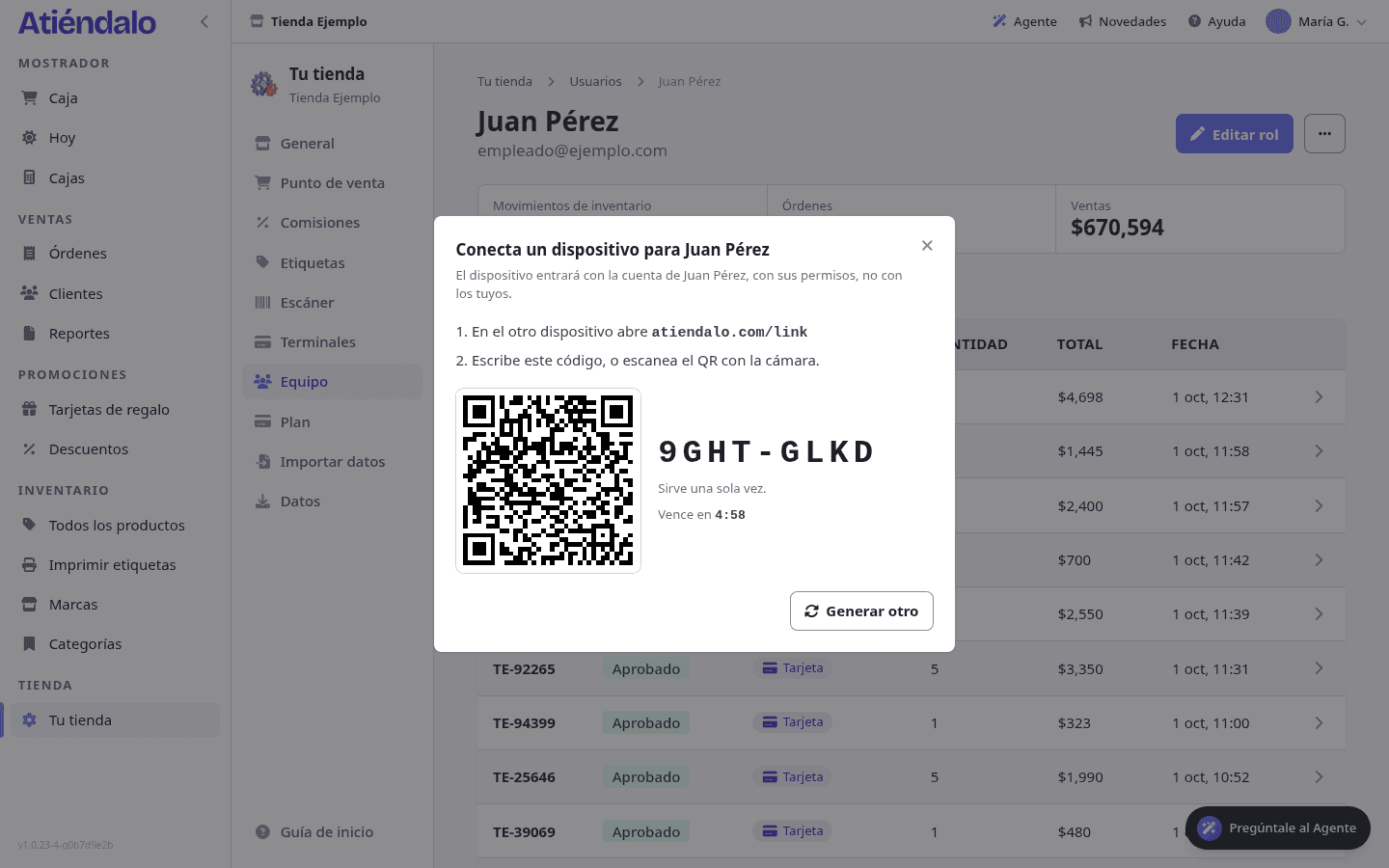
- On the tablet scan the QR with the camera, or open the address shown next to the code and type it in. Upper or lower case, with or without the dash, all work.
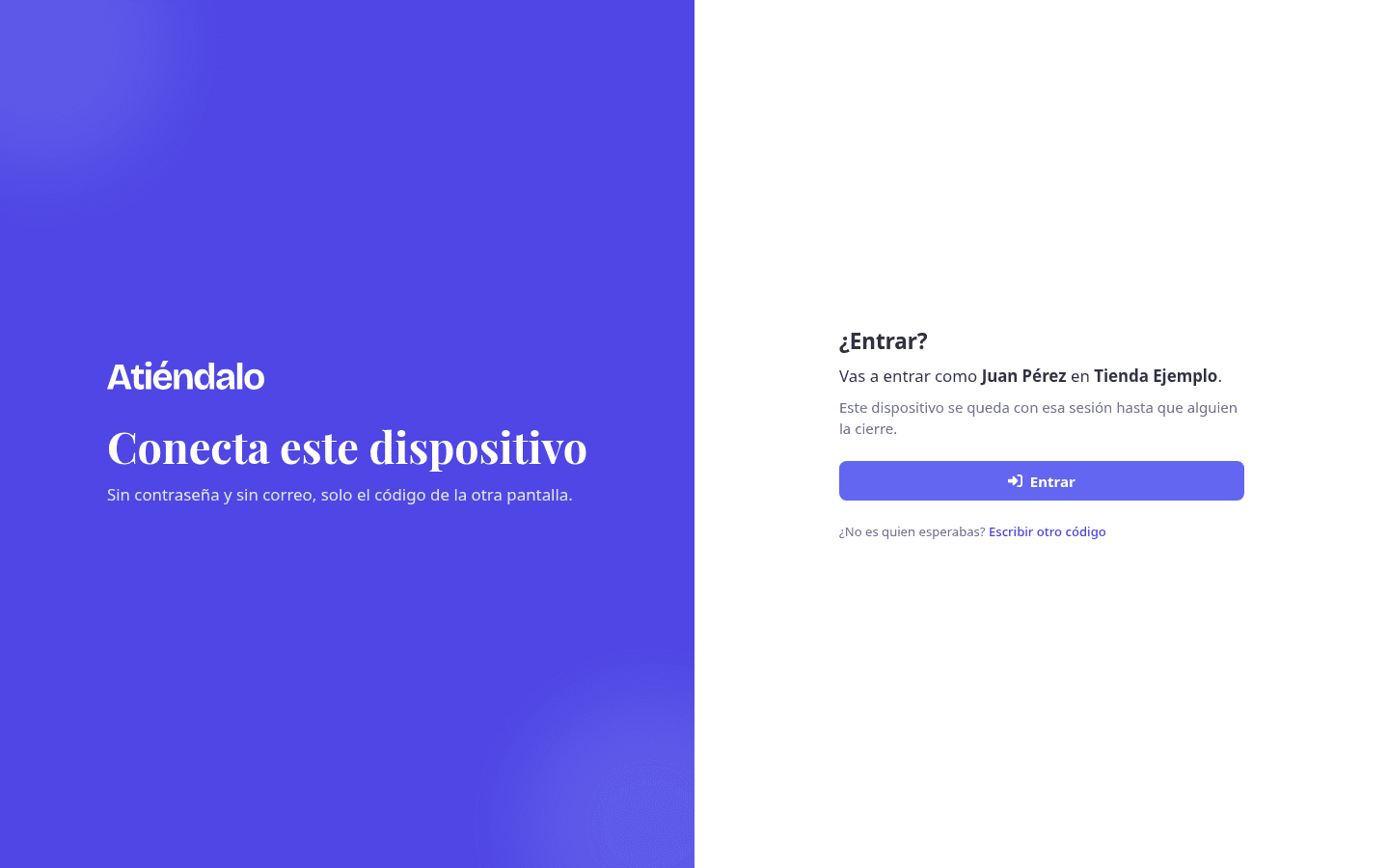
- Before signing in, the tablet says whose session it will be and in which shop. If that is what you expected, press Sign in.
As soon as the tablet is in, your screen turns into Connected and says from which browser and system.
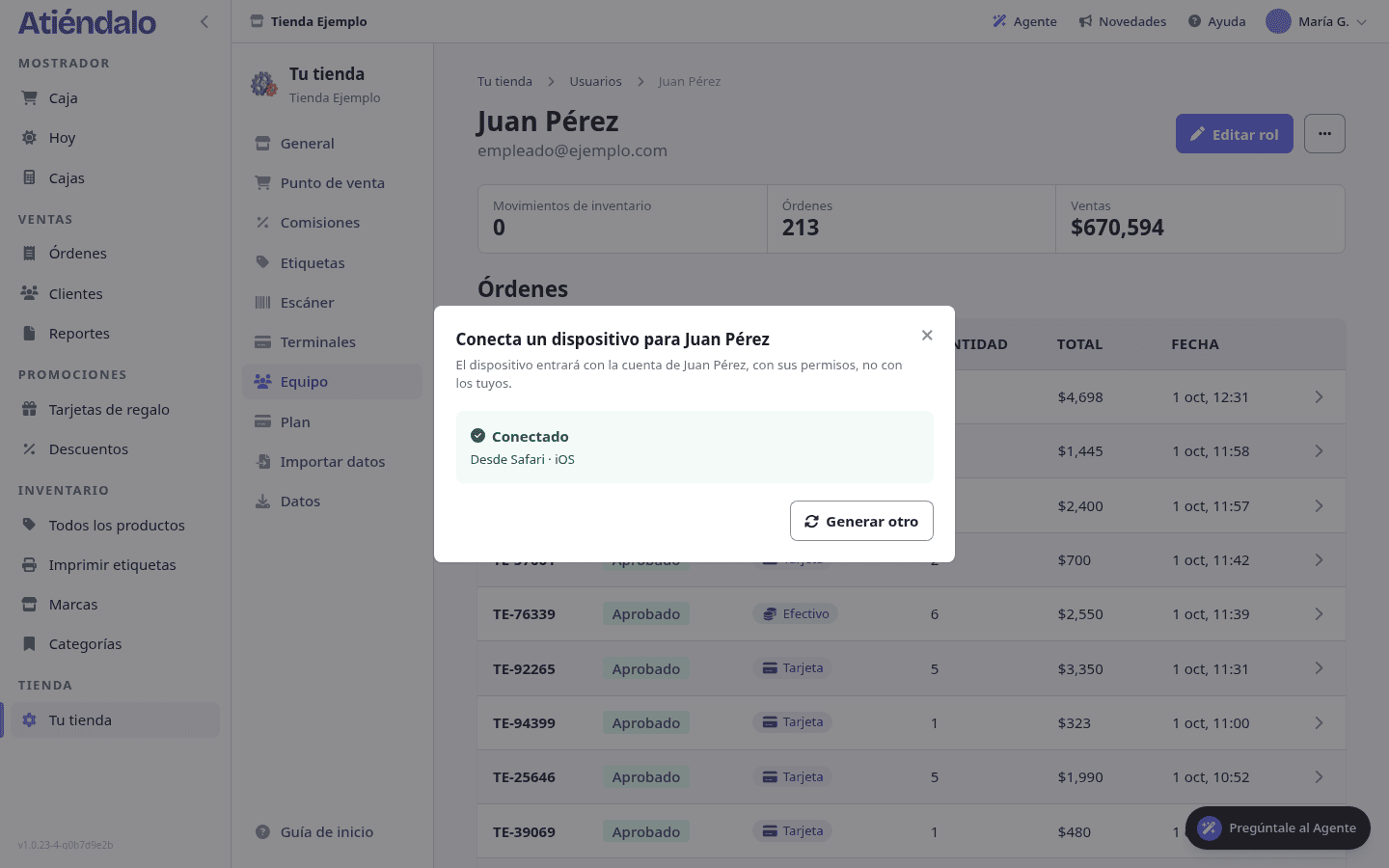
The tablet runs on the cashier’s login and their staff permissions, not yours: it opens straight on the till, every sale is in their name and your session never stays at the counter.
Signing yourself in on another device
On your profile, in the Access card, press Connect another device. It is the same code and the same QR, for your own login: the other device signs in as you, in the shop you are in now.
How the code works
- It works once and expires in 5 minutes.
- Get another issues a new one and cancels the previous unused one.
- Codes are for staff only. An admin or the owner signs in with their own email: a code is as powerful as the login it opens.
- Under Sessions, sessions opened this way say Signed in with a code. Closing one there signs that device out, like any other.
What can go wrong
- The code doesn’t work. It was already used or the 5 minutes passed. Get another one.
- There’s no Connect a device on the page. That person is an admin, the owner, or their access is deactivated: only active staff get codes.
- The tablet shows a name you didn’t expect. Don’t press Sign in: type the code on your screen again.
- The cashier stopped working with you. Deactivate their access on their page: the tablet is out immediately. To hand it to someone else, sign the tablet out and connect the next person.