Sales & checkout
Discount coupons
Updated on Friday 18 September 2026
Create percentage or fixed-amount discounts, with validity, usage limits and who absorbs them.
Discounts let you run promotions without touching your product prices. In the menu they show up as Discounts, under Sales, and at the counter they are picked from a list or typed in by code.
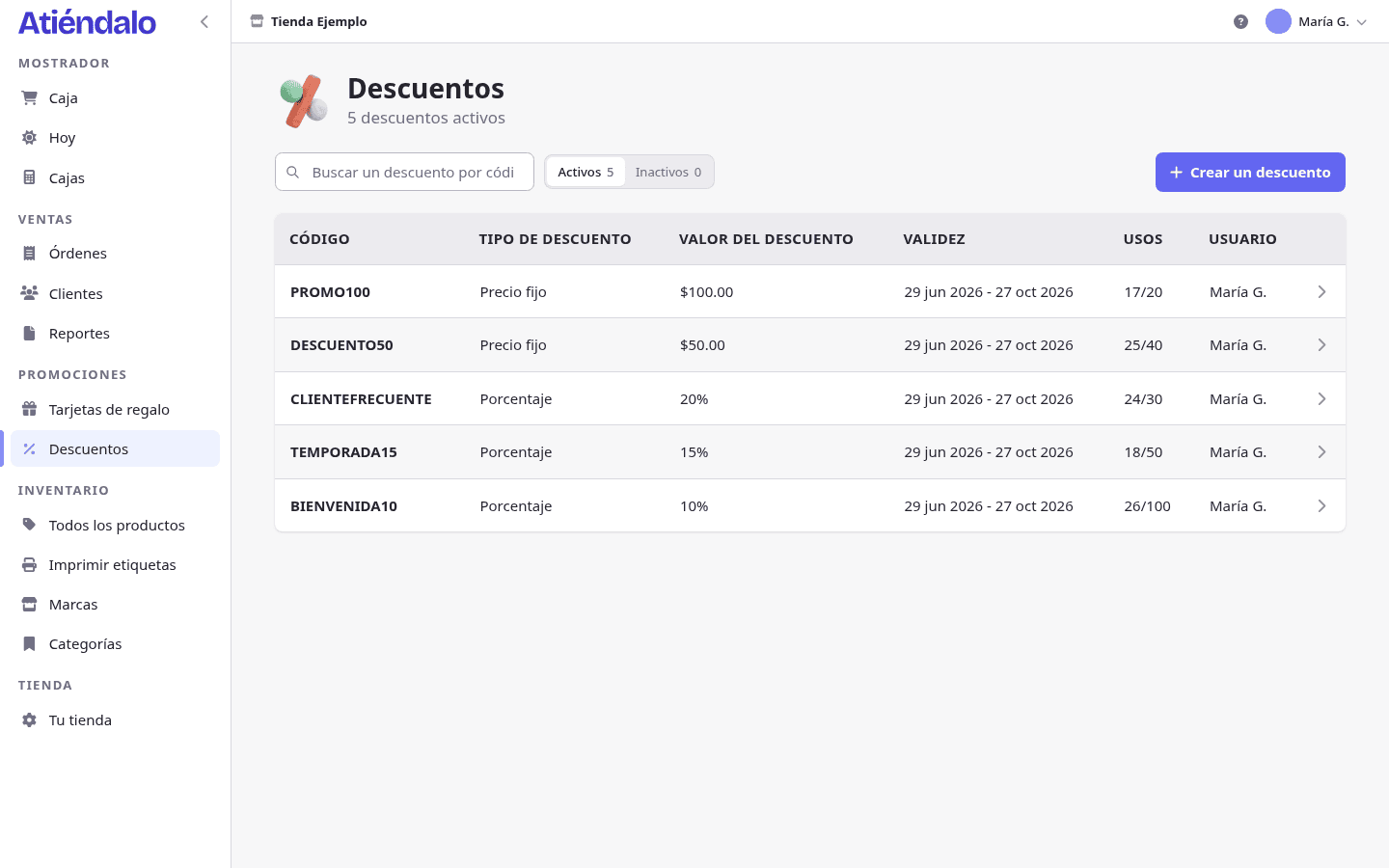
Creating a discount
- Open Discounts and press Create a discount.
- Type the Code. It’s unique within your shop and is stored in upper case; it’s what the cashier types.
- Pick the Discount type: Percentage (10% of the sale) or Fixed price (an amount in pesos).
- Enter the Discount value: the number of percentage points, or the pesos to take off.
- Choose Who absorbs the discount (see below).
- Set the Usage limit. Zero means unlimited.
- Set the validity with From and Until, if you want it to expire.
- Save.
Validity is only checked when you fill in both dates: a discount with only one date behaves as if it had no validity window at all.
Who absorbs the discount
This is the important decision for a discount in a multi-brand shop, and it’s taken when you create it:
- The brand absorbs the discount (the default). The discount is spread across the sale’s products in proportion to their price, and each brand is paid its share already reduced. If you run a weekend promotion, your suppliers pay for it with you.
- The shop absorbs the discount. The brand is paid as if there had been no discount; the difference comes out of your pocket.
The decision is frozen on each sale: changing the discount later does not rewrite sales already made.
A discount never applies to the face value of a gift card sold in that same sale — only to merchandise.
Using it at the counter
At checkout, the Discount section in the right-hand column appears as soon as your shop has at least one discount. There you pick it from the list or type the code — case doesn’t matter. If the code doesn’t exist or the discount isn’t active, checkout says so and doesn’t apply it.
The server checks the discount again when charging: an expired, exhausted or deactivated one is refused even if it was still in the list.
Activating, deactivating and deleting
- Deactivate keeps the discount on the list but out of the counter. That’s what you want for a promotion that’s over.
- Activate puts it back in circulation.
- Delete is only possible if no order ever used it: sales keep their history. A discount with sales gets deactivated, not deleted.
Atiéndalo counts usage by itself. The counter counts completed sales: cancel a sale and its use is given back. Reports shows the period’s total discounts, and each discount’s own page lists the orders that used it.
What can go wrong
- The cashier types the code and nothing happens. The discount is deactivated, expired, or it hit its usage limit. Check its page: status and usage are at the top.
- The discount doesn’t show at the counter. The section is only drawn if at least one discount exists. If you just created the first one, reload the charging screen.
- You entered 50 on a percentage discount. That’s 50%, not $50. For pesos, the type is Fixed price.
- A brand complains that you cut its sale. The brand absorbs the discount unless you choose otherwise. For promotions of your own, create the discount with The shop absorbs the discount.
- You set a validity window and it still applies. One of the two dates is missing. Fill in From and Until.
- It won’t let you delete it. It was already used on a sale. Deactivate it.