Sales & checkout
Gift cards
Updated on Friday 18 September 2026
Sell prepaid cards at the counter and take their balance as payment.
A gift card is money the customer pays today to spend later in your shop. Atiéndalo sells it from the counter as one more cart line, prints its code on the receipt, and takes it as payment on any later sale.
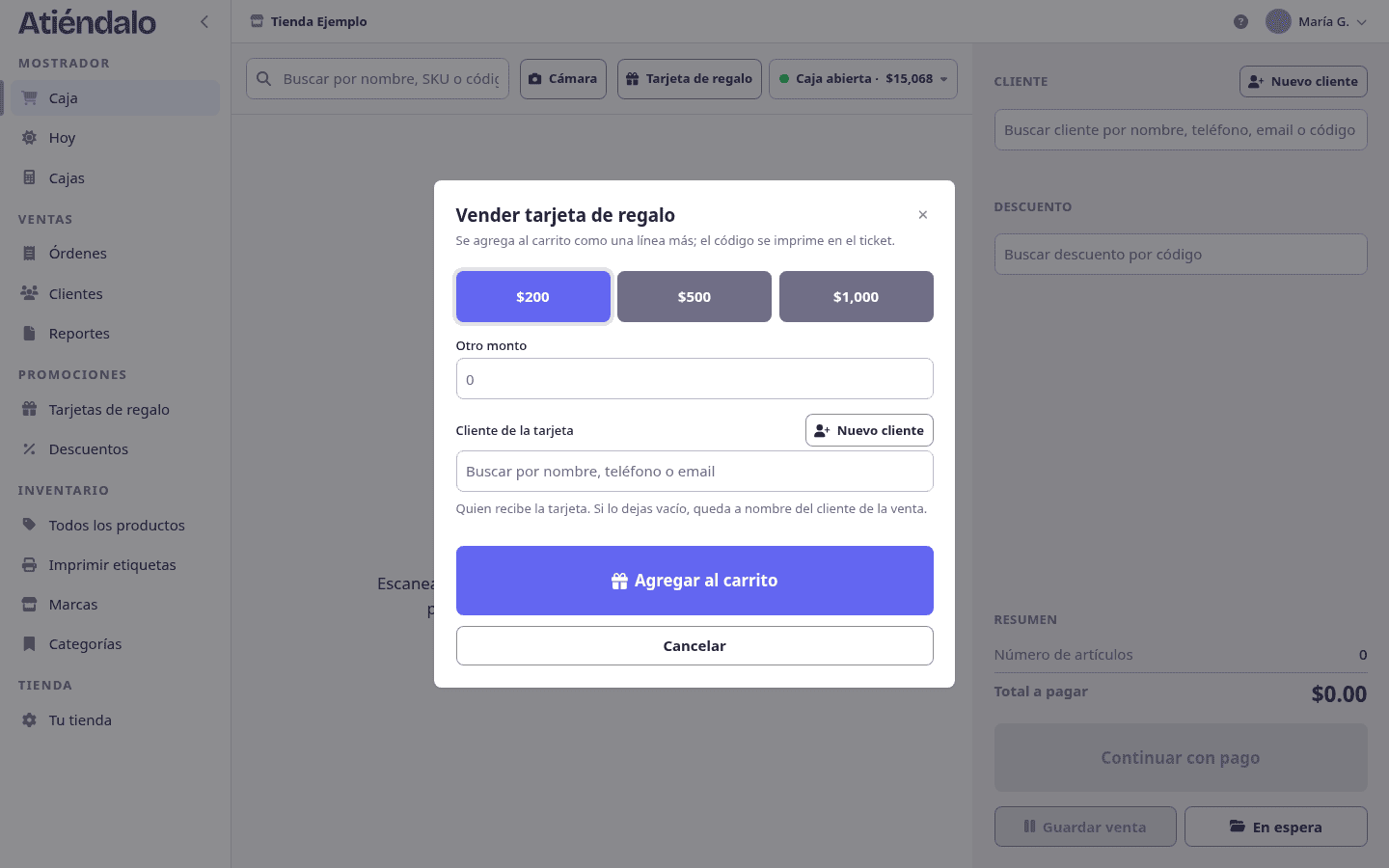
Selling a card
- At checkout, press Gift card.
- Pick a face value — $200, $500 or $1,000 — or type Other amount.
- If the card is for someone in particular, choose them under Card’s customer. Leave it empty and it goes to the sale’s customer.
- Press Add to cart.
- Charge it like any sale: cash, bank card or transfer.
The receipt carries the 16-digit code and its QR, so the counter can read it with the scanner when the customer comes back. The sale success screen also offers Print card, which sends it to the same print dialog as labels.
A card only works once the sale that issued it is completed. If you sold it as a layaway, it activates when the customer pays it off.
Paying with a card
- Build the sale and press Continue to payment.
- Pick the Gift card method.
- Scan the QR or type the code and press Look up.
- You’ll see the Available balance. If the purchase is larger, the card covers up to its balance and the rest is paid with the method you pick under The rest is paid with.
- Confirm.
You can also scan the card straight into the product search box with the cart already built: the payment window opens with the card applied. If the cart is empty, Atiéndalo just tells you the balance.
How it’s accounted for
- Selling a card is not a sale. The money comes into the shop — and counts at closing if it was cash — but it doesn’t show in the period’s sales and no brand gets anything. It’s a debt of yours until it’s spent.
- Paying with a card is a sale. The brand of whatever was bought gets its normal payout, and that part pays no bank card commission. Nothing enters the cash drawer either: that money came in the day you sold the card.
- Discounts are spread across merchandise only, never over a card’s face value.
- Reports shows how much was sold in cards and how much was redeemed in the period.
The list and the card’s page
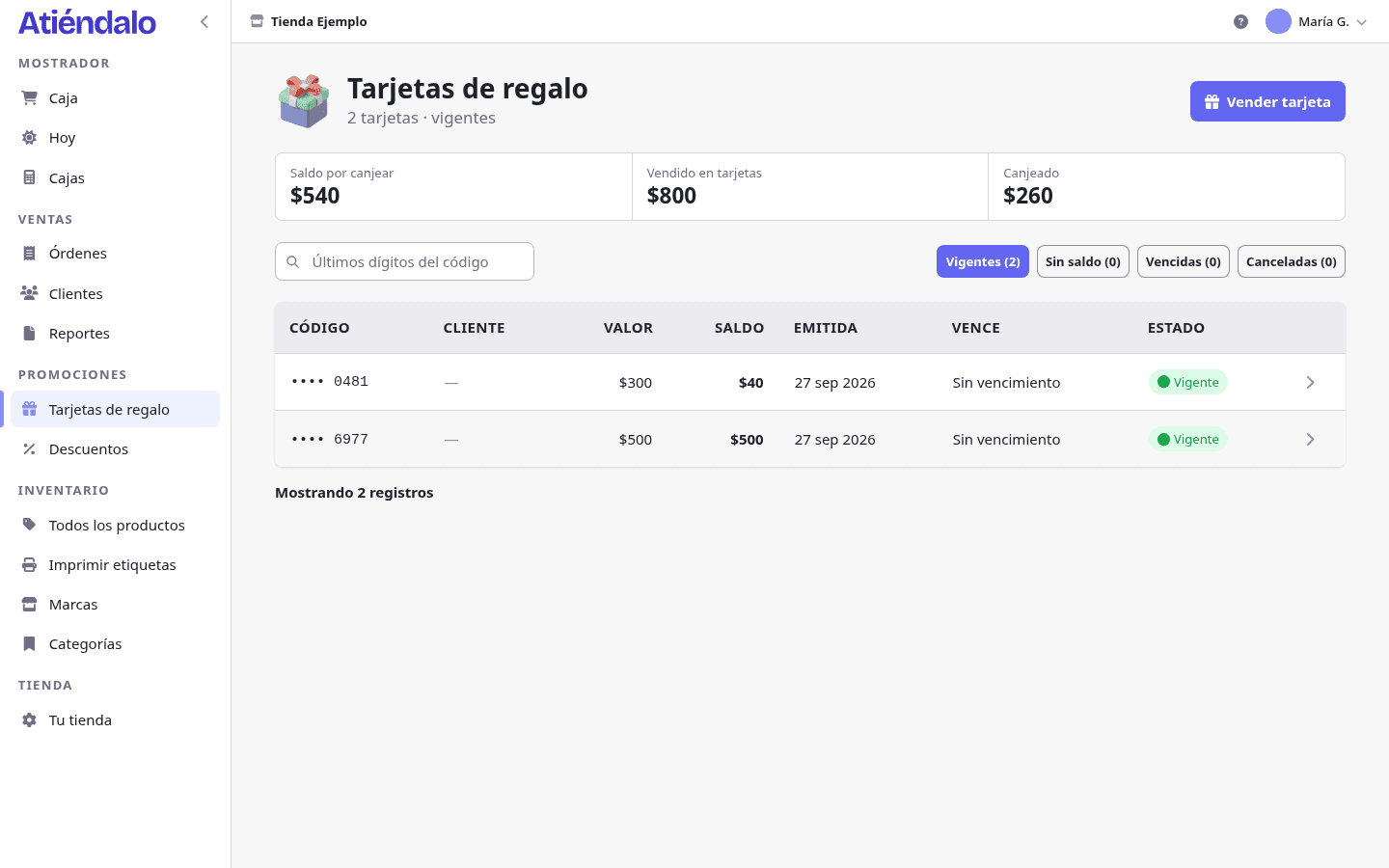
Sales → Gift cards groups cards by status — Active, Empty, Expired, Voided — and shows what was sold, what was redeemed and the outstanding balance at the top. The search box takes the last digits of the code.
A card’s page carries its full code, its QR, the sale that issued it, who sold it, its customer and the history of movements: issue, payments and refunds. That’s where you print it and void it.
Returns, cancellations and validity
- If you cancel a sale paid with a card, the balance goes back to the card by itself.
- On a return you can choose that same card as the refund method.
- Void card kills a card that was never used. A card with payments against it can’t be voided.
- Cancelling the sale that issued a card voids that card too, as long as nothing was spent from it.
- In Your store → Point of sale you set how many months a card is good for from the day it’s sold, or Never expires. Cards already issued keep the date they were born with.
What can go wrong
- “No active card matches that code”. The code is mistyped, the card is voided or expired, or the sale that issued it isn’t completed yet (an unpaid layaway).
- The card has a balance but doesn’t cover the purchase. That’s normal: pick the method for the rest in the same window. There’s no need to cancel the sale.
- You sold a card and it isn’t in the day’s sales. Correct: selling a card isn’t a sale. It shows under Sold in cards, in its own list.
- A cashier can’t see the card list. Counter staff can sell one, check a balance and print it, but the list and voiding are admin work.
- It won’t let you void the card. It was already used to pay for something. Only cards with no movements can be voided.
- The slip with the code is gone. Find it by the last digits in the list, or by the customer if it was issued in their name, and print it again from its page.