Sales & checkout
Point of sale
Updated on Friday 18 September 2026
Charge by scanning, split payments, take layaways, and handle returns and cancellations.
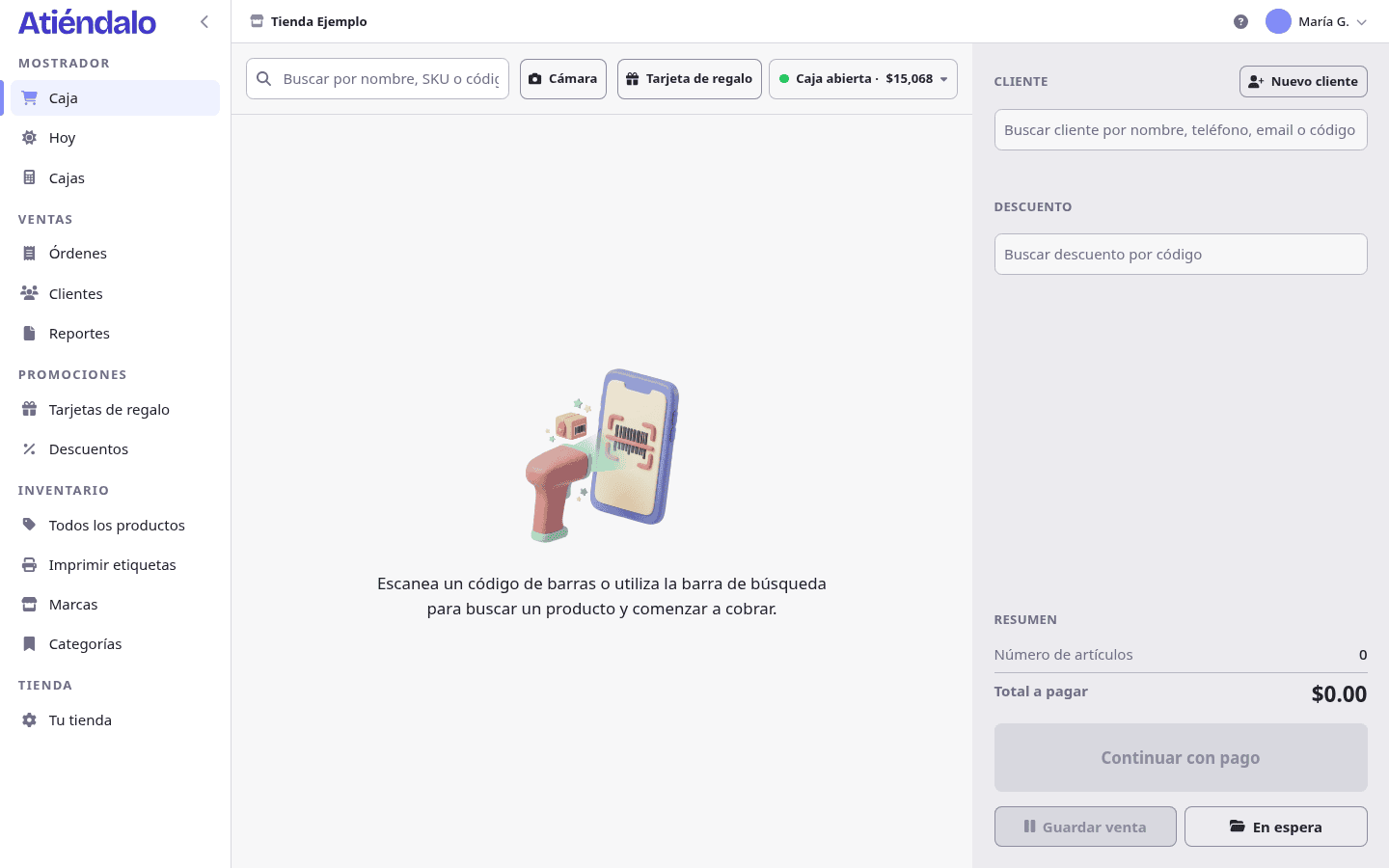
Checkout is the screen where you charge. It’s built for one thing: scan, charge, next customer. Search and cart on the left; customer, discount and total on the right. On a phone the two columns take turns: a bar at the bottom shows the total and Continue.
Adding products
- With a scanner. Any USB or Bluetooth scanner in keyboard mode works. Scan the label and the item goes into the cart; if it was already there, its quantity goes up. The cursor doesn’t have to be in any field.
- With the camera. If you have no scanner, the Camera button next to the search box opens the phone’s or tablet’s camera and scans just the same. See Scanners & barcodes.
- By searching. Type a name, SKU or barcode; Atiéndalo searches by brand name too. Enter adds the highlighted result, or the first one if you never used the arrows.
A code that belongs to no product says so — No product found for barcode… — and leaves the cart untouched. A 16-digit code is taken as a gift card, and one starting with C- as a customer’s QR.
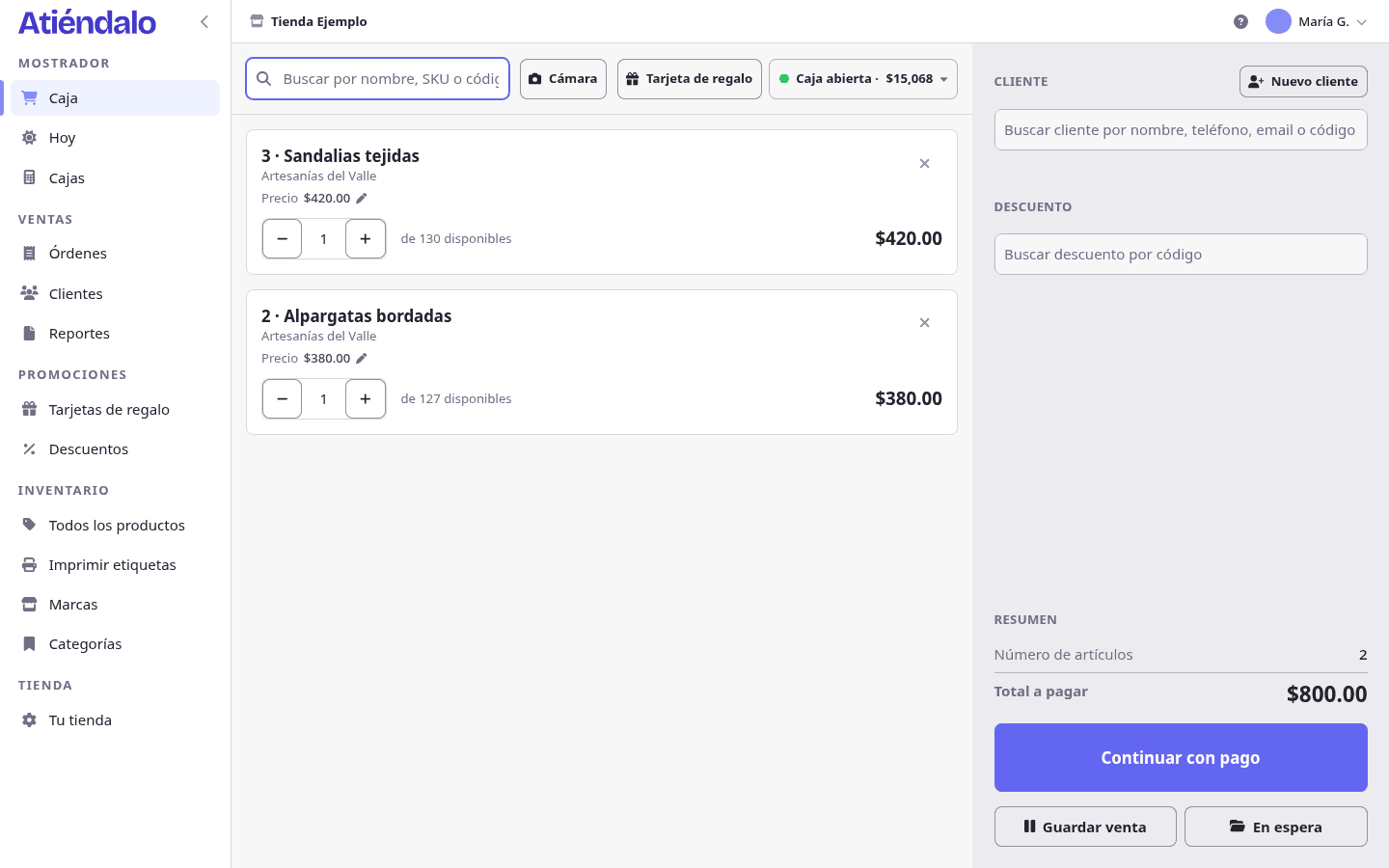
On each cart line you can raise or lower the quantity and remove it. Change the price of a line is admin-only, and the order is flagged with “price overridden at the counter” in its history.
Customer and discount
In the right-hand column, before charging:
- Customer — look them up by name, phone, email or code, or scan their QR. If they don’t exist, New customer registers them without leaving checkout: only the name is required.
- Discount — pick a discount from the list or type its code in the field below. The section only appears if your shop has discounts. See Discount coupons.
Charging
- Press Continue to payment.
- Choose Single payment and the method (Cash, Card, Transfer or Gift card), or Split payment to spread the total across several methods.
- For cash, type what the customer handed you and the screen works out the Change.
- Press Confirm the order.
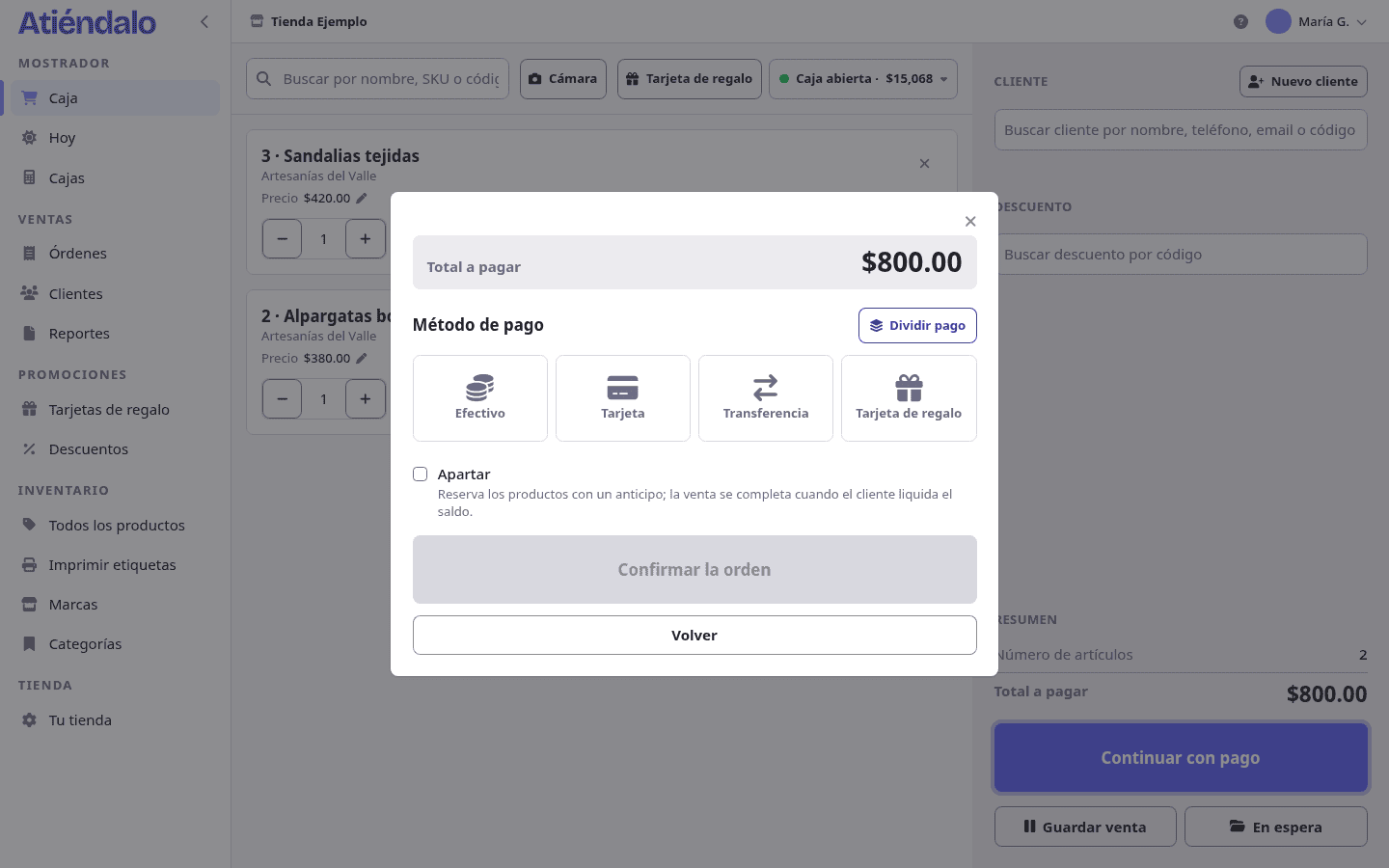
While that window is open there are shortcuts so you never put the scanner down: F2 cash, F3 card, F4 transfer, Enter confirms once the payment covers the total, and Esc goes back to the cart.
On confirming, the success screen gives you the sale ID, a See receipt link, a button to send it over WhatsApp and, if the sale issued a gift card or has a customer, the buttons to print the card or the customer’s QR. The receipt is digital and is shared as a link: see Orders & receipts.
Split payments
Split payment adds one row per method. They have to add up to exactly the total; while anything is missing or over, the confirm button stays off.
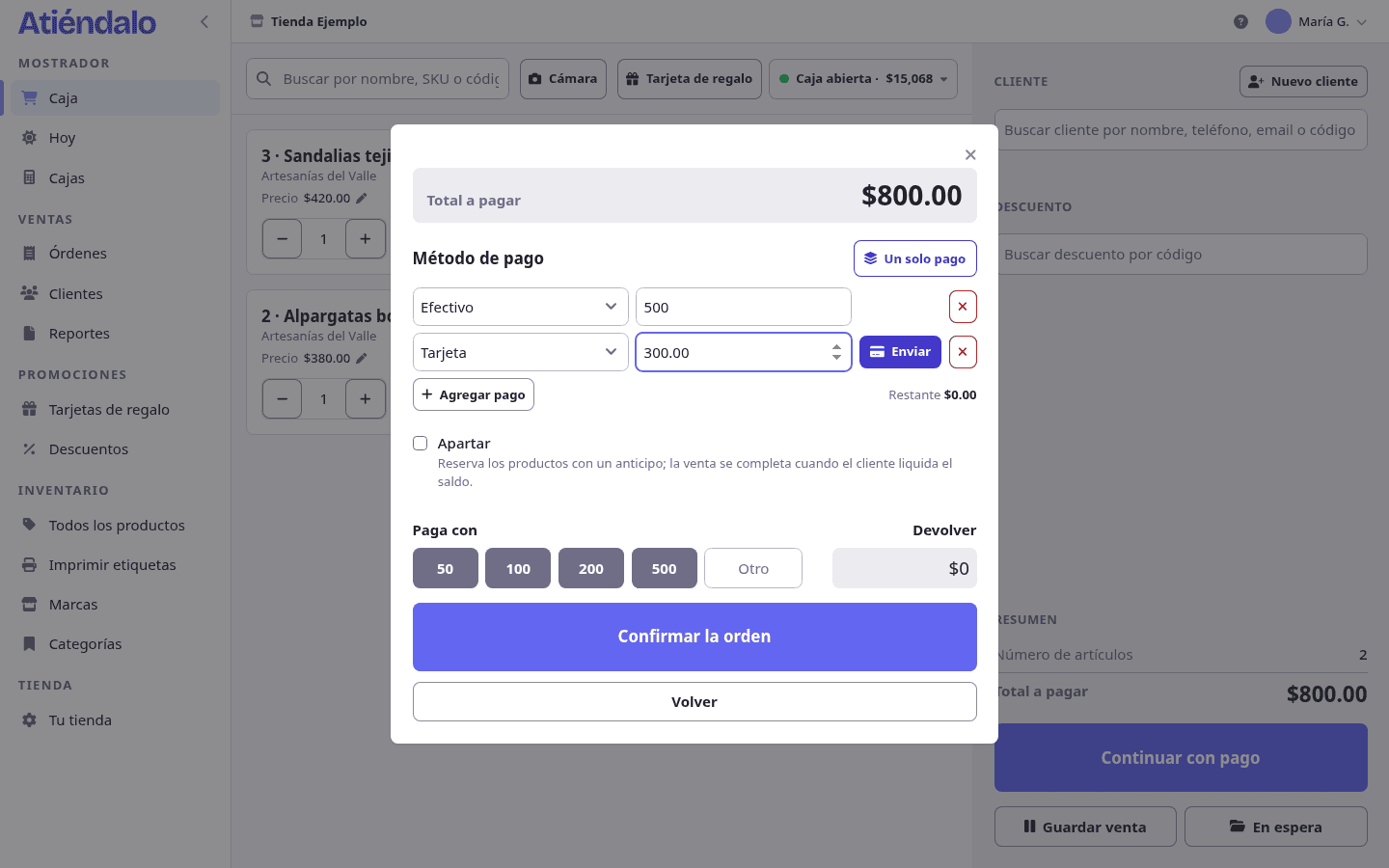
The card commission is worked out only on the part paid by card and is deducted from what the brand gets paid — the customer is never charged extra. A gift card payment pays no commission and never enters the cash drawer.
Layaways
If the customer takes the item later and leaves a deposit, tick Layaway in the payment window. A layaway needs a customer and a deposit greater than zero.
The items leave stock right away, but the sale doesn’t count as a sale yet: it stays out of reports and out of the brand’s settlement until it’s paid off. To take deposits, open the order in Orders and use Record payment; when the balance hits zero, the sale completes itself.
Sales on hold
Hold sale parks the cart under a label (“lady in red, back in 10 min”) and clears the screen for the next customer. On hold (n) lists them to resume or delete. A held sale deducts no stock, and each person only sees their own. Gift cards are not held.
The cash drawer
If your shop has the cash register on, a Register open pill in the top right shows the expected cash right now. Its menu records a Cash movement (money in or out that isn’t a sale) or Close register without leaving the point of sale. With no open register you can’t charge. See Cash register & closing.
Returns and cancellations
Both start from the order, in Orders.
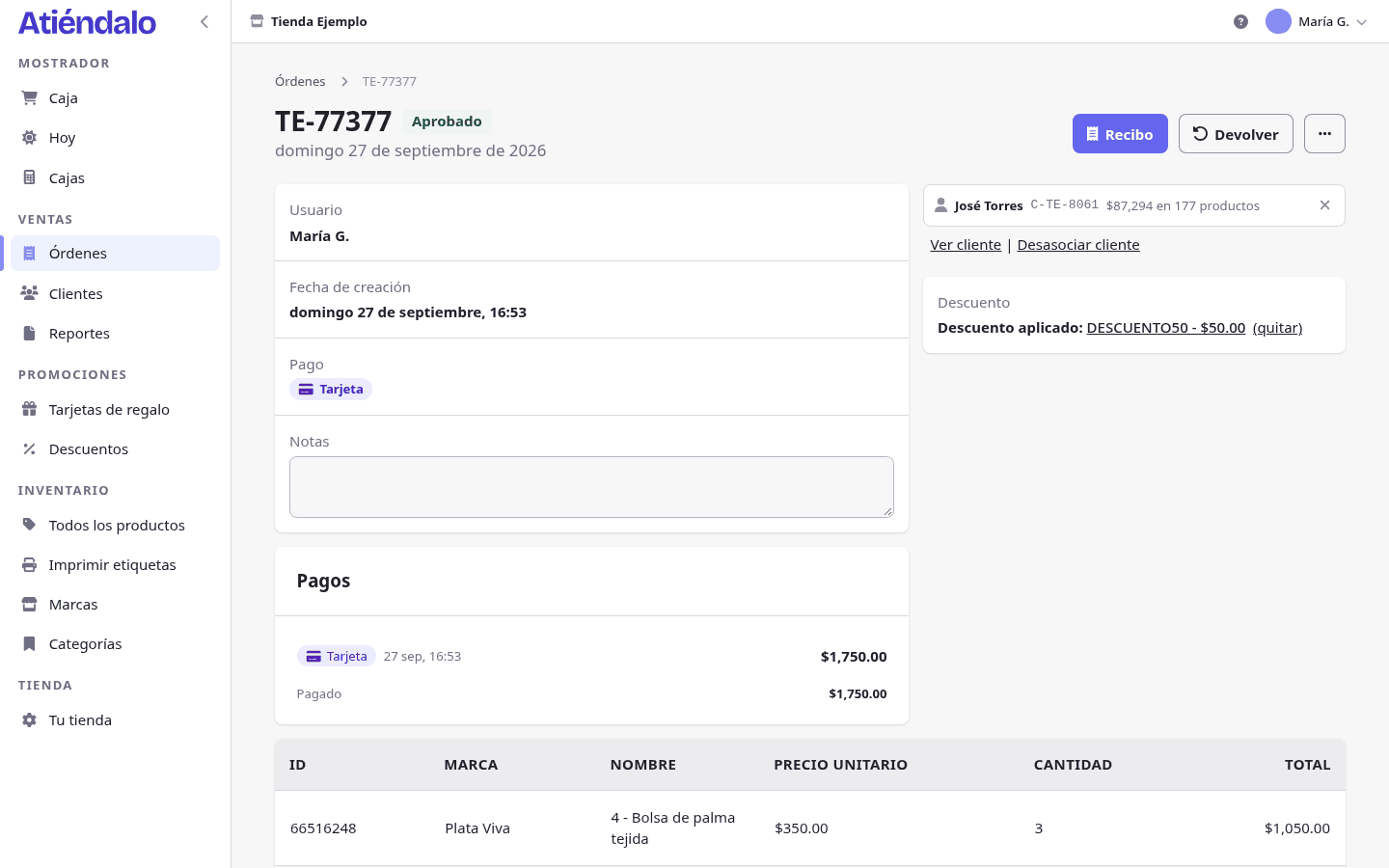
- Return (admins only) takes items back from a completed sale: you choose how many, the reason and where the refund goes. Everything else — the drawer, write-offs and what comes off the brand — is in Returns.
- Cancel voids the whole sale. It asks for a reason, which stays in the order’s history. Stock comes back and the sale drops out of reports and settlements.
A sale already settled with the brand can’t be cancelled or edited: it gets returned.
What can go wrong
- You scan and nothing happens. The cursor is inside another field (a quantity, the notes). Click outside and scan again; in the search box a scan always works. If it still doesn’t react, check the three failures in Scanners & barcodes.
- It says no product was found for that code. That code isn’t registered, or the product or its brand is deactivated: an inactive product can’t be sold. Activate it or create it.
- The confirm button is off. The payment split is short or over, or the layaway has no customer. The window tells you how much is left under Remaining.
- It won’t let you add a product for lack of stock. You’re in strict stock mode. Register the missing receipt or change the mode in Your store → Point of sale.
- You can’t charge: it asks for an open register. The cash register is on and none is open. Open one in Registers.
- You don’t see the return button. Returns are for admins, and only on completed sales.