Your team
Your team, roles & invitations
Updated on Friday 18 September 2026
Invite admins and staff, control what each person can do, and close access.
Atiéndalo is multi-user: each person on your team signs in with their own account and sees only what their role allows. One account can belong to several shops, and switches between them from the sidebar, under Switch shop.
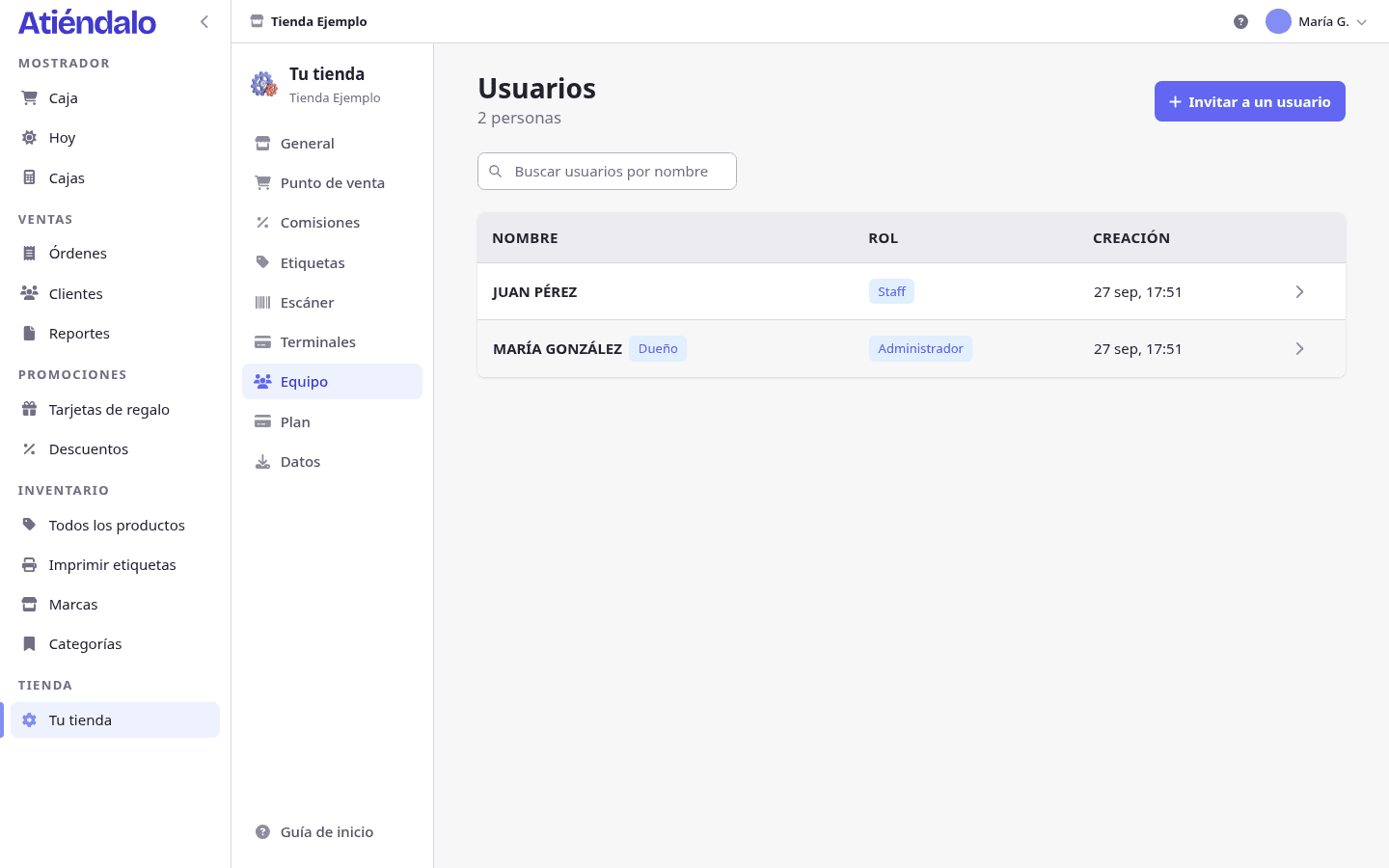
The two roles
- Admin — full access to the shop: reports, settlements, brands, products, labels, discounts, customers, gift cards, team and settings.
- Staff — the counter role. Charges at checkout, sees and cancels their own sales, records layaway deposits, browses products and brands, opens and closes the register, records cash movements, counts physical inventories, looks up and registers customers, sells gift cards and checks balances. No reports and nothing financial, no editing products or prices, no returns, and no applying the result of a physical count. Signing in lands them straight at checkout.
The shop’s owner is whoever created it. They can’t be demoted, deactivated or removed by other admins, and they’re the only one who can close the shop or transfer it.
Inviting someone
- Open Users and press Invite a user.
- Type their name and email, and pick the role: Admin or Staff.
- Save. Atiéndalo emails them the invitation link, valid for 48 hours.
- If you’d rather send it over WhatsApp, use Copy link in the pending invitations list.
What happens to whoever receives it:
- If they already use Atiéndalo (in another shop or in yours), they sign in with the same account and join yours too.
- If they’re new, their account is created when they open the link. They need no password: they sign in with an emailed link every time, or create a password from their profile if they prefer.
While the invitation is pending you can Revoke the link from the list. There’s no resend button, on purpose: to follow up, send a new invitation.
Changing a role, closing an access
It all comes from the person’s page, in Users:
- Edit role switches between admin and staff.
- Deactivate access locks them out of this shop while keeping their sales history and their place in reports. That’s what you want when someone leaves the team. Reactivate access brings them back.
- Remove from team takes them out of your shop entirely. Their access to other shops and their sales history are unchanged.
- Transfer the shop (owner only, confirming with their password) makes another active admin the owner. You stay on as an admin.
The page also shows how much that person has sold, how many orders they made and how many stock movements they recorded. Your store → Team has the summary: active users, pending invitations and who the owner is.
Sessions and devices
Everyone can see the devices where they’re signed in under Sessions and close any they don’t recognise; when a phone goes missing, Sign out everywhere else is the first thing to do. That, the password and the rest of each person’s account are covered in Your profile.
Good practices
- One account per person. That way every sale, every closing and every count is recorded under whoever did it, and the user page is worth something.
- Use Staff for the counter and keep Admin for whoever handles money, prices and settlements.
- When someone leaves, deactivate their access the same day. It takes effect immediately.
What can go wrong
- The invitation expired. It lasts 48 hours and isn’t resent. Send a new one from Invite a user.
- They opened the invitation and it asks them to sign in. That email already has an Atiéndalo account. Let them sign in and the invitation is accepted on the way through.
- It says the invitation is for another email. The link is for the address it was sent to. If that person uses a different email, invite them with the one they actually use.
- A cashier can’t see reports or full brand data. That’s the role: staff see nothing financial. If they need it, change their role to admin.
- An admin can’t deactivate the owner. Correct. The owner only changes through Transfer the shop, and only the owner can do it.
- Someone no longer works with you and still gets in. Deactivating or removing them blocks them immediately, on every device.