Sales & checkout
Customers
Updated on Wednesday 30 September 2026
Register your frequent buyers, identify them by QR, and look up their history.
The customer registry is optional: you can charge without registering anyone. It pays off when you have buyers who come back, when you take layaways — a layaway does need a customer — or when you want to know who buys what.
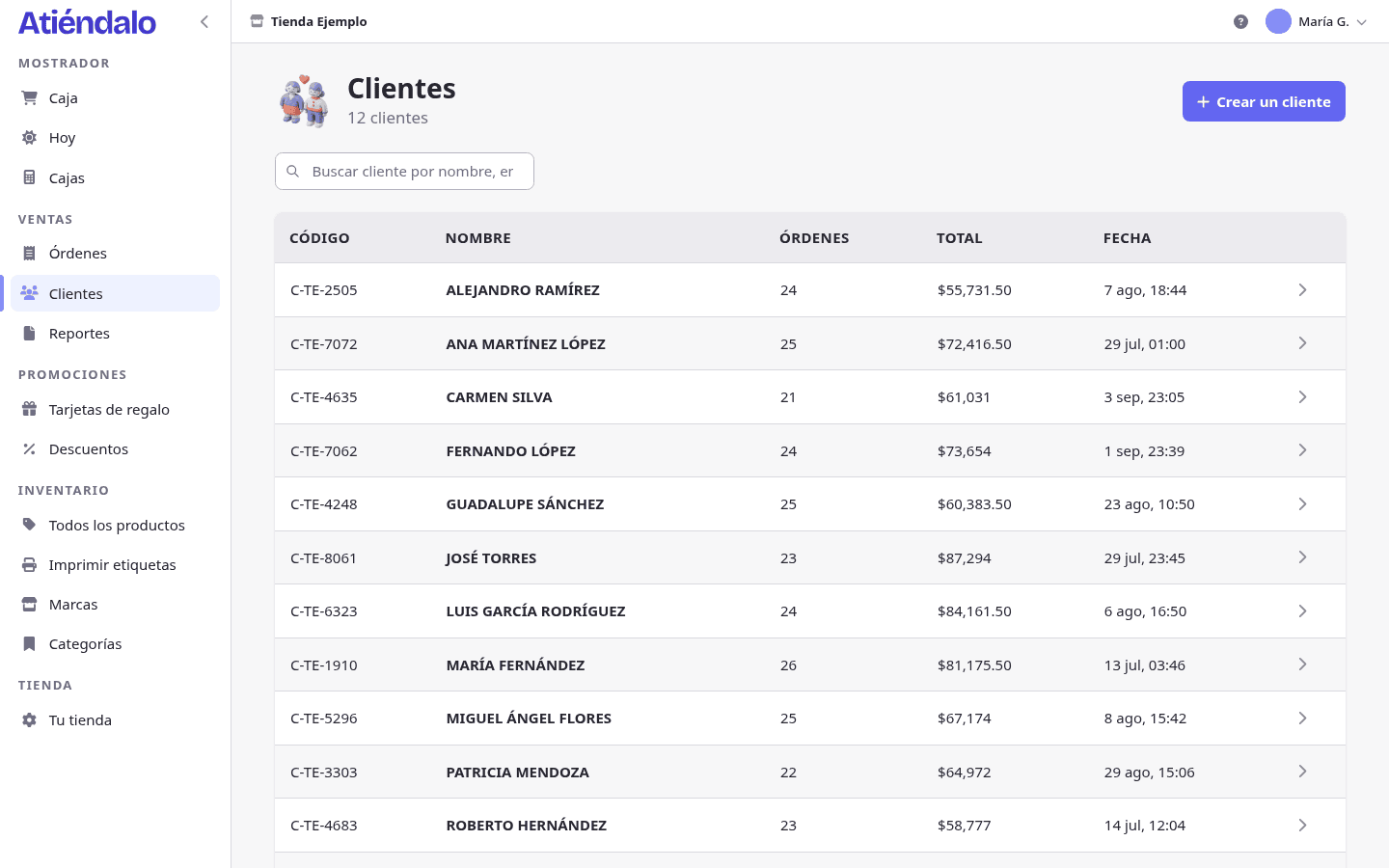
Registering a customer
- Open Customers and press Create a customer.
- Type the Name. That’s the only required field.
- If you have them, fill in Phone, Email and Birthday.
- Save.
On save, Atiéndalo gives them a code of their own, shaped as C- plus your shop’s initials and a number (C-ATD-4821). That code is also their QR.
From checkout you can register one without interrupting the sale: the New customer button opens a window with the name, and saving it attaches them to the sale in progress. Anyone on the team can do this, even though counter staff don’t see the full customer list.
If your customer list already lives in Excel or another system, bring it over with Import customers: Importing your inventory.
Attaching them to the sale
In checkout’s right-hand column, look the customer up by name, phone, email or code and pick them before charging. You can also scan their QR with the scanner or the camera: the customer is attached with no searching at all.
A layaway requires a customer: without one, the Layaway tick won’t let you continue.
The QR code
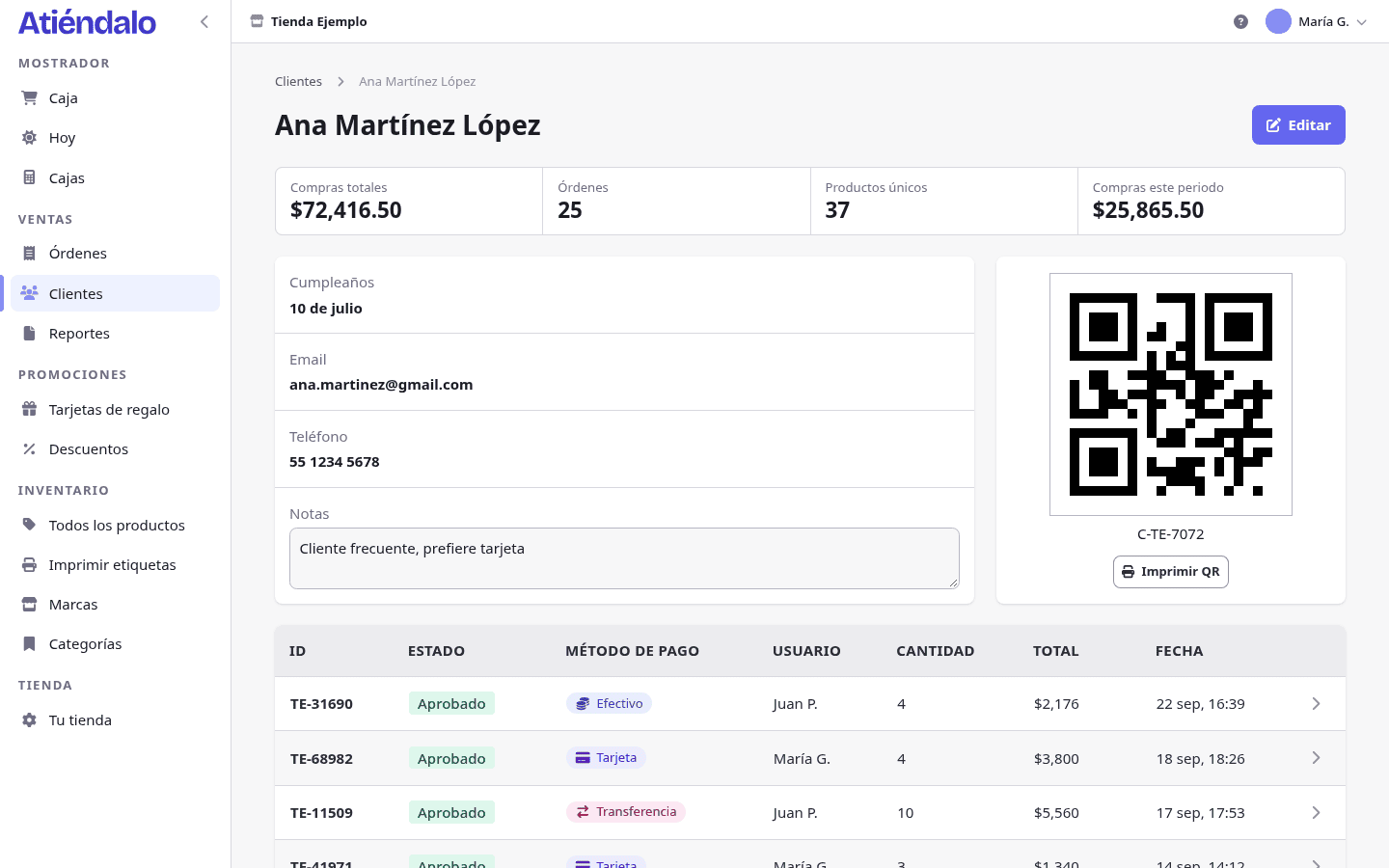
Every customer has a unique QR, which is their code. Print it and hand it over, or send them a photo: at the counter you just scan it.
- From the customer’s page, with Print QR.
- From the sale success screen, with Print customer QR, when the sale already has one.
Both open the same print dialog as product labels, at whatever size your shop has configured. See Labels & printers.
Their history
The customer’s page gathers what’s theirs: how many orders they have, how much they’ve bought in total and in the period, how many distinct products they’ve taken, the list of their orders, any notes you keep on them, and the gift cards in their name.
Taking your data with you
There’s no per-list download: the export covers the whole shop. In Your store → Data, Download ZIP hands you one CSV per table — customers.csv among them, with codes, phones and emails — ready to open in Excel or Sheets. Your data is always yours.
What can go wrong
- It won’t save the customer. The name is missing, or the email already belongs to another customer in your shop: emails aren’t repeated.
- You scan the QR and nothing reacts. A customer QR starts with
C-; a scanner that only reads linear barcodes won’t see it. You need a 2D scanner or the phone’s camera. - A cashier can’t find the customer list. Counter staff can search, view and register customers, but not list or edit them. That’s admin work.
- The phone number won’t save. It’s validated as a real number; write ten digits, or add the country code if it’s from abroad.
- A customer appears twice. Someone registered them again at the counter instead of looking them up. Customers are never deleted, so their sales history isn’t lost: keep the good one and, if you like, flag the other in its notes.