Your team
Your profile
Updated on Friday 18 September 2026
Your name, your language, your email, your password and the devices where you're signed in.
My profile is yours, not the shop’s. What you change there follows you to every shop you enter with that email, and nobody else sees it. The shop’s own settings — period, fees, labels, register — live somewhere else and only admins touch them.
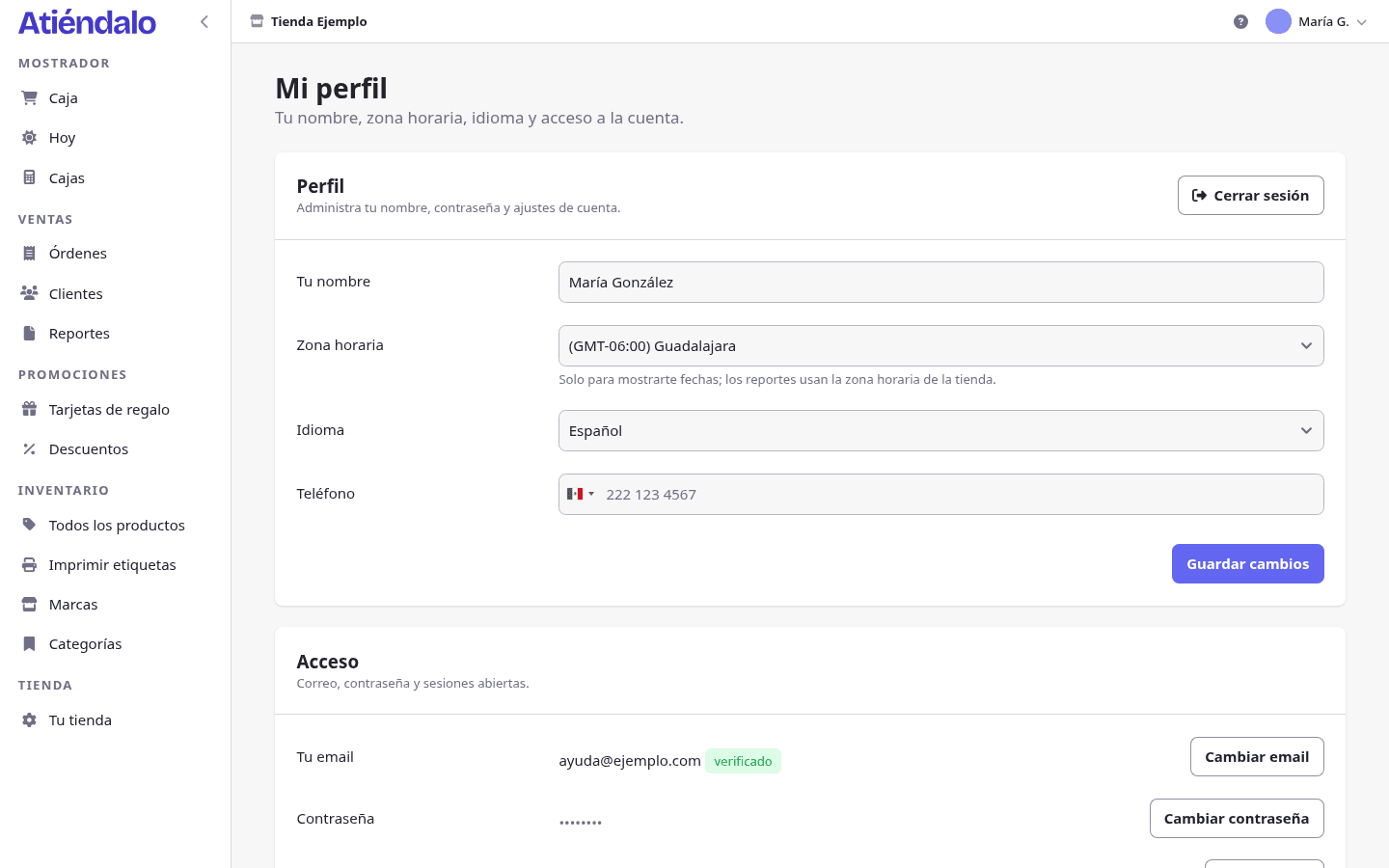
Your details
In My profile, the Profile card has four fields and a Save changes button:
- Your name — the one recorded on every sale, every closing and every count you make, and the one your team sees in the user list.
- Time zone — only for showing you dates. Reports, closings and settlement periods use the shop’s time zone, not yours. If you live in a different zone from your shop, this doesn’t move a single number in the report.
- Language — Español or English. It changes the menus, buttons, messages and help centre for you alone: your colleagues keep theirs. What you typed in isn’t translated: brand, product and category names and notes stay exactly as you wrote them.
- Phone — optional, so your team can reach you.
Changing your email
Your email is your key: you sign in with it, and that’s where the sign-in links land.
- In My profile, next to Your email, press Change email.
- Type the New email and your Current password.
- Save. We send a link to the new address to confirm it.
- Open that link. It works for two days.
Until you do, your email shows as unverified and you’ll see a banner at the top of the screen. Resend verification sends another link.
If you sign in without a password, you’ll have to create one first: changing your email always asks for it.
Creating or changing your password
In Atiéndalo a password is optional. You can always sign in with the link we email you. If your account has none, the profile says No password (you sign in with a link).
To create one:
- In My profile, next to Password, press Create password.
- Type the New password (at least 8 characters) and confirm it.
- Press Save password.
To change it, the button says Change password and it also asks for your Current password. Saving it signs out every other session of yours: it’s the quick way to kick out anyone who got into your account.
A password lets you sign in without waiting for an email, and it’s required for three things: changing your email, transferring the shop and closing it.
Forgot it? On the sign-in screen use Forgot your password?. That link lasts 20 minutes. Or just sign in with the emailed link and create a new password from here.
Sessions and devices
Active sessions lists every device your account is signed in on, with its browser, its IP, the Last active time and the Shop it was left in. The one you’re using is marked This device.
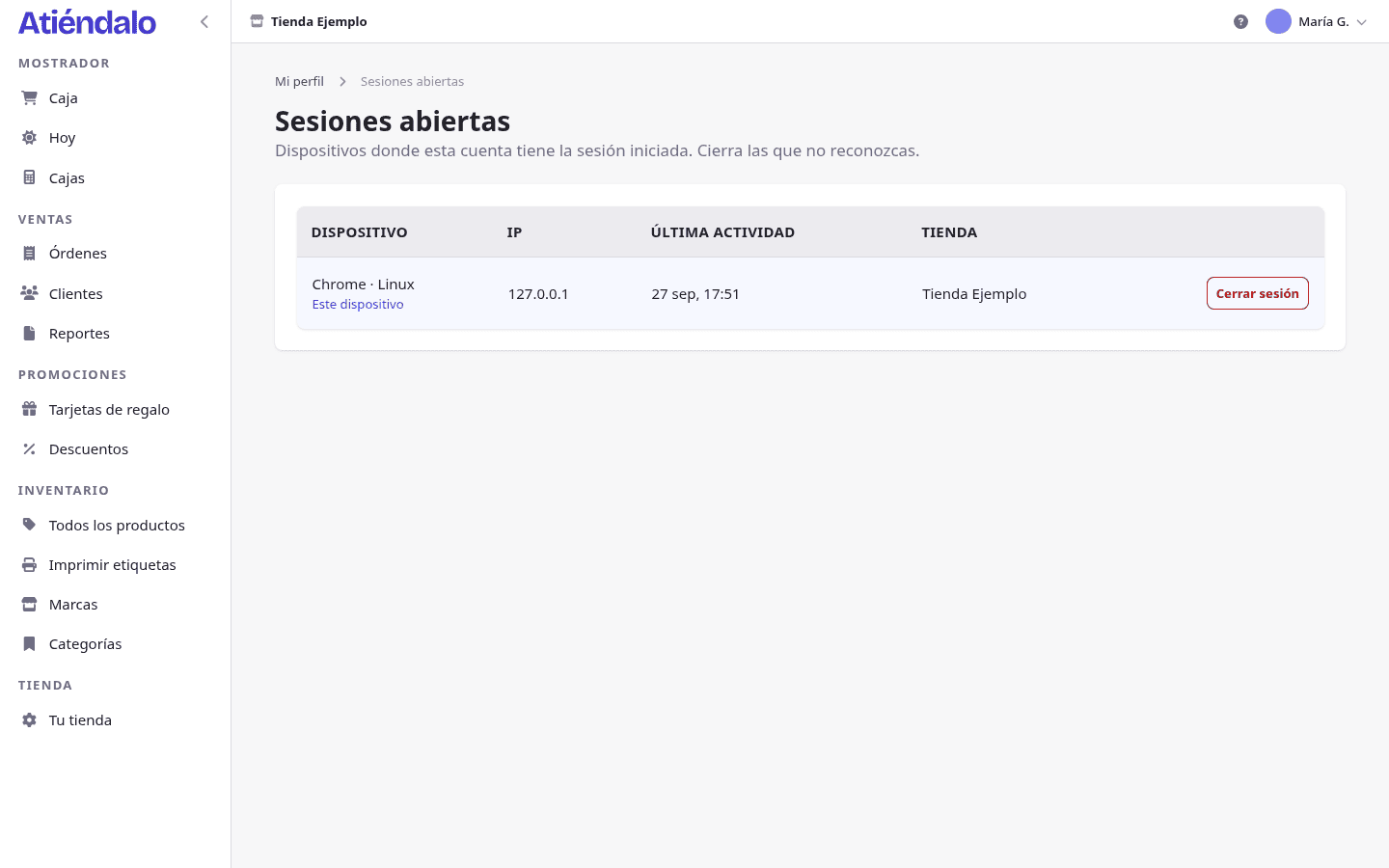
- Open Sessions from your name’s menu, at the bottom of the sidebar, or from View sessions in your profile.
- Go through the list. Close kicks that device out.
- If you lost your phone or something looks off, press Sign out everywhere else: it closes all the others and leaves you signed in where you are.
Sessions idle for 30 days close by themselves.
Switching shop and signing out
At the bottom of the sidebar, your name opens the account menu:
- Switch shop shows up when you belong to more than one. It switches this session’s shop without signing in again; your other devices stay where they were.
- Sign out closes this session only. The others stay open.
Who can enter your shop and with what role is handled separately, in Your team, roles & invitations.
What can go wrong
- You changed your time zone and the report didn’t move. Correct: yours only changes how dates are shown to you. The one that rules reports and closings is the shop’s, under Your store → General, and only an admin moves it.
- You changed the language and the names are still in Spanish. The app is translated, your data isn’t. Brands, products, categories and notes stay as you wrote them.
- It asks for your current password and you don’t have one. Your account signs in with a link. Press Create password, create one, and try the email change again.
- You changed your email and the confirmation link never arrives. Check the spam folder and that the address is spelled right. Resend verification sends another; each one lasts two days.
- You changed your password and it signed you out on your phone. That’s on purpose: changing it closes every other session. Sign in again with the new one.
- “Switch shop” isn’t there. It only appears if your account belongs to more than one shop. To get into another one, you need an invitation to this same email.