Getting started
Brands & suppliers
Updated on Wednesday 30 September 2026
Register your brands, agree their terms, and understand their life cycle.
In Atiéndalo, a brand represents each supplier or consignor whose products you sell in your shop. Everything revolves around them: products belong to a brand, every sale is tracked per brand, and settlements are computed per brand.
Creating a brand
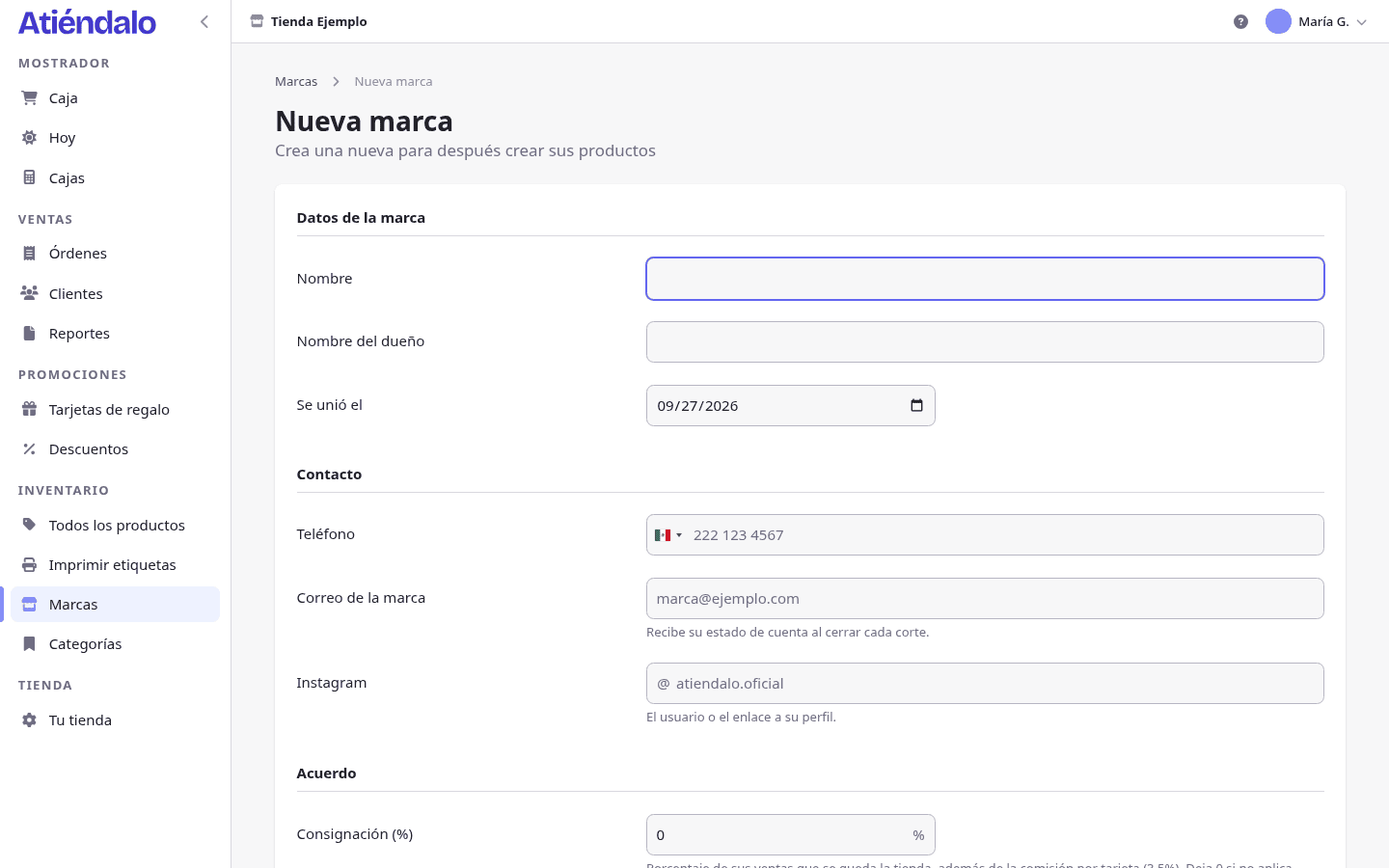
- Open Brands and press Create a brand.
- Under Brand details, type the Name and, if you have it, the owner’s name.
- Under Contact, fill in phone, Brand email and Instagram. That address gets the statement when each settlement period closes.
- Under Agreement, set Consignment (%), Monthly rent, Settlement cycle and Contract ends; under In the shop, its Slot Number and the Low-stock threshold per product (each is explained below).
- Press Create Brand.
If your brands already live in a spreadsheet or your old system’s export, they are created for you when you import their products: Importing your inventory.
The terms you agree with a brand
These fields are not decoration: each one changes what the brand gets paid.
- Slot Number and Monthly rent — the slot it occupies in your shop and the monthly rent you charge for it. The rent is deducted from its settlement when you mark the period as paid.
- Consignment (%) — the share of its sales your shop keeps, on top of the card fee. It is frozen on every sale line: changing the percentage today does not rewrite yesterday’s sales.
- Settlement cycle — how often its account closes. By default it follows the shop’s period (weekly or monthly); here you can give one brand its own rhythm.
- Contract ends — optional. The brand list warns 30 days ahead and flags expired contracts.
- Low-stock threshold per product — the threshold for every product of the brand that has none of its own. Blank turns the alert off.
The monthly rent
If the brand pays you for its slot, put the amount in Monthly rent. It is not charged separately: when you mark its period as paid, the dialog offers Deduct the rent and shows how much is handed over after subtracting it. Three rules:
- It is a rent per settlement, not per calendar month: a brand on a weekly cycle pays it at every weekly settlement. To charge it once a month, give the brand a monthly cycle or untick the box on the settlements it should skip.
- If the rent exceeds what was sold, nothing is handed over and the difference stays pending: the next settlement deducts it first and says so in the dialog. A negative balance is never produced.
- The deducted rent shows on the statement (Rent deducted) and in the settlements history, so the brand sees why it received less.
Reports & settlements explains the full settlement.
The brand page
The brand page is where that brand’s whole operation lives, in four tabs:
- Products — its catalogue with stock, price, stock value and sales.
- Settlements — what you have already paid it and what is still pending.
- Stock movement — the full history of what came in and went out, with the reason and the document behind it.
- Inventory checks — its physical counts.
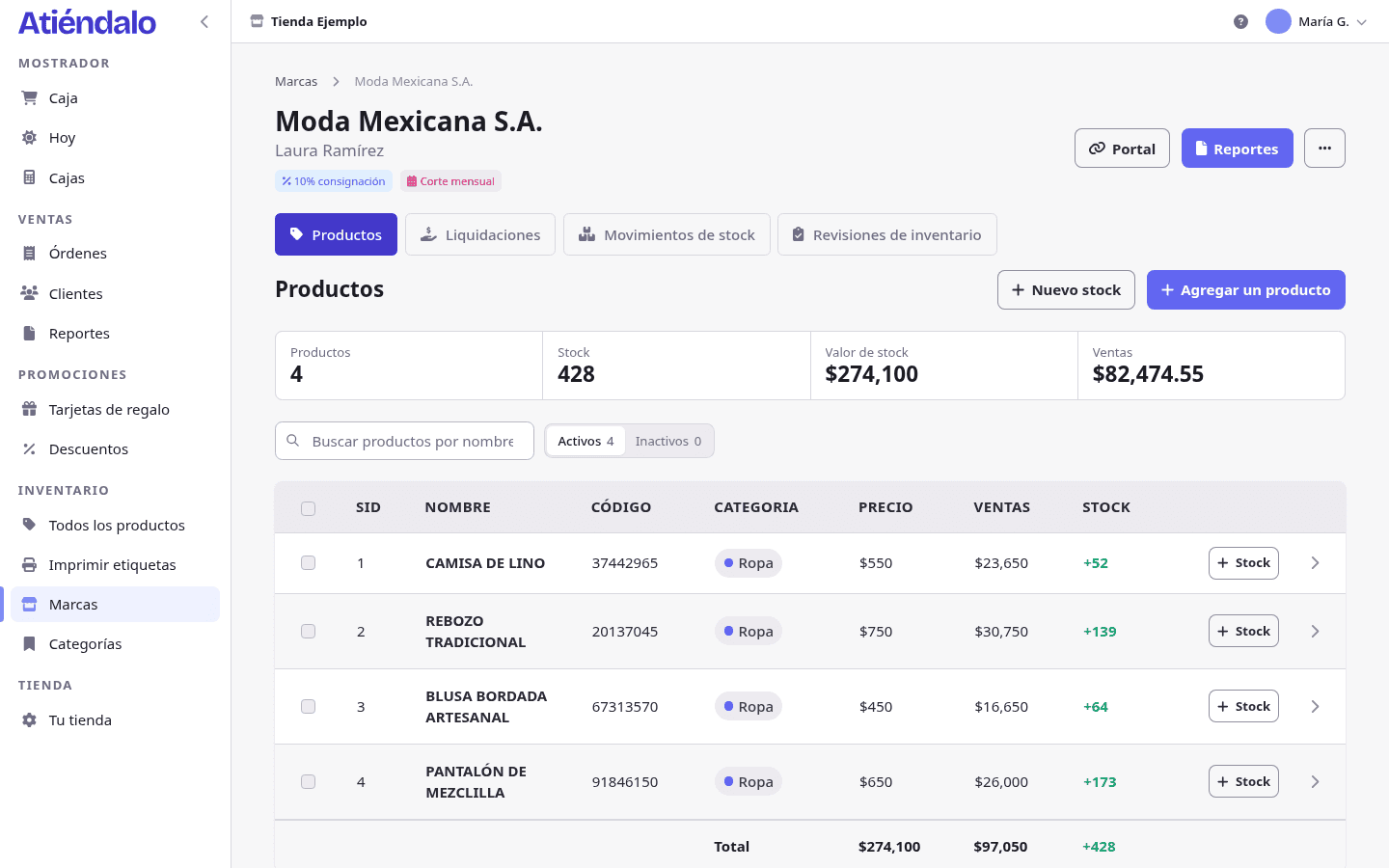
Next to the name you will see the terms as badges (consignment, cycle, contract) and the Portal and Reports buttons, plus the ··· (More actions) menu, which holds importing products, importing a receipt, Return to brand, printing the brand’s labels, exporting products and activating or deactivating it.
The brand portal
Every brand can see its own sales in a read-only portal, without an account in your shop. It signs in with its email, no password.
- Save the brand’s email on its page (··· → Edit).
- Press Portal, then Turn portal on. The brand gets an email telling it how to sign in.
- Whenever it wants to check its numbers, the brand types its email into the portal and gets a link that works once, for 20 minutes. If it reads the email on another device, it types the 6-digit code the email carries on the screen where it asked.
If the brand sells at several shops on Atiéndalo with the same email, it sees all of them from one portal. To close its access press Turn portal off: it is locked out at once. Changing its email moves the access to the new address too.
In the portal the brand sees what it is owed and since when, how its next payout is worked out (sold, discounts, card fee, your consignment cut and the rent), its sales by period and by product, its pieces in the shop (what sold out and what is not moving), every payout with its statement and its terms. It never sees customers or anything about other brands; order numbers only appear on the statement, so the two of you can check it together.
Brand health
Brand health (the button sits at the top of the brand list) answers the uncomfortable question: which brands earn their slot. For each one it shows how many products have never sold, how many days since the last sale, 90-day sell-through, the value of stock sitting still, and whether 30-day net sales cover the rent.
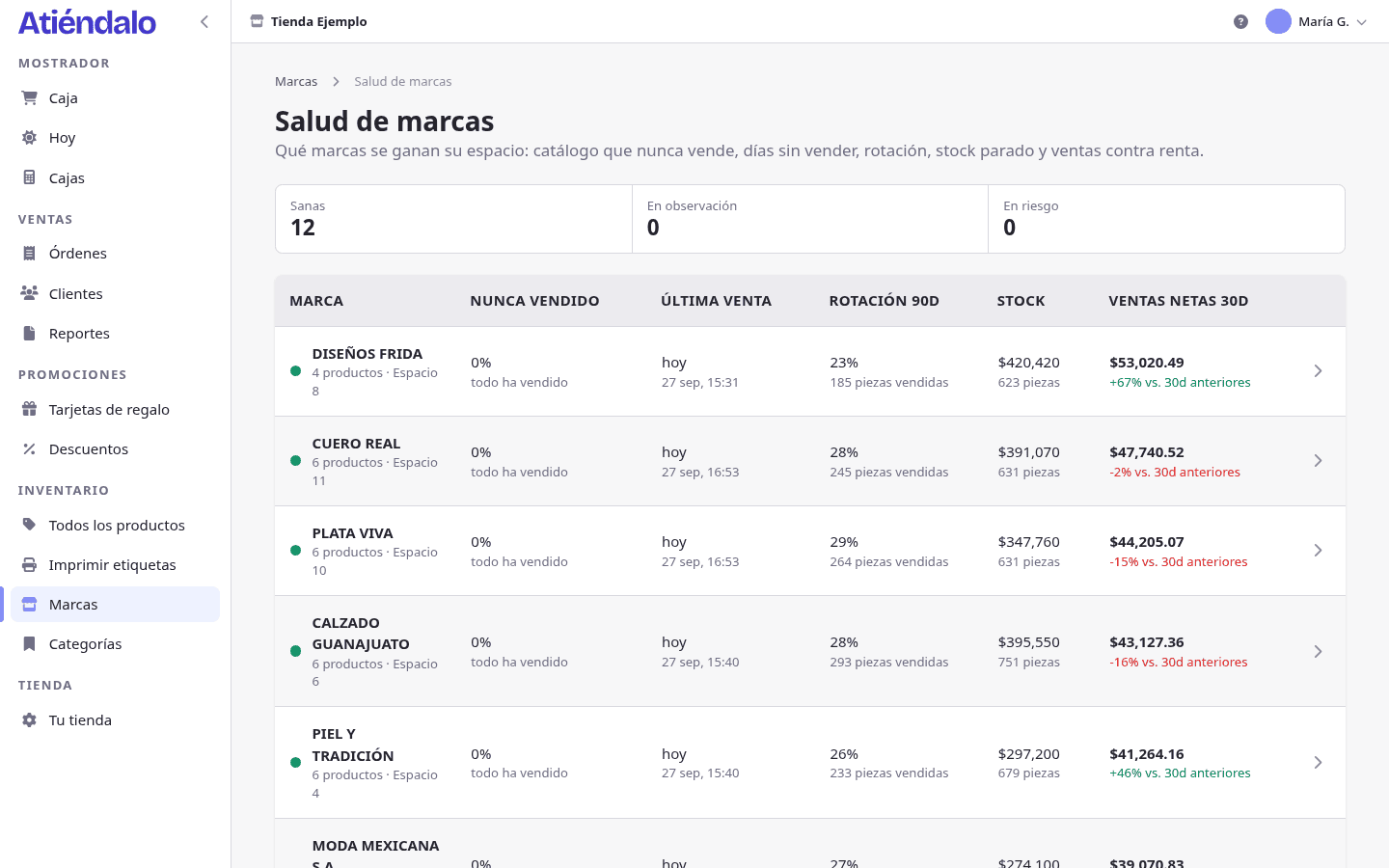
Red means over 30 days without a sale, or half the catalogue with no sale at all. Amber means sales do not cover the rent, or sell-through is under 20%.
Activating and deactivating
An inactive brand disappears from the register, but its history is kept in full. Use it when a supplier leaves your shop temporarily. From the ··· menu on the brand page, Deactivate; the same menu brings it back.
A brand cannot be deleted once it has receipts, sales or settlements: Atiéndalo tells you so and asks you to deactivate it instead. Only a brand created by mistake, which never moved anything, can be deleted.
When a brand leaves
- Record the physical return: on the Stock movement tab, press Return to brand, type how many units go back, and save. The document prints with signature lines.
- Settle its last period from Reports (see Reports & settlements).
- Deactivate the brand.
- If loose pieces are left in the system, deactivate those products and then, on the Products tab with the Inactive filter, select them and press Purge products: Atiéndalo writes a movement that takes their stock to zero.
What can go wrong
- “This brand already has receipts, sales or payouts” when you try to delete it. That is deliberate: deleting it would leave sales with no owner. Deactivate it instead; it stops selling and its history stays intact.
- The brand says its statement never arrived. Check that it has a Brand email on file. With no address the automatic send skips it; with one, you can send it right away with Send by email from its report.
- You charged the wrong percentage. Changing Consignment (%) today does not rewrite past sales: every line keeps the rate it had when it sold. If the change should have applied earlier, settle it with the brand outside the system, or void and re-enter those sales.
- Its products don’t show up at the register. Either the brand is inactive or the products are. An inactive brand hides its whole catalogue from the point of sale.
- The brand does not get the portal link. Check that the email on its page is the one it types and that the portal is on under Portal. Ask it to look in spam too. An old link (
/v/…) no longer opens: the portal is signed into with the email now.
Next steps
What each brand sees on its own is described on the Brand portal page, in case you want to show it to them before turning their portal on.