Getting started
Importing your inventory
Updated on Wednesday 30 September 2026
Bring your products, brands, stock and customers from Excel, another system or a PDF, and review everything before saving.
If your inventory already lives somewhere else, you don’t have to type it in piece by piece. Upload it, review what we understood and press Import: the brands, the products, their stock and your customers land in the shop, and the labels are ready to print right away. Nothing is saved until you confirm it.
What you can bring
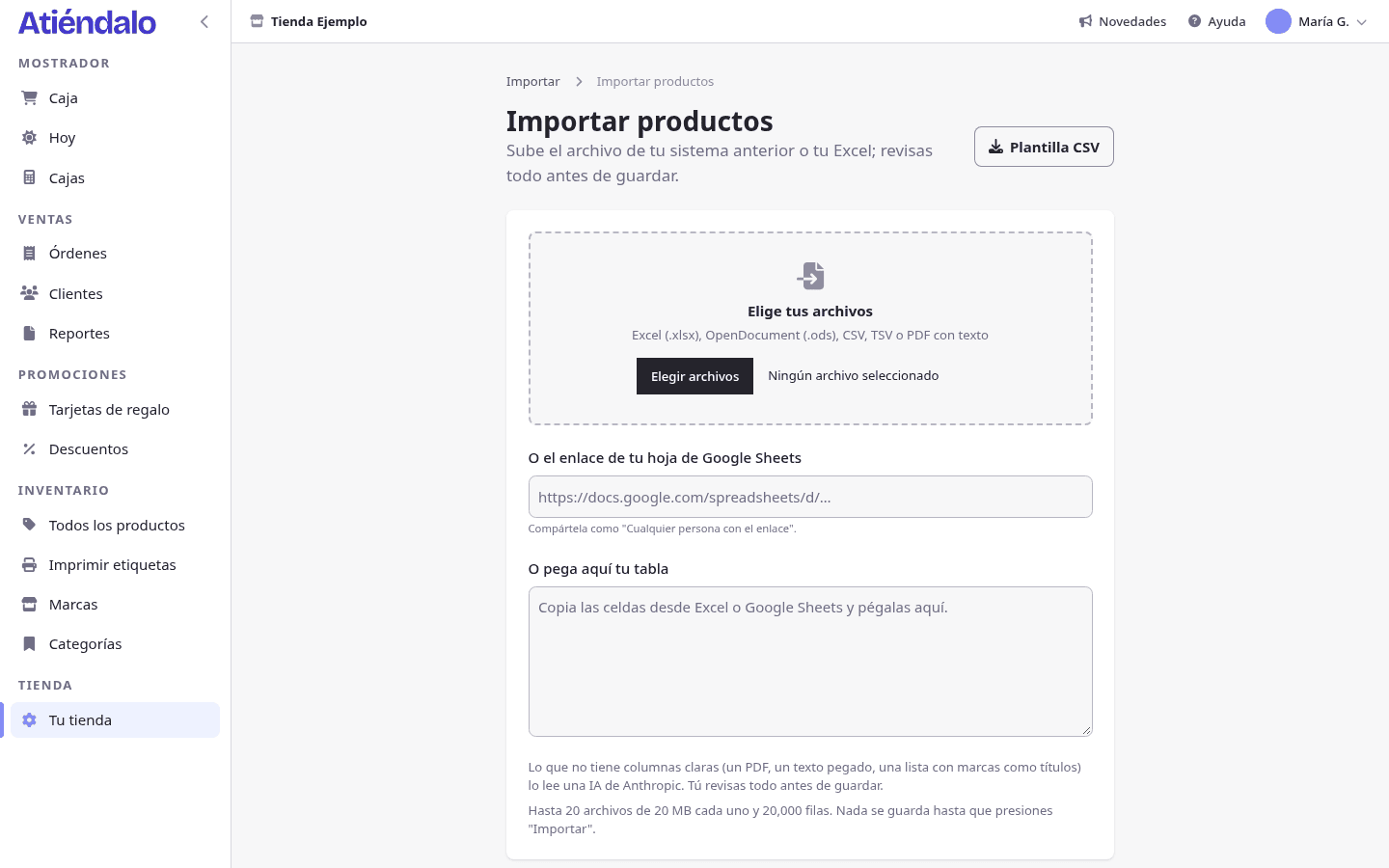
Open Import a file. We accept:
- Excel (.xlsx), OpenDocument (.ods), CSV and TSV: your old point of sale’s export or the sheet you keep by hand.
- A PDF with text, such as the price list a brand sends you.
- A pasted table or text: copy the cells from Excel or Google Sheets, or paste the WhatsApp message where the brand tells you what it is delivering.
- A Google Sheets link, shared as “Anyone with the link”.
You can upload up to 20 files at once (20 MB each) and up to 20,000 rows. If your file has several sheets, each one is reviewed on its own.
What is not imported:
- Photos or scans. A PDF that is a scanned image has no text to read: export it to Excel or CSV.
- Past sales. Your reports start with the first sale you make in Atiéndalo.
- Balances with brands. What you owed each brand in your old system does not come over; settle it there or note it down before you start settling here.
How it goes
- Upload. Pick your files, paste your table or the link, and press Read file. You can leave the screen while it reads: the import waits for you in Import. If you uploaded the wrong file, Cancel stops it right there, without saving anything.
- Review. We show you how we read each sheet and what will happen to each row.
- Import. Press Import. Rows with errors are skipped; the rest are saved.
- Print labels. When it finishes, Print labels opens the usual dialog with what you just imported.
You also reach the import from Your shop → Import data, from the card on Home in a new shop and from the empty products, brands and customers screens. If you open it from a brand’s ··· menu, the products go into that brand.
The review
At the top is the summary: new products, changes, new brands, rows with a warning, with an error and skipped.
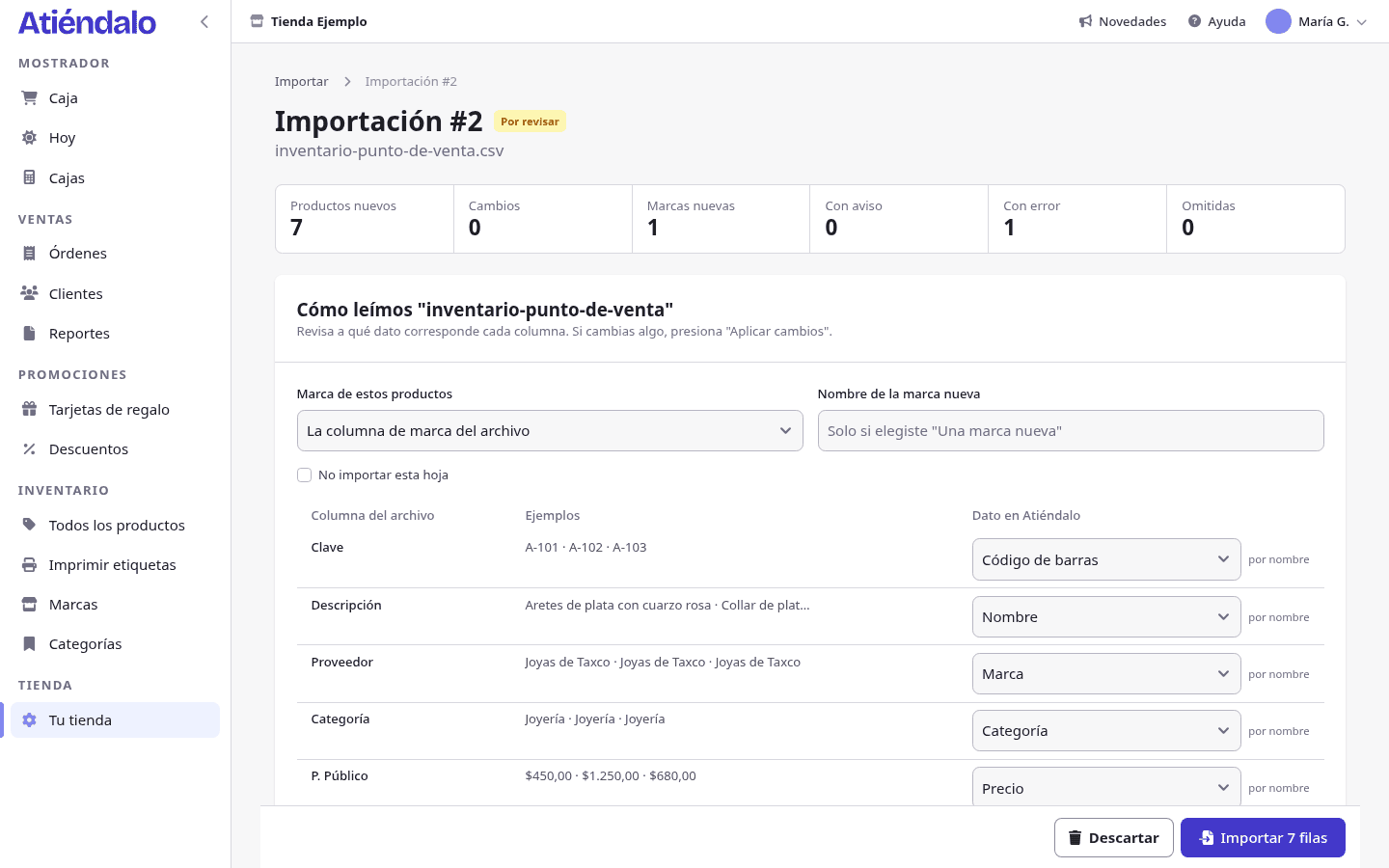
Columns. Under How we read “…” each column of your file shows its samples and the Atiéndalo field we assigned it to (name, price, cost, barcode, brand, category, stock…). If one is not what you expect, change it and press Apply changes. Columns the AI built say AI, and when we hesitate between two we tell you: “Is it «…»? Check this column.” If a sheet is not products, tick Don’t import this sheet.
The brand. Under Brand of these products pick a brand you already have, A new brand…, or The file’s brand column when every row carries its own.
Brands and categories. The ones that don’t exist are created on import. If you already have one spelled differently, pick it instead. When a name is very close to one of yours we join them and tell you (“We matched it with «…», which you already have.”); when it is only similar we ask: “Is it the same as «…»?”.
Products you already have. A row whose barcode, SKU or name matches a product in the shop is not created again. When it only looks similar, the row asks “Is this the same product as “…”?” with two buttons, It’s the same and It’s another. We never join them without asking. Remember that each size or color is its own product (Products & SKUs).
Options.
- If a product already exists: leave it as it is, or update its price, cost, category and description.
- Stock of products you already have: Leave it alone; Add it as a receipt, for merchandise that just arrived; or Set it to the file’s count, when the file is what you counted on the shelf: Atiéndalo records the difference against what you had.
- Barcodes: use the file’s (your existing labels keep working) or generate new ones.
Errors and warnings. The Errors, Warnings, New, Changes and Skipped tabs split the rows. Each row says what it is missing or what we did with it. Fix it with Edit, or take it out with Skip (and bring it back with Include). The usual culprits are an empty price or a barcode that is not the type it claims to be.
If nothing convinces you, Discard deletes the import without saving anything.
After importing
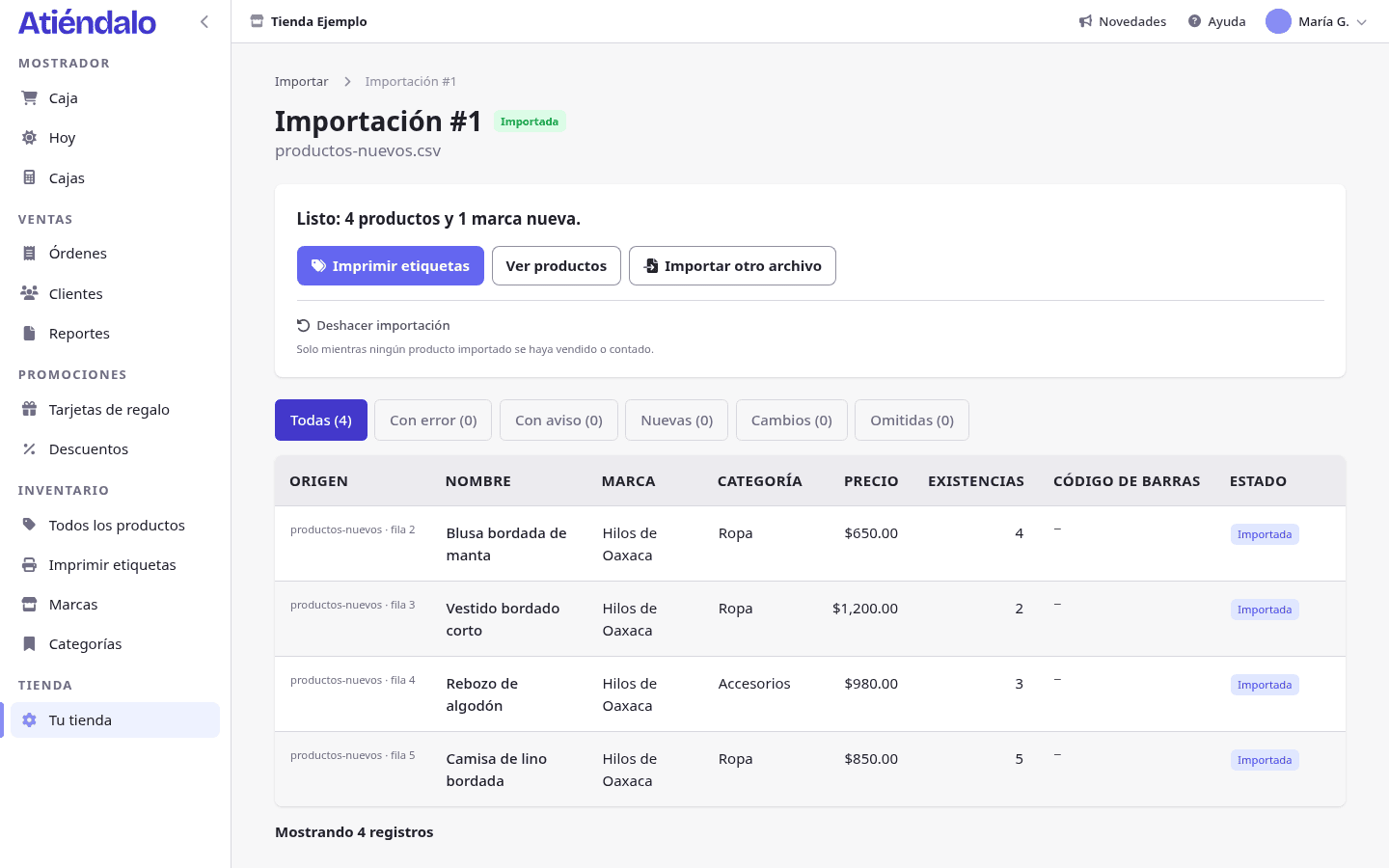
Stock comes in as one stock receipt per brand, with the import’s number in its notes, so it shows up in Print labels like any merchandise received. If you chose to set stock to the count, that brand also gets a receipt with the reason Count adjustment. Each product’s history says where every piece came from (Stock receipts).
Undo import deletes the products, brands, categories and stock receipts the import created, and puts the products it changed back as they were. It only works while none of the imported products has been sold, counted in a stock count or received in another receipt, and while no brand it created has a settlement. Once you have started selling, fix things by hand instead of undoing.
You don’t have to bring everything at once. Import one brand today and another next week: every import stays in Import with who ran it, how many rows it brought and its status.
Customers
Your customer list can be imported too: name, phone, email and birthday. Use Import customers on Customers or in Your shop → Import data; a sheet with a name and a phone or email, and no prices, is recognised as customers even when you upload it through the regular import.
Phones are read as Mexican numbers, full names are split into first and last name, and birthdays are read as day/month. A customer already registered with the same phone or email is not duplicated, nor is one repeated inside the file. Undo removes the customers it created as long as none of them has a purchase. More in Customers.
Who reads your file
Sheets with clear columns are read by Atiéndalo alone. What has no clear columns (a PDF, pasted text, a list with brands as headings) is read by an Anthropic AI, which turns it into rows. To recognise oddly named columns and brands or products spelled differently, a TypeSafe model receives the column names, a few sample values and the names of brands, categories and products that look alike.
The AI proposes and you decide: everything it read shows up in the review, marked, and nothing enters your shop until you press Import.
What can go wrong
- “This PDF is a scan”. It has no text to read. Export the list to Excel or CSV, or paste the text.
- The Google Sheets link doesn’t open. The sheet is private. Share it as “Anyone with the link” and paste the link again.
- “We didn’t read …”. Automatic reading was unavailable or has been used a lot that day. Upload that part as Excel or CSV, or try again tomorrow.
- You can’t undo. One of the imported products has already been sold or counted. Fix those products by hand.
- Stock came in twice. You imported the same merchandise twice with Add it as a receipt. Undo the second import if it still can be, or record a negative receipt.