Hardware & supplies
Labels & printers
Updated on Sunday 27 September 2026
Which printer to buy, how to set it up once, and how to print labels that actually scan.
The label and its barcode are the only bridge between the shelf and Atiéndalo. When a label scans on the first try, selling and counting take seconds; when it doesn’t, your staff types, stock drifts, and settlements to your brands come out wrong. This guide gets a printer ready in one afternoon so you never touch it again.
Atiéndalo does not talk to your printer. It generates a PDF at the exact size of your label and you print it from the browser with the driver your printer already has. Nothing to install, no agents, no per-computer setup.
Which printer to buy
Almost every label printer sold in Mexico (Mercado Libre, Amazon, Office Depot) is a 203 dpi thermal printer, which is exactly what Atiéndalo draws barcodes for. You don’t need to spend more.
| Family | Examples | Rolls that fit |
|---|---|---|
| Xprinter | XP-365B, XP-420B, XP-470B | 56 × 13, 50 × 25, 50 × 30, 40 × 30, 58 × 40 mm |
| Zebra | GK420d, GC420d, ZD220, ZD230 | 56 × 13, 51 × 25, 50 × 30, 58 × 40 mm |
| Niimbot | B1, B21, B3S | 50 × 30, 40 × 30 mm (the brand’s own rolls) |
| Phomemo | M110, M120, M220 | 50 × 30, 40 × 30 mm |
| Dymo LabelWriter | 450, 550 | 54 × 25 mm (use the 51 × 25 preset) |
| Office printer | any laser or inkjet | Letter or A4 sheets with Avery / Janel labels |
Practical advice: a roll thermal printer with 56 × 13 mm for hanging clothes and accessories, or 50 × 30 mm if you want the full product name to fit. Buy direct thermal rolls (no ribbon needed), preferably with removable adhesive if you label consignment merchandise.
The sizes Atiéndalo ships with
- Roll: 56 × 13, 51 × 25, 27 × 13, 40 × 30, 50 × 30, 50 × 25 and 58 × 40 mm.
- Sheet: Letter with 30 labels (66.7 × 25.4 mm, the Avery 5160 layout and its Janel equivalents), A4 with 65 (38.1 × 21.2 mm) and A4 with 24 (63.5 × 33.9 mm).
- Custom…: any roll with a width and height between 15 and 120 mm.
Saving your size once
- Open Your store → Labels.
- Pick the Label size. If your roll isn’t on the list, pick Custom… and type Width (mm) and Height (mm).
- Pick the Label title: store name, brand name or product name.
- Look at the Preview beside it: it is the same label that will print, drawn by the same code that prints it.
- Press Save changes.
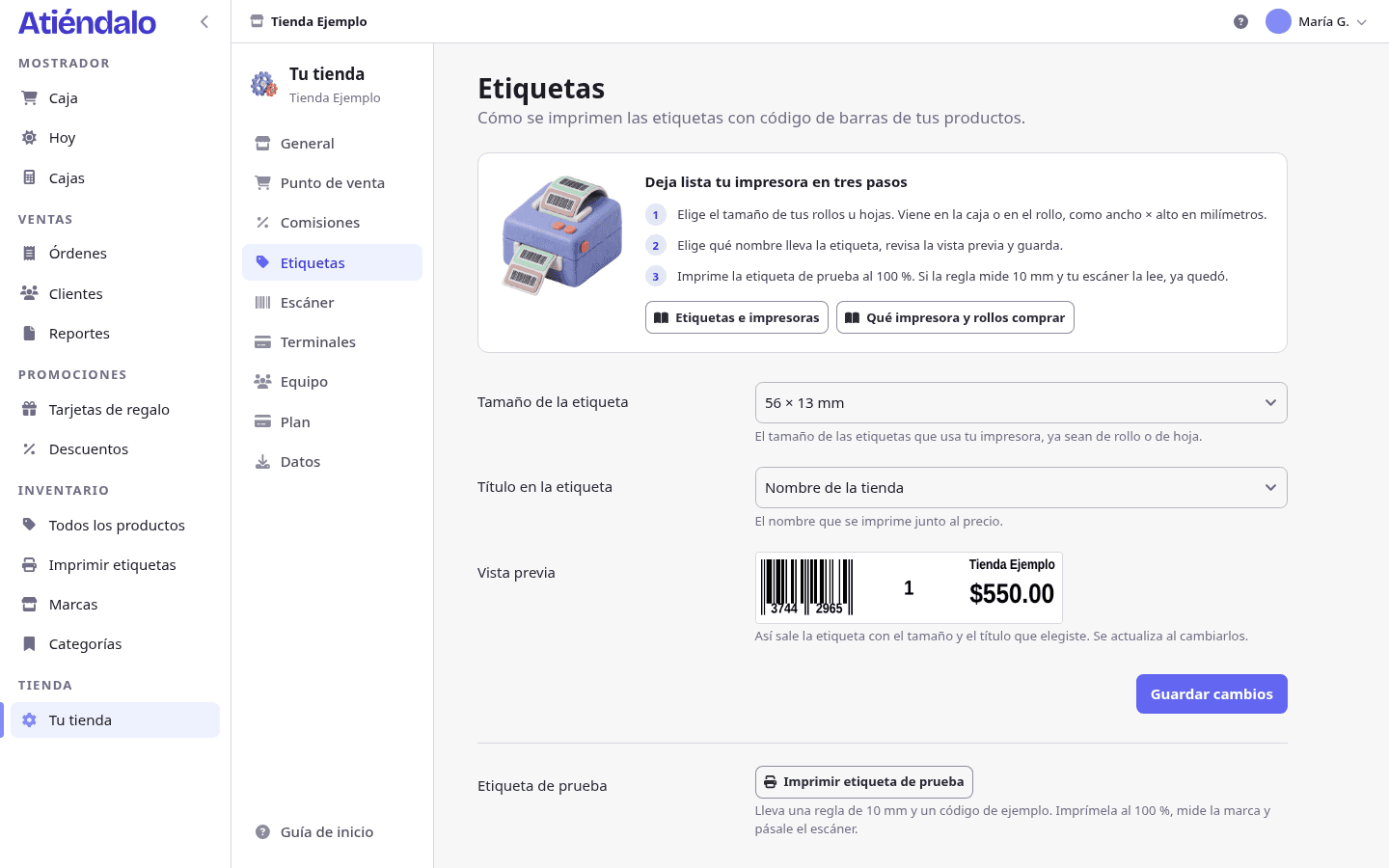
That size is the one preselected every time you print; you can change it per print run without coming back here.
Setting your printer up once
The recipe is the same across the five families, and the step you must never skip is the scale one.
Roll thermal printers (Xprinter, Zebra, Phomemo)
- Install the manufacturer’s driver (Windows) or the generic “Label Printer” driver (macOS). On Windows, Zebra uses Zebra Setup Utilities; Xprinter and Phomemo ship their own installer on the CD or on the maker’s site.
- Open Devices and printers → your printer → Printing preferences and create a paper size with your roll’s exact measurements (56 × 13 mm, say). Save it as the default size.
- Calibrate the gap sensor: with the roll loaded, hold the feed button until the printer ejects two or three labels and stops right at the edge. Now it knows where each label starts.
- In Atiéndalo, open Your store → Labels, press Print a test label and then Print. In the browser dialog, pick your printer and set the scale to 100% / “Actual size”. Never “Fit to page” or “Shrink to fit”.
- Measure the 10 mm mark on the test label with a real ruler. If it measures 10 mm, you are done: the bars are the right size and the scanner will read them. If it measures less, the scale is still on “fit to page”.
Niimbot and others that print from their own app
The Niimbot B1, B21 and B3S are normally driven from a phone app and don’t always expose a system driver. Two routes:
- With a driver: recent versions ship a Windows driver; install it and follow the recipe above with the brand’s roll size (almost always 50 × 30 mm).
- Without a driver: use the Export for another program button in the print dialog. Atiéndalo gives you an Excel file with one row per label (barcode, brand, SID, product and price) that the Niimbot app imports as a data source.
Dymo LabelWriter
Install Dymo Connect, pick roll 11352 (54 × 25 mm) or whichever you use, and in Atiéndalo select the 51 × 25 mm size: the extra 3 mm falls into the margin. You can also use the Export for another program file and merge it from Dymo Connect.
Avery / Janel sheets on an office printer
- Pick the Letter sheet — 30 labels size (Avery 5160, Janel 5160 and equivalents) or the A4 one that matches your sheets.
- When printing, scale 100%, orientation portrait and margins none / document defaults.
- If the sheet is half used, use Start at label no. in the dialog to skip the spent cells and use the rest. That field only appears when the chosen size is a sheet.
- Do the first run on plain paper and hold it against the light over the label sheet to confirm the cells line up before spending adhesive.
Printing labels
Every label comes out of the same dialog, opened from wherever you are. The main screen is Print labels in the sidebar: one row per brand per day with the units that came in that day.
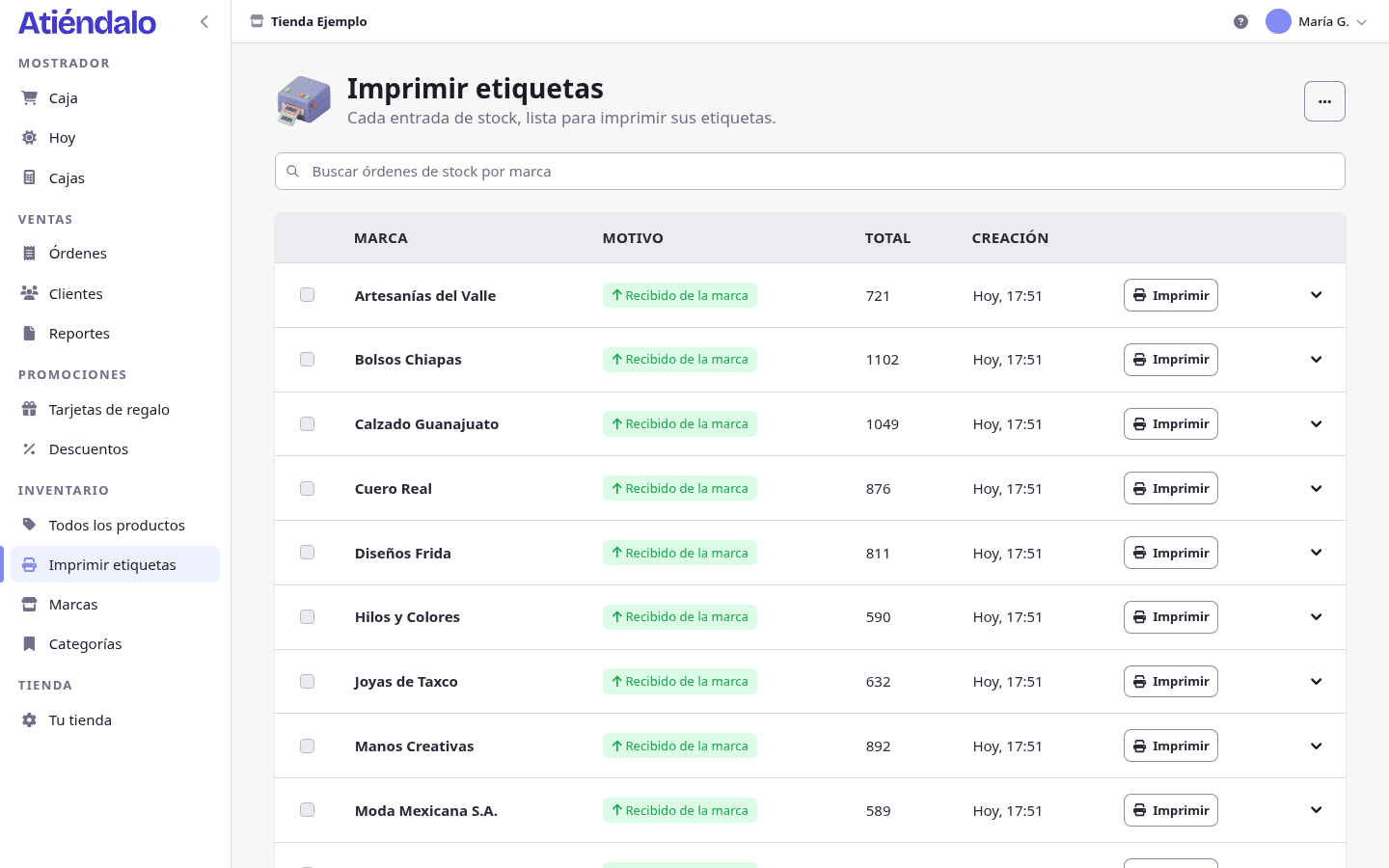
- Open Print labels.
- Press Print on the row for the day you want to label (or expand the row and use a single product’s Print). You can also tick several rows and use Print labels.
- In the dialog, check the Label preview, the Size and the Copies.
- Press Print: the PDF opens in another tab. There you pick the printer and set the scale to 100%.
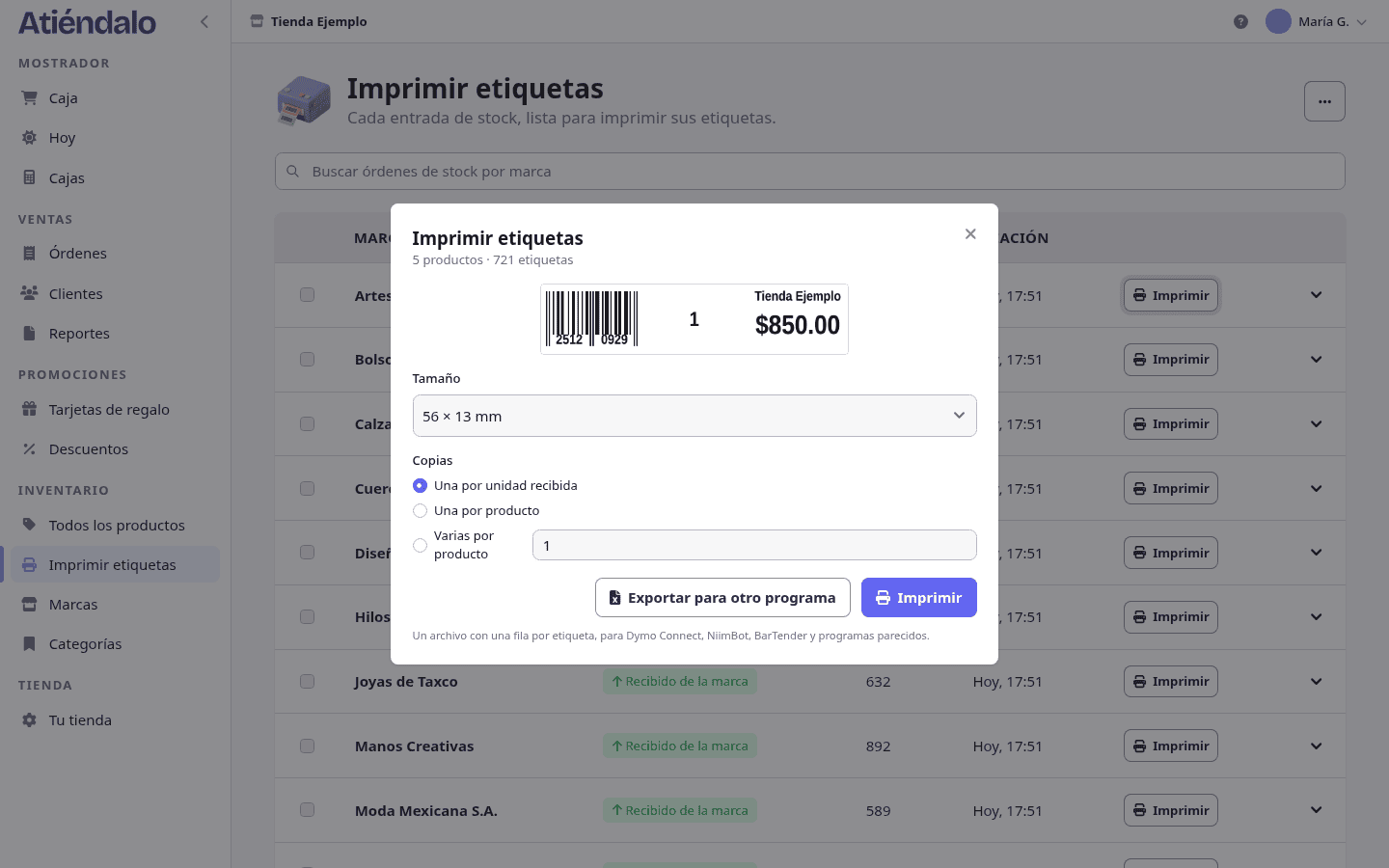
The other places that open the same dialog:
- A product’s page: ··· → Print label.
- A brand’s Products tab: tick the products and press Print labels.
- The brand page: ··· → Print the brand’s labels (all its stock).
- A stock receipt: Print N labels.
How many copies
The dialog decides how many labels each product gets:
- One per unit received — only when printing from stock receipts. If 10 pieces arrived, 10 labels come out. This is the right option when receiving merchandise.
- One per unit in stock — when printing from products or from a brand. One label per piece on the shelf.
- One per product — a single one, to replace a damaged label.
- Several per product — you type how many.
Gift cards and customer QRs
The same labels cover what you hand the customer. Instead of a barcode, these carry a QR code:
- Gift card — the QR is the 16-digit code, with the face value in large type and the code split into groups of four. Print it from the sale success window at the register (Print card) or from the card’s own page (Print card).
- Customer QR — the QR is the customer’s
C-…id, with their name. Print it from the sale success window (Print customer QR) or from the customer’s page (Print QR).
Copies here are only One or Several, because “per unit in stock” means nothing on a card. A card’s or a customer’s QR is small and fits even the 27 × 13 mm label; even so, for something the customer keeps in a wallet a 50 × 30 or 58 × 40 mm roll is the sensible pick, where the amount and the code are readable at a glance.
Your register staff can print gift cards and customer QRs; product labels remain an admin job.
The test label
Print a test label lives in Your store → Labels, and the same button sits in the ··· menu of Print labels as Test label. It prints a label with a sample EAN-8 code and a 10 mm ruler. It is good for two things:
- Checking the scale: if the ruler measures 10 mm against a real ruler, you are printing at 100%.
- Checking the read: scan it. If it reads
12345670, your printer → label → scanner chain is complete.
Keep a printed test label taped next to the printer: when something stops scanning, print another and compare.
Codes that don’t fit
A barcode needs a minimum bar width for the reader to tell bars apart. Atiéndalo never draws bars thinner than 0.25 mm (2 dots at 203 dpi) and reserves the white margins on both sides that the standard requires.
That is why a manufacturer’s EAN-13 does not fit a 27 × 13 mm label, and often not a 40 × 30 mm one either when the product carries a long code. When that happens, the dialog warns you before printing and names the products affected. The way out is one of these:
- Print those products on 50 × 30 or 58 × 40 mm.
- Or let Atiéndalo generate its own EAN-8 (8 digits, far narrower) and stick that label over the manufacturer’s.
The EAN-8 codes Atiéndalo generates fit every size, 27 × 13 mm included.
Export for another program
If you already use Dymo Connect, NiimBot, BarTender or a Word template, the dialog’s Export for another program button hands you the same batch of labels as an Excel file: one row per label, with barcode, brand, SID, name and price. It is the output for anyone whose printing workflow is already solved and who just needs the data.
What can go wrong
- It comes out blank or smudged. The roll is loaded the wrong way round. The thermal side faces the head; scratch it with a fingernail, and the side that leaves a black line is the right one.
- Each label drifts a little further. The gap sensor needs calibrating (step 3), or the driver’s paper size doesn’t match the roll.
- The bars come out tiny and the scanner won’t read. You printed with “Fit to page”. Print again at 100% and check with the 10 mm mark.
- It prints two labels for every one. The driver’s paper size is twice as tall as the roll; fix it in Printing preferences.
- “There are no labels to print for what you picked”. The products you selected have 0 pieces in stock and copies are set “per unit”. Switch to One per product or print from the stock receipt.
- “That is too many labels for one print run”. The limit is 10,000 per run, so a stray zero doesn’t eat the roll. Print it in two goes.
- The preview doesn’t show. The server has no image converter installed; the PDF prints fine anyway. If this happens on atiendalo.com, tell us.
Once printing works, move on to Scanners & barcodes to get the reader ready.
If you don’t use Atiéndalo yet and landed here looking for how to label, the Barcode labels page sums up what the system does with labels and printers.