Hardware & supplies
Scanners & barcodes
Updated on Saturday 26 September 2026
Which reader to buy, how to test it, and what a scan does on every screen.
Atiéndalo treats a scanner as what it is: a keyboard that types very fast. Nothing to install, no ports to configure, no pairing between the shop and the reader. If your scanner types into a text editor, it works in Atiéndalo.
Which reader to buy
Any USB or Bluetooth reader in HID mode (also called “keyboard mode”). That is the factory mode of nearly every reader sold in Mexico, from the 400-peso ones to the cordless counter models.
- Wired USB: the most reliable choice for the register. Plug it in and go.
- Bluetooth with a cradle: handy for receiving merchandise or counting stock while walking the shop. Check the manual says “HID” or “Keyboard”; if it ships in “SPP” or “serial” mode, switch it with the setup barcode in the manual.
- Buy a 2D reader. Product codes are linear (Atiéndalo uses EAN-8, EAN-13, UPC, Code 128 and Code 39) and a 1D reader handles them fine, but gift cards and customers are identified by QR codes, and a 1D reader cannot read a QR. If you sell gift cards or register customers, the reader has to be 2D. The price difference is a few hundred pesos.
One detail that does matter: set the reader to send Enter (CR) at the end of each read. It almost always ships that way; if not, the manual has a barcode that turns it on. Atiéndalo also detects reads without Enter, but with Enter the response is instant.
Testing your scanner
Your store → Scanner has a Test your scanner field.
- Open Your store → Scanner.
- Fire the reader at any product in your shop (or type its code and press Enter).
- Read what appears under the field.
The three possible answers:
- “Scanned: 21692307 → Canvas sneakers.” All good: the reader types, the code exists and the product is yours.
- “Code read: 7501030459958. Not a product in your shop (yet).” The reader works; that code simply isn’t registered. Create the product with that barcode and you’re set.
- Nothing happens: the problem is the reader or the browser, not Atiéndalo. Check the three failures below.
This test records nothing: no stock, no sales, no history.
The three usual failures
- The reader isn’t sending Enter. You scan, the code is typed, and nothing happens. Look in the manual for the “Add CR suffix” / “Enter suffix” setup barcode and scan it once.
- The reader is on another keyboard layout. If
7501comes out as750&or odd accents appear, the reader is set to a different keyboard from your computer’s. Look for the “US Keyboard” or “Spanish (Latin America)” barcode in the manual and match the system. - The label was printed at the wrong scale. If the same code scans off the original product but not off your label, the problem is printing: it went out with “Fit to page” and the bars ended up narrower than readable. Print again at 100% and check with the 10 mm mark on the test label (Labels & printers).
A phone’s camera
With no reader, a phone or tablet already works: at the register, on the stock receipt form, on an inventory check and in Test your scanner, a Camera button appears. Press it, grant permission once, point at the barcode, and the piece goes in just as it would with a reader. The window stays open: scan one piece after another and close with Done. The same code is not counted twice in a row, even though the camera reads it thirty times a second.
Three things worth knowing:
- The camera needs a secure connection. On atiendalo.com you always have it (the browser padlock). If someone opens Atiéndalo through a local network IP address, the browser won’t allow the camera and the button doesn’t appear.
- The button removes itself. As soon as Atiéndalo sees a reader scan in that tab, it hides the button: if you already have a reader, it stays out of the way. It returns when you reload the screen.
- You can turn it off for good. If your shop works with a reader, switch off Camera as a scanner in Your store → Scanner and the button disappears from the till, receipts and counts. The scanner test keeps it, so you can still try it there.
The camera is slower and less forgiving than a reader: it wants good light, a flat code and a couple of seconds. A busy counter still deserves a USB or Bluetooth reader; the camera is for the phone in your hand while receiving merchandise or counting stock.
Manufacturer codes and generated codes
Every product in Atiéndalo has a barcode, and there are two ways to get one:
- The manufacturer’s code. If the merchandise already comes labelled, type that code on the product and pick the Barcode type (EAN-13, UPC-A, Code 128, Code 39). Atiéndalo validates the check digit and that it isn’t already taken in your shop. No label to print: you scan the one it already carries.
- A generated code. Leave the field blank and Atiéndalo generates a unique 8-digit EAN-8. That is the norm for consignment merchandise, which almost never arrives coded, and it has a practical advantage: EAN-8 is narrow and fits every label size, even 27 × 13 mm.
Two brands with the same code
It happens often in multi-brand shops: two suppliers carry the same factory product with the same UPC. A barcode can belong to one product only in your shop, because when you scan it Atiéndalo has to know which brand gets credited for the sale.
The fix is simple: the first one keeps the manufacturer’s code, and you register the second one without a code so it gets its own generated EAN-8. Print its label and stick it over the manufacturer’s. That way every piece sold settles to the right brand.
What a scan does on each screen
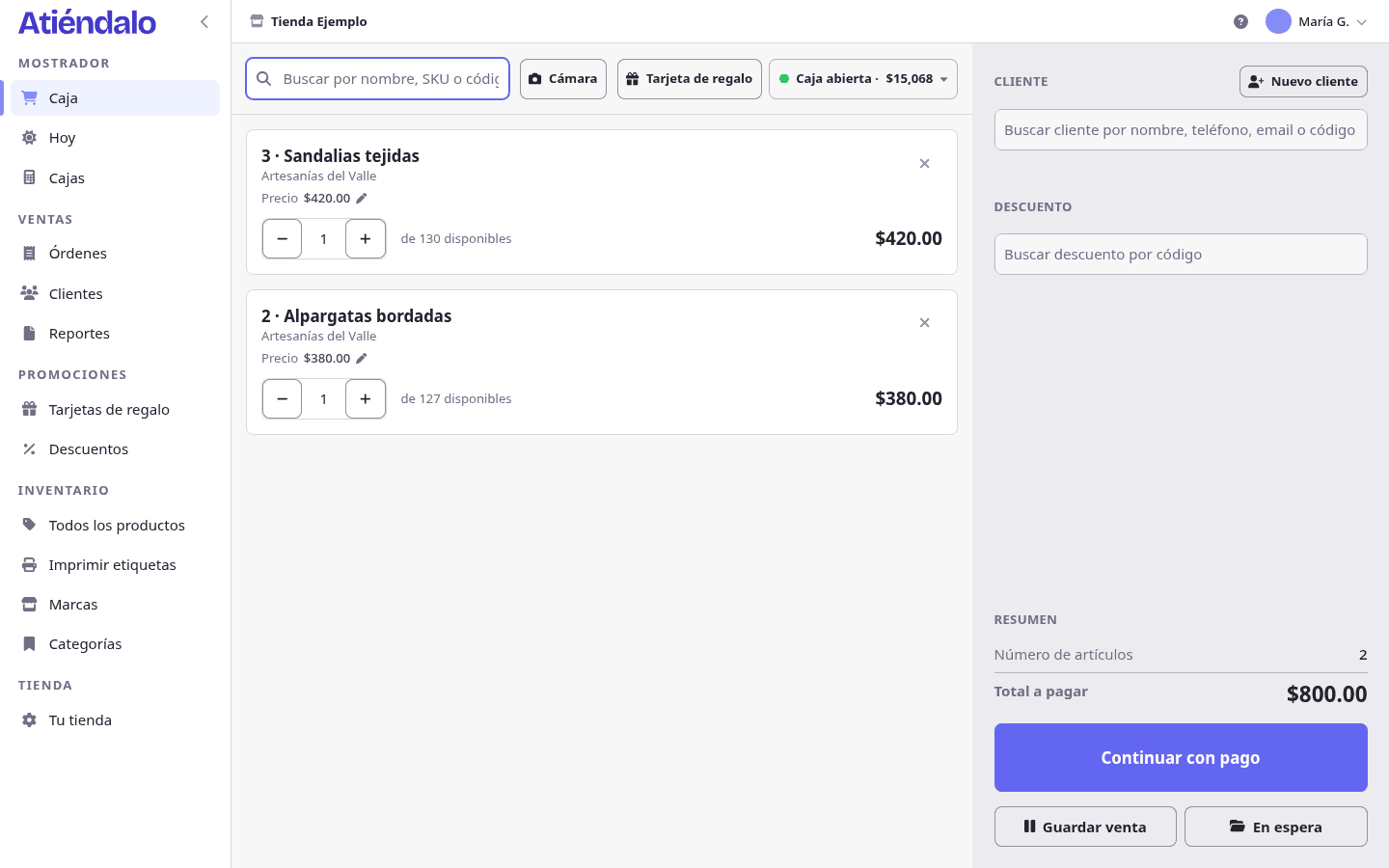
- Register. The code adds the product to the cart, or raises its quantity if it was already there. A code starting with
C-is a customer’s QR and attaches them to the sale. A 16-digit code that is not a product is taken as a gift card: with goods in the cart it opens the payment window with the card applied, and with an empty cart it just tells you the balance. An unknown code is reported without clearing the cart. - Stock receipts. Scanning adds the product to the receipt, or adds a unit if it is already on the list. The cursor returns to the search box on its own, so you can scan one piece after another without touching the keyboard. If the code belongs to another brand, Atiéndalo says so instead of mixing merchandise; if it doesn’t exist, it offers to create the product with that code already filled in.
- Returns to a brand. Same as receipts: you scan and the piece is added to the document.
- Inventory check. Each scan marks the piece as counted and compares against what the system expected. It is the fast way to count: one person scans, another tidies.
- Test your scanner. It only tells you what it read and which product it is. Nothing changes.
- Any other screen in the dashboard. A scan opens that product’s page. It is the shortcut for “what is this and how many do I have?” without searching anything.
At the register, on stock receipts and on returns, the code is looked up in the same order: barcode, SKU and SID. So typing the SID from the label works just like scanning the code. An inventory check compares against its own frozen list and accepts the barcode, the SID or the exact name.
Taking payment without touching the mouse
With a scanner, the sale builds itself with no keyboard and no mouse; taking payment was the one step that made you put the reader down. Not any more: with the payment window open there are four keys.
| Key | What it does |
|---|---|
F2 |
Take cash |
F3 |
Take a card |
F4 |
Take a transfer |
Enter |
Confirm the sale, once the tender covers the total |
Esc |
Close the window and go back to the cart |
The keys only work while the payment window is open, and only for a single payment: if you split the payment across methods, you enter them as usual. Enter does nothing while money is missing (or in excess), which is exactly the confirm button being off, and it respects the fields that need Enter for their own job, such as a gift card code.
So a counter sale fits entirely in the reader: scan the pieces, F2, Enter.
Good practice
- Label merchandise when it arrives, in the same sitting where you record the receipt: the print dialog already knows how many pieces came in and prints exactly those.
- Keep a printed test label at hand; it is the fastest diagnosis when “the scanner stopped working”.
- If a label gets damaged, print another from the product’s page: the code is the same, nothing has to be registered again.
What can go wrong
- The reader types but Atiéndalo doesn’t react. The cursor is inside another field: while you are typing in a sale’s notes or in a quantity, those keys are yours and Atiéndalo doesn’t treat them as a scan. Click the screen’s search box and scan again.
- The code arrives half-typed or split in two. The reader sends characters too slowly for Atiéndalo to see them as one read. Raise its transmission speed per its manual, or use the Camera button meanwhile.
- The “Camera” button isn’t there. Either the browser isn’t on a secure connection (which happens when the app is opened through a local IP), or you already used a reader in that tab and Atiéndalo hid it on purpose. Reload the screen to bring it back. If it is missing on every screen, check that Camera as a scanner is still on in Your store → Scanner.
- You scanned a gift card and it added a product. The code is looked up as a product first: if one of your products carries that same 16-digit number as its barcode, the product wins. Change that product’s code.
- The customer’s QR does nothing at the register. It must start with
C-and belong to a customer of your shop. A QR from another shop, or a photo of an old QR of a customer who was removed, resolves to nobody. - The same piece was counted twice. With the camera, the same code doesn’t repeat within a second and a half; with a reader, a bouncy trigger can fire twice. Check the line’s quantity before saving.