Import your inventory
Bring your inventory from wherever it lives
Upload the export from your old point of sale, your spreadsheet or the list a brand sent you. Atiéndalo sorts out brands, products, stock and customers, shows you what it understood and saves nothing until you confirm.
15-day trial, no card. 500 MXN a month, everything included.
What you can upload
The list you already have, however you have it
Several files at once; when one has several sheets, each is reviewed on its own.
Excel, OpenDocument and CSV
The spreadsheet you keep by hand, as .xlsx, .ods, CSV or TSV.
The export from your old point of sale
Code, item, supplier, retail price, on hand. We read it with whatever column names it has.
A Google Sheets link
Paste the link to a sheet shared as "Anyone with the link".
The brand's PDF
The price list a supplier sent you, as long as the PDF has text and is not a scan.
A WhatsApp message or a pasted table
Paste the message where the brand lists what it is dropping off, or the cells you copied from Excel.
No photos or scans
We don't read photos or scanned PDFs. If your list lives in another system, export it from there to Excel or CSV.
How it works
Three steps, and you confirm
Nothing reaches your shop until you press Import.
-
1
Upload it
Pick your files, paste your table or your sheet's link. You can leave the screen while it is read, and if you uploaded the wrong file you cancel it right there.
-
2
Check what we understood
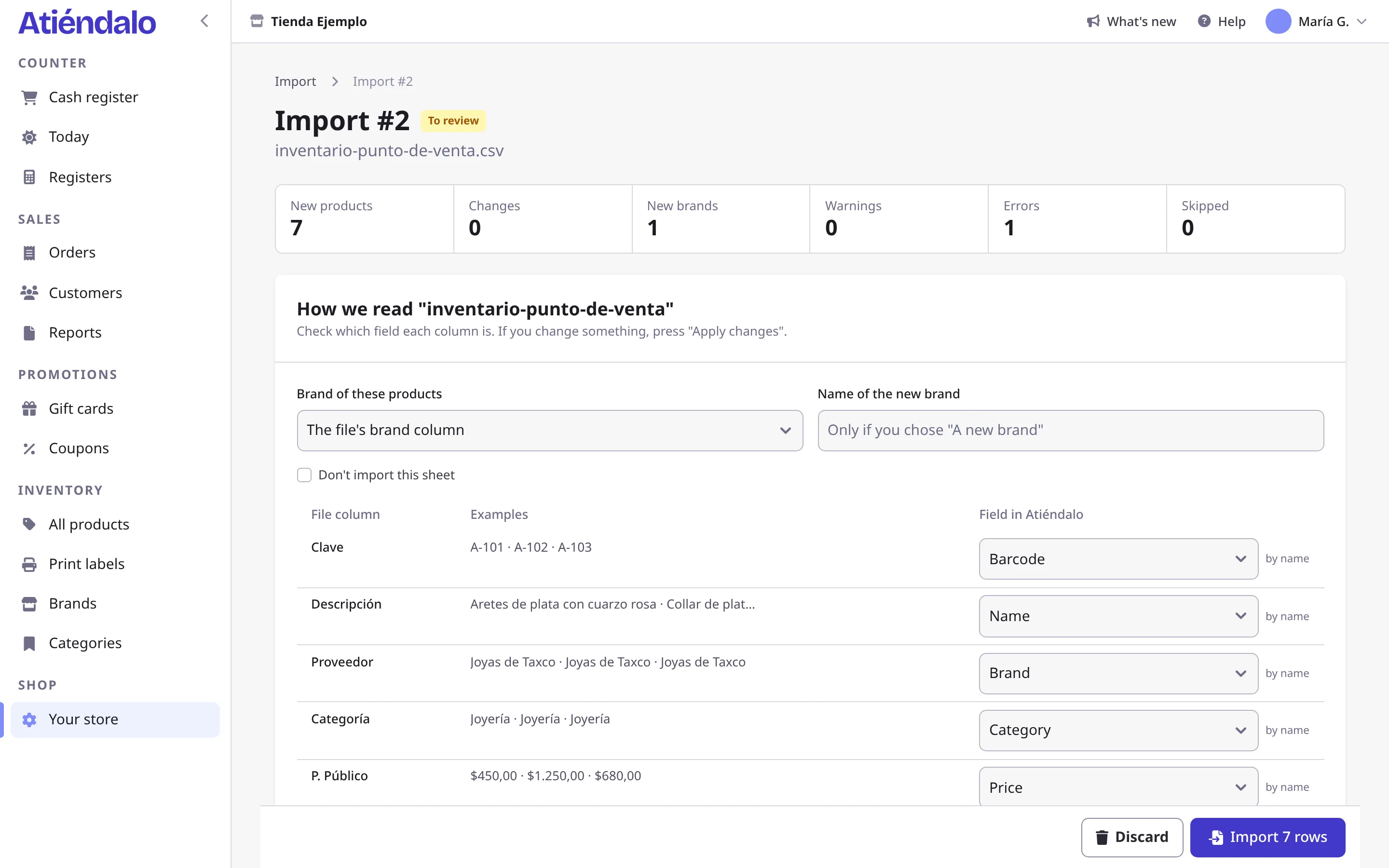
Each column with its examples and the field we matched it to, the brands and categories about to be created, and every row with an error or a warning. Change, fix or skip whatever looks off.
-
3
Import and print labels
Stock comes in as one stock receipt per brand, and "Print labels" opens the dialog with what you just brought in.
The AI proposes, you decide
What has no clear columns an AI puts in order
Tidy sheets are read by Atiéndalo alone. A PDF, pasted text or a list with the brands as headings is sorted into rows by an AI, and a second model helps recognize oddly named columns and brands spelled differently. Everything they propose shows up in the review.
- Columns the AI worked out are marked "AI", and when it is torn between two fields it tells you.
- When a brand is very close to one you have, it is merged and you are told; when it is only similar, you are asked.
- A product you already have is not created again, and one that only looks similar is never merged without asking you.
- Nothing is saved until you press Import.
Who reads your file
- Atiéndalo
- Reads the sheets with clear columns on its own.
- Anthropic (the AI)
- Gets the text of whatever has no clear columns, such as a PDF, pasted text or a list with the brands as headings. It does not use it to train its models.
- TypeSafe
- Gets the column headers, a few sample values from each and the names of the brands, categories and products it compares, with their prices and codes.
- Your files
- Deleted 30 days after the import ends. What you imported stays in your shop.
Switch without losing what you already have
Your existing labels keep working
Keep the barcodes from the file and the pieces that are already tagged scan at the register. If you prefer, every new product generates its own code.
In batches, whenever you like
One brand today and another next week. Every import stays on the list with who ran it, how many rows it brought and its status.
Stock without duplicates
For products you already have, you choose to leave their stock alone, add it as a receipt or set it to the count in the file.
Undo import
As long as none of its products has been sold, counted or received in another receipt, and none of its brands has a settlement, you can undo it: what it created is deleted and what it changed goes back to how it was.
Your customers too
Name, phone, email and birthday. A customer you already have with the same phone or email is not duplicated.
Part of your plan
Importing is one more feature, at no extra cost.
Frequently asked questions
What about my past sales?
They are not imported. Your reports and each brand's settlements start with your first sale in Atiéndalo. Balances you owed brands in your old system don't come over either; settle them there or note them down before you start settling here.
What else is not imported?
Gift card balances, coupons and users. Coupons and gift cards are created inside Atiéndalo, and you invite your team from Your store.
Can I upload a photo of my list?
No. We don't read photos or scanned PDFs. If your list lives in a system, export it to Excel or CSV; if it is a PDF whose text you can select, upload it as it is.
My file is .xls. Will it work?
That is an old Excel format. Open it in Excel, save it as .xlsx and upload that.
Do I have to import everything at once?
No. Import one brand today and another later. If you upload stock you already have again, you choose whether it is added, set to the file's count or left alone.
What if I get it wrong?
Before importing, "Discard" deletes everything without saving anything. Afterwards, "Undo import" puts the shop back as it was, as long as nothing imported has been sold, counted or settled.
Does it cost extra?
No. Importing comes with the plan, like every other feature.
Another question? The help center has the long answer.
Keep reading

Ready to put your shop in order?
Start your 15-day trial. No card, no lock-in, every feature included.
15-day trial, no card. 500 MXN a month, everything included.