Running the shop
How to move your inventory from Excel to a point of sale
Export your list from Excel or your old system, prepare the columns, protect barcodes and prices, and import it without surprises.
Updated Wednesday 30 September 2026 · 8 minute read
Switching to a new point of sale almost never starts from scratch. You already have a list: an Excel sheet you keep by hand, your old system’s export, or the file each brand sends you. Moving it over properly saves you weeks of typing item by item, but a messy list costs you later: prices read wrong, codes the scanner can’t find, and stock that doesn’t add up from day one.
This guide works with any system. What changes from one to the next is the import button; the preparation is the same.
Decide what to bring
- Yes: products, prices, costs, barcodes, brands or suppliers, categories and stock. Your customer list too, if you keep one.
- Carefully: what you owe each brand. The cleanest way is to settle it in the old system, or write it down separately, before you start selling in the new one.
- No: your sales history. Keep a full export of the old system in a folder; your new reports start with your first new sale.
Get the data out of your old system
Almost every point of sale exports its catalog to CSV or Excel, usually from the product list or from an inventory report. If yours only prints reports, look for one that can be downloaded as a spreadsheet.
Export every column, even the ones you won’t use: deleting a column is easier than asking for the file again. And leave the original alone: work on a copy, so you can start over if something goes wrong.
The columns you need
A point of sale needs only a few things per product, each in its own column:
- Name, the way you want to see it at the register and on the label.
- Price to the public.
- Stock: how many pieces you have today.
- Barcode, if the product already carries one or you’ve printed your own labels.
- Brand or supplier, essential in a multi-brand or consignment shop.
- Category, if you want to see sales by type of product.
- Cost, if you want to see your margin.
“Black T-shirt M $250” in a single cell forces whoever imports it to guess where the name ends and the price begins.
Barcodes: always as text
The most common mistake is in the codes. Excel sees a column of plain digits and treats it as a number, and a number doesn’t keep what a code needs:
- Leading zeros disappear. A code that starts with 0 loses a digit, and the scanner no longer finds it.
- Long codes show up as “7.50123E+12”. If you save the CSV that way, the digits you can’t see are lost.
Format the code column as text before you paste or type anything into it. If you receive a CSV, don’t open it with a double click: Excel converts the columns as it opens. Look at it in a text editor, or open it through Excel’s data import option and mark the code column as text. If you already see scientific notation, go back to the file your old system exported.
If a product has no code yet, leave the cell empty instead of making one up; if the new system generates codes, let it. The guide Your own barcodes or the manufacturer's explains when each option makes sense.
One row per size and color
For the register and the scanner, each distinct physical item is a product: a black T-shirt in M and one in L are sold, counted and restocked separately. If your sheet has one “Basic T-shirt” row with sizes in columns or in a single cell (“S, M, L”), split it into one row per size and color, each with its own stock and its own code if it has one. A name like “Basic T-shirt - M - Black” keeps them together in searches.
Clean the sheet before you upload it
Sheets kept by hand pile up things that read fine to a person and badly to a system:
- Total rows. If they stay, someone ends up with a product called “TOTAL”.
- Headings in the middle of the list (“ACCESSORIES”, “Luna”). If the brand is a heading, move it into its own column on every row.
- Merged cells, which on export leave the value in one row and the rest empty.
- Empty rows and stray notes (“reorder”, “check price”).
- Duplicate products: the same item on two rows doubles its stock.
Consistent brand and category names
To a system, “Luna”, “LUNA”, “Luna Jewelry” and “Luna S.A. de C.V.” can be four different brands, each with its own settlement. Filter the brand column, look at the list of unique values and keep one name per brand. Do the same with categories.
Prices: decimal point or decimal comma
In Mexico prices are written $1,250.50: the comma separates thousands and the point marks the cents. A computer set to another region, or a file from another country, may write 1.250,50, with the roles reversed. A system that reads one format as if it were the other turns twelve hundred fifty pesos into a little over one peso.
Check that the whole column uses one format, that no price is written as words (“250 pesos”, “ask”), and that every empty price is empty on purpose.
Stock: count before or after
Your old system’s stock figures are only as good as your last count. You have two paths:
- Count before. Do a physical count, correct the sheet and import those numbers.
- Count after. Import what the old system says and, over the first few weeks, count brand by brand in the new one to adjust.
Both work. What doesn’t is never counting: when the first shortage shows up, you won’t know whether it came from the switch or from the shop floor. The guide How to do a physical inventory count in your shop explains how.
In parts, and check a sample
With thousands of products or many brands, you don’t have to move everything in one afternoon. Import one brand, check it, print its labels and move on to the next: whatever you fix in the first one won’t repeat in the others.
After each import, don’t trust the total. Pick ten products at random and compare them with the sheet: name, price, stock, brand and code. Scan their labels at the register to confirm the code finds the right product. If the system generated new codes, print the labels before you open.
Checklist before importing
| Check | Why |
|---|---|
| A copy of the original file | So you can start over if something goes wrong |
| One column per field | Nobody has to guess what each value is |
| Codes formatted as text | No zeros or digits get lost |
| One row per size and color | Each item is sold and counted on its own |
| No totals, headings or empty rows | No products get created that don’t exist |
| One name per brand and category | A brand doesn’t split into several |
| Every price in the same format | $1,250.50 isn’t read as another amount |
| A physical count, before or after | Stock starts out reliable |
| A sample checked at the end | You find the mistake before your customers do |
Importing into Atiéndalo
If you’re starting on Atiéndalo, you don’t have to rearrange the sheet. It reads your old system’s export as it comes: Excel, CSV, a Google Sheets link shared with anyone who has the link, a pasted table or text, or a PDF with text. Photos and scans can’t be read.
Before saving anything, it shows you how it understood each column and what will happen to each row. A column read wrong can be changed right there, and a row that doesn’t belong, like a total, comes out with Skip. It flags an empty price or a code that was saved as a number and lost digits as an error, and it tells you or asks you when a brand or product looks like one you already have. You can keep the codes from the file, so your existing labels keep working.
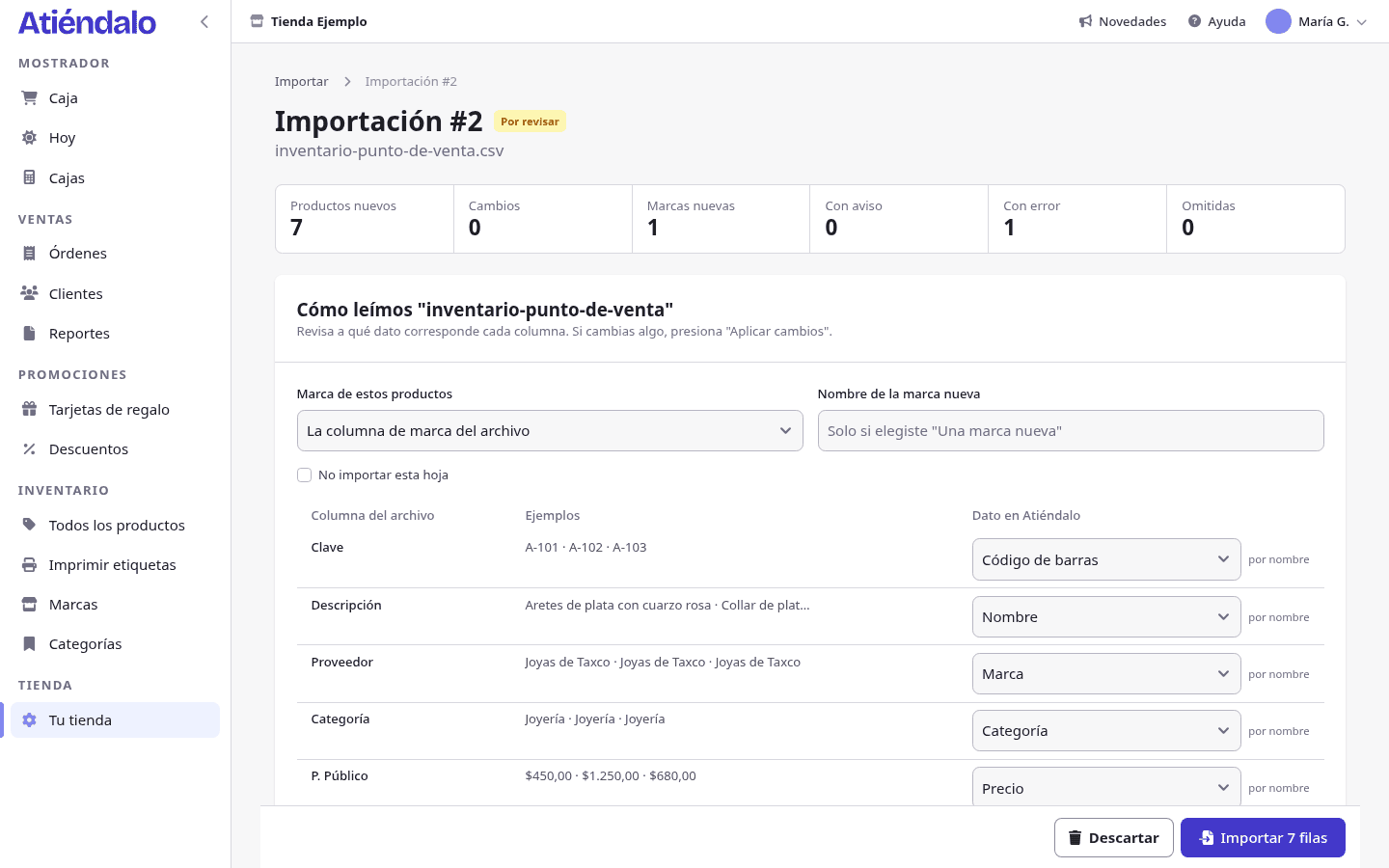
You can undo the import as long as none of its products has been sold, counted or received in another receipt, and no brand it created has a settlement. When it finishes, one button opens label printing with what you just imported. It’s all on Import your inventory, and if you already use Atiéndalo, the step by step is in Importing your inventory.

If you already use Atiéndalo
- Importing your inventory — Bring your products, brands, stock and customers from Excel, another system or a PDF, and review everything before saving.
- Products & SKUs — Create products, understand SKUs and barcodes, and keep your catalog current.
- Stock receipts — Record the merchandise you receive from each brand and keep your inventory current.