Reports & settlements
Reports & settlements
Updated on Sunday 27 September 2026
Understand what each brand sold, mark it as paid, and hand over their statement.
Reports answer the central question of a multi-brand shop: how much do I owe each brand? Every sale stores its prices, discounts and commissions at the moment it is charged, so a period’s numbers never change even if you later edit a coupon, a commission or a brand’s percentage.
The overall report
Reports shows your shop’s picture per period: sales, orders, discounts, commissions and consignment, the daily sales chart against the previous period, the breakdown by payment method, the heatmap of the hours and days that sell most, who paid each discount and where the margin comes from (only from products with a cost captured). Below it is What you owe each brand, already net of card commission and consignment, and the list of the period’s orders.
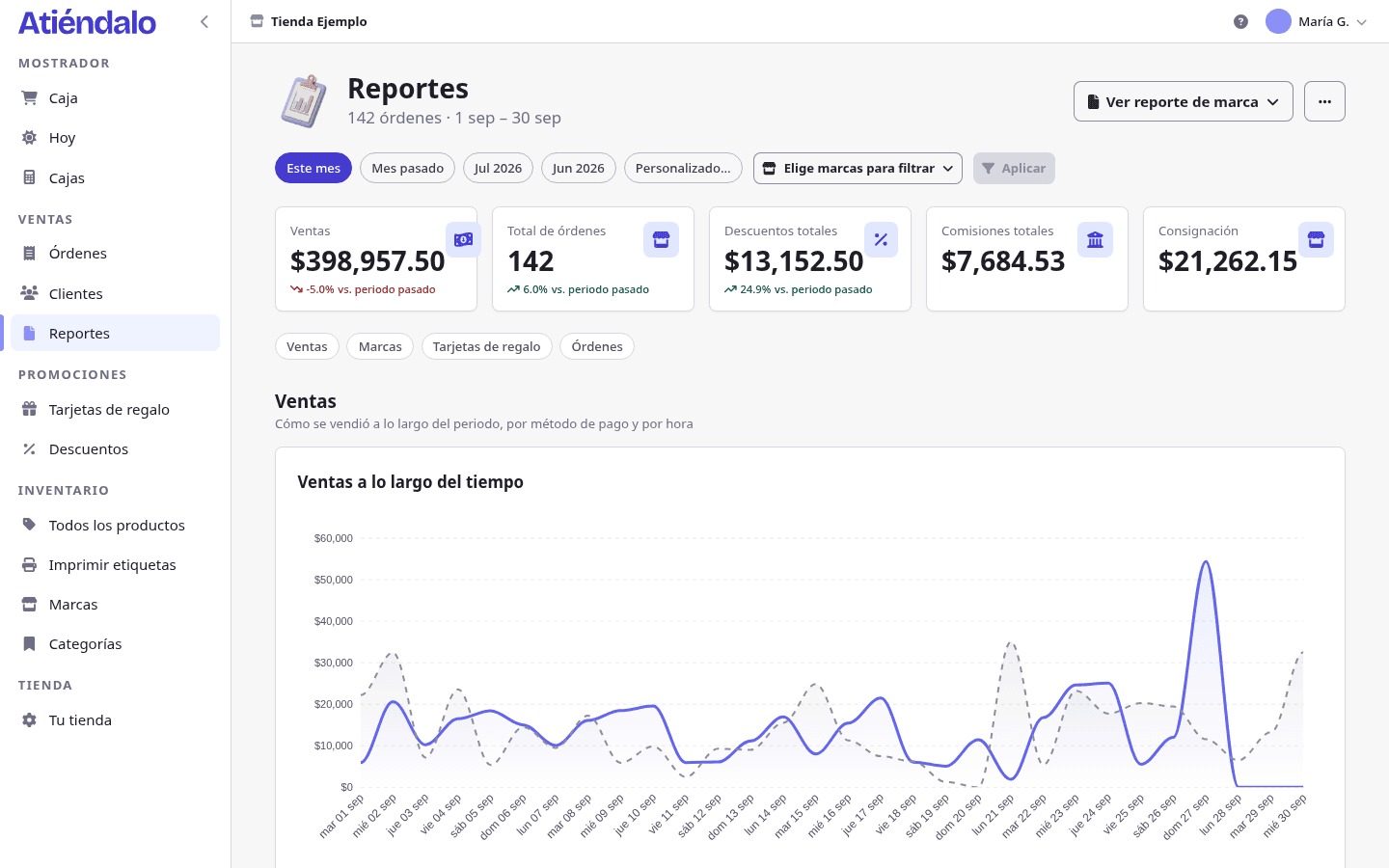
To narrow it down:
- Pick a period with the shortcuts (This week, Last month…) or your own Date range.
- Tick one or more brands under Choose brands to filter and press Apply. With brands filtered, the orders table shows only the part of each order that belongs to them.
- Download what you see from the [···] menu in the header, as XLSX or CSV, with the period and filters set at that moment.
The brand report
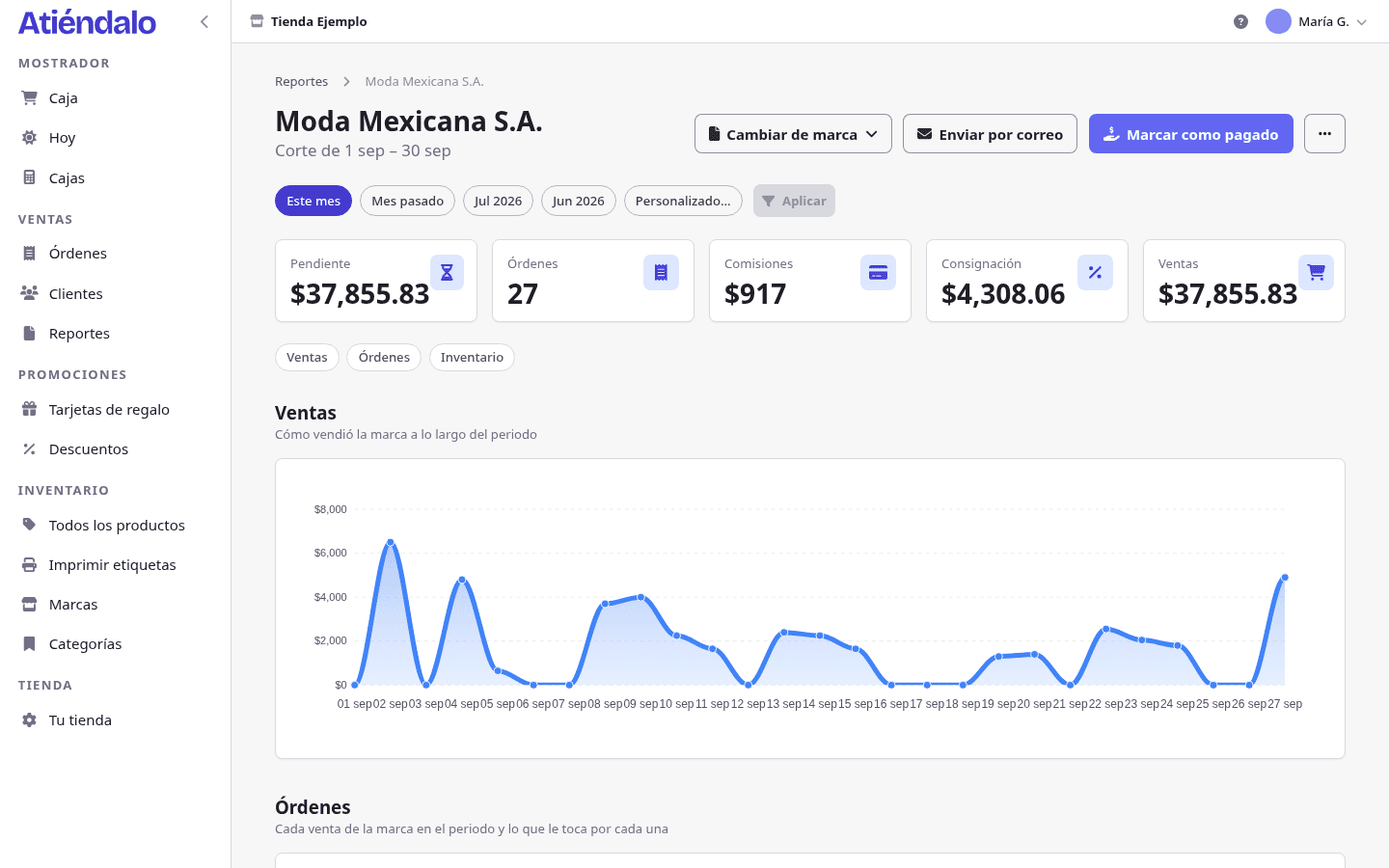
Open Reports and click a brand’s name, or open the brand and press Reports in its header. There you see, product by product and order by order, what it sold in the period. Each line shows:
- Price and quantity sold.
- The discount it absorbed, if coupons were used.
- The card commission that falls on it, if that sale was paid by card.
- The consignment, your own cut on that brand, if you gave it a percentage.
- The amount to settle for that line.
At the end is the brand’s stock at the close of the period and an Internal brand notes field only your team sees.
How the settlement is calculated
For each product sold:
amount to settle = (price × quantity) − prorated discount − card commission − consignment
- The card commission applies only to the part of the sale paid by card and includes its VAT: if your terminal charges 3.5% and VAT is 16%, 3.5% × 1.16 = 4.06% is deducted from the discounted amount. Both percentages live in Fees and taxes.
- The consignment is the Consignment (%) on the brand’s form, computed on the line’s value after its discount. If the brand has 0, nothing is deducted and the column does not appear.
- Coupons are absorbed by the brand, unless you chose when creating the coupon that the shop absorbs it: then the brand is paid as if there had been no discount. See Discount coupons.
- Gift cards sold are no brand’s sale; when the customer spends one, that purchase does count for the brand and pays no card commission. See Gift cards.
- Voided sales appear in no report. Layaways count once the customer pays off the balance.
Marking as paid
When you pay a brand, record the payment right where you saw the amount:
- Open the brand’s report for the period you are paying.
- Press Mark as paid. You will see the period, how many orders are included and the exact Amount to pay.
- If the brand pays rent, tick Deduct the rent and you will see how much is handed over after deducting it.
- Choose the Payment method and note a Reference (the transfer folio, for instance) and Notes if needed.
- Press Confirm payment.
On confirmation:
- A settlement is saved with an exact copy of those sales and amounts.
- Those sales are frozen: they can no longer be voided or edited; only the order’s notes and customer stay open.
- If a sale later lands with a date inside an already paid period, it shows as Pending and you pay it in the next settlement.
- If the rent exceeds the sales, nothing is handed over and the difference stays pending: the brand’s next settlement deducts it and says so in the dialog (“The brand owes … from the previous settlement”).
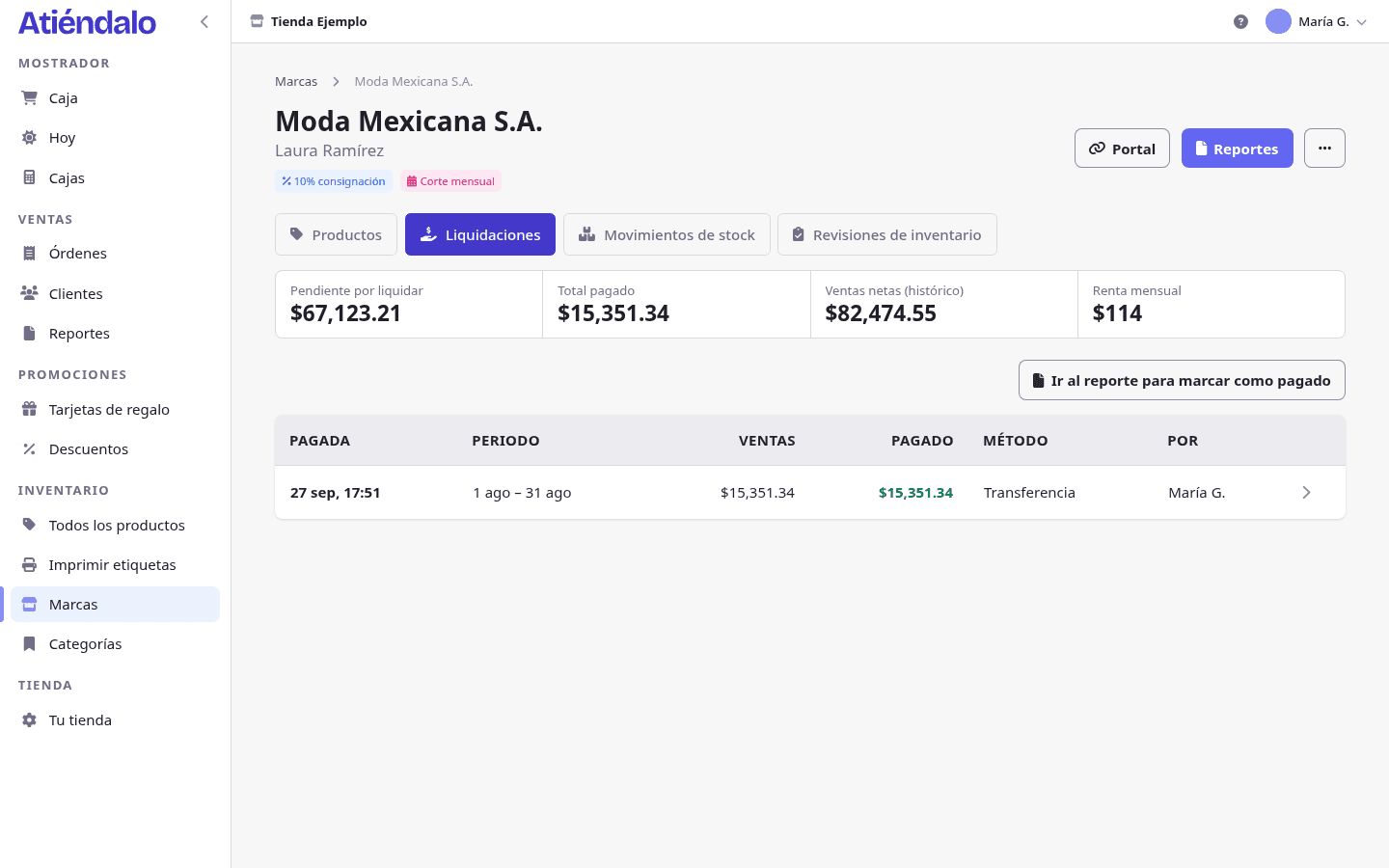
The history lives in each brand’s Settlements tab and in Settlements, in the sidebar.
Undoing a settlement
If you picked the wrong period or amount, open the settlement and press Undo. Its sales go back to pending and you can mark it again. Only the brand’s latest settlement can be undone, and only while none of its sales has had a return.
Statement
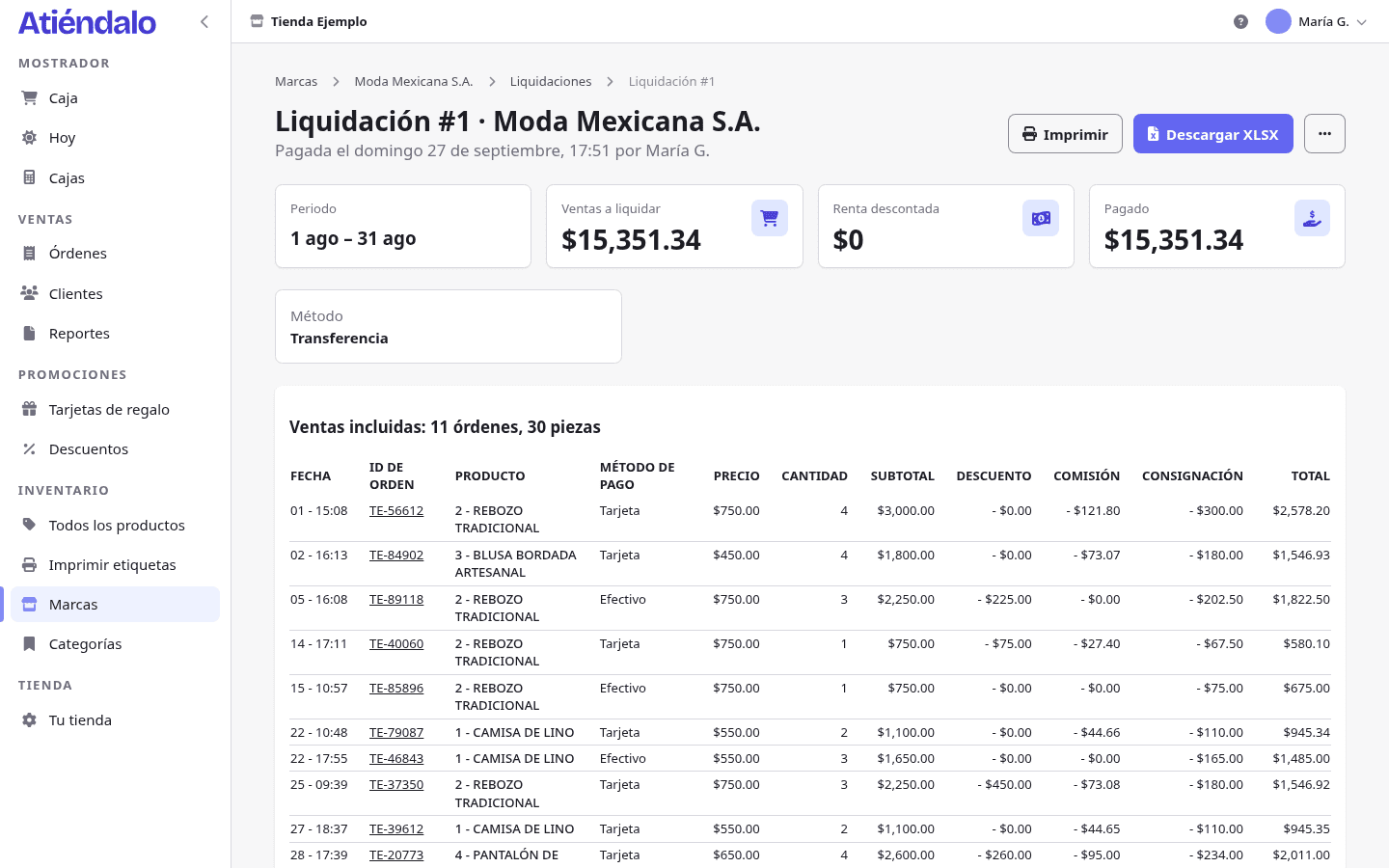
Each settlement opens as a statement, prints from the browser and downloads as XLSX with numeric cells.
So the brand gets it without you sending it by hand:
- Give it a Brand email on its form. When each period closes, Atiéndalo emails its statement; replies come to you.
- If a brand closes on a different cadence than your shop (weekly in a monthly shop, say), set Settlement cycle on its form: its report, statement and settlements follow that rhythm.
- From the brand’s report, Send by email sends the period you are looking at right now.
- The brand’s Portal (on its page, under Brands) is a read-only link with its sales, stock and settlements. If the link leaks, press Generate new link and the old one stops working.
Downloading reports
Both the overall report and each brand’s download from the [···] menu in the header, as XLSX and CSV.
- The overall XLSX has one sheet per block on the screen: Summary (sales, discounts, commissions, consignment, cost, margin and gift cards), Brands (what you owe each brand), Orders (one row per sale) and Returns, which only appears if there were any in the period.
- The overall CSV is the orders table alone, to paste into your own spreadsheet.
- A brand’s XLSX and CSV carry its sold lines with the same columns as the statement, so you see the same numbers before and after paying it.
Amounts are numbers, not text, so you can add them up directly. Returns are marked as such in the Type column.
Periods and time zone
The period selector follows your shop’s setting (week or month, in General settings), and each brand can have its own cadence. Days, weeks and months follow your shop’s time zone, not each user’s device, so everyone sees the same cut-offs.
The today panel
Today shows the current day live: sales against yesterday and last week, sales by hour, top products and brands, low-stock products and the drawer status. It is the home page of a shop that is already set up.
What can go wrong
- A sale is missing from the report. Only completed sales count: check it is not voided or on layaway, and that its date falls inside the chosen period (in the shop’s time zone).
- The brand’s total does not match what I add by hand. Subtract the prorated discount, the commission on the card-paid part (with VAT) and the consignment, line by line. The brand’s XLSX carries each column so you can check.
- I changed the commission and last month’s report did not change. On purpose: each sale stores the percentages from the moment it was charged. The new commission applies to new sales.
- I cannot void an order. If its lines are already in a settlement, they are frozen. Make a return instead: the difference is deducted in the brand’s next settlement.
- Undo does not appear on a settlement. Only each brand’s latest settlement can be undone, and not if any of its sales had a return.
- The brand did not receive its statement. Check it has a Brand email on its form. For now it does not go out on its own: Send by email from its report sends it right away.
Still deciding whether Atiéndalo is for your shop? The Consignment & settlements page walks through the split with an example, and the consignment calculator lets you try your own numbers.